Migrate to Microsoft 365
Migrate email, files, calendars, and contacts into Microsoft 365 in one guided workflow.
Prepare before launch, catch issues early, and stay in control through completion.
Start your migration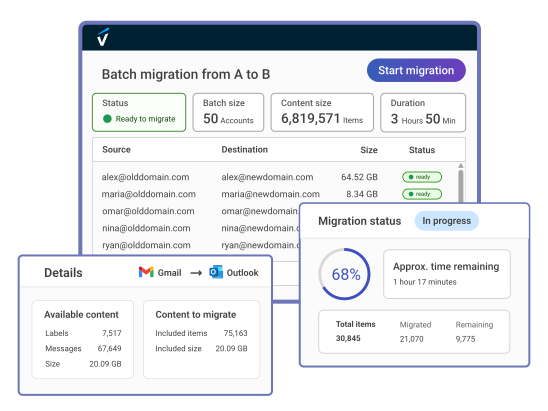
Built for reliable migrations
- Preserve content and organization as faithfully as possible
- Surface common blockers before migration starts
- Leave source content intact throughout the migration
- Verify the result with detailed item-level reports


VaultMe is built for small and medium-sized migrations of 5-500 accounts.
It brings email, files, calendars, and contacts into one workflow, with clear guidance at every step.
Who uses VaultMe
IT administrators
Plan and run provider transitions, reorganizations, employee account migrations, and account-retention projects with one clear workflow.
Managed service providers
Deliver repeatable migrations for clients, from one-time provider switches to ongoing onboarding, offboarding, and account-retention work.
Small business owners
Run your company's migration yourself with a guided workflow designed for administrators who are not migration specialists.


Supported service providers
Migrate email, files, calendars, and contacts from


Migrate email from


What can be migrated to Microsoft 365
- Email messages
- Folders and labels
- Dates and times
- Attachments
- Formatting
- Other metadata


Files
- Files owned by users
- Shared files
- Content from shared drives and libraries
- Folder structures
- Dates and times
- File formats
- Original image resolution


Contacts
- Contact records
- Folders
- Profile images
- Birthdays
- Notes
- Other properties


Calendars
- Personal calendars
- Events
- Recurrence settings
- Event locations
- Other properties


Adapting content for Microsoft 365

Different platforms organize email, files, calendars, and contacts in different ways.
Features
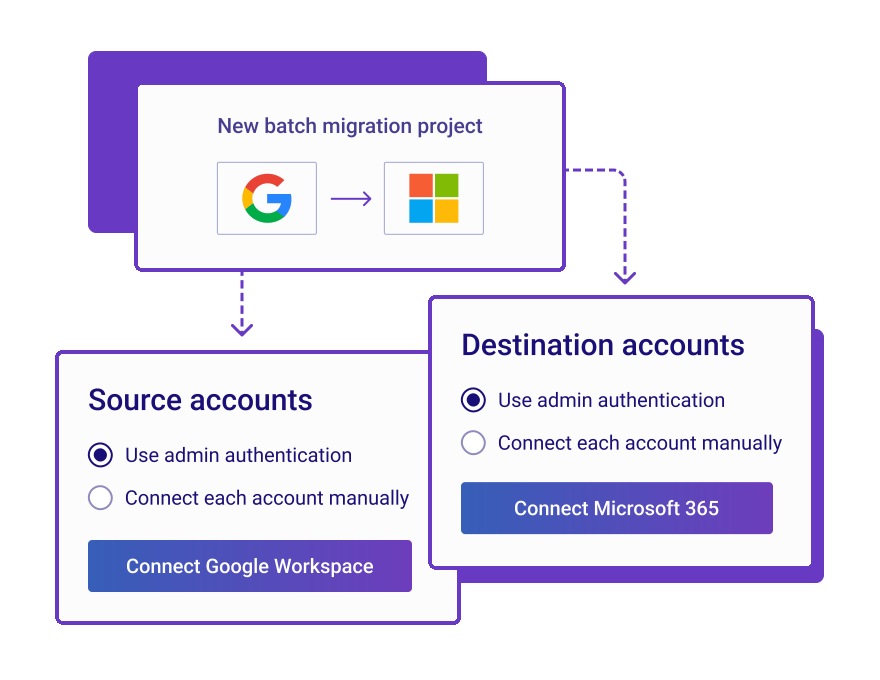
Account connections
- Use admin authorization
- Send user authorization links
- Connect individual mailboxes
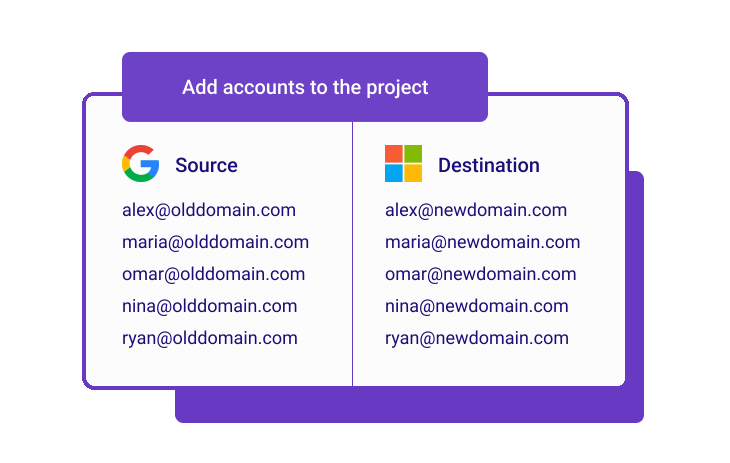
Project workspace
- Add accounts one by one
- Import from spreadsheets
- Review the full project
User mapping
- Match source and destination
- Map users in bulk
- Review every assignment
Pre-migration checks
- Validate account access
- Check destination storage
- Verify licenses and permissions
- Review actionable warnings
Migration preferences
- Choose content types
- Set per-user scope
- Merge or separate content
Migration execution
- Run accounts in parallel
- Migrate content types together
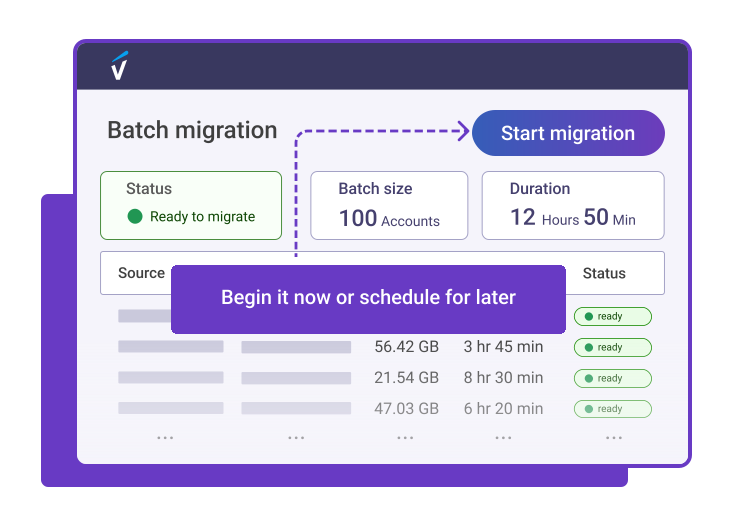
- Start now or schedule
Real-time monitoring
- Monitor batch progress live
- View account-level progress
- See remaining work
- Review warnings and issues
Sync-up migrations
- Copy new source items
- Include updated content
- Avoid duplicate copies
- Run on demand
Migration reports
- Review every migrated item
- See destination locations
- Review issues with explanations
- Download as Excel files
Why VaultMe?
A focused approach to complete, predictable migrations.

Focused expertise
VaultMe focuses on Google Workspace and Microsoft 365, including their formats, permissions, limits, and edge cases.

One workflow
Migrate email, files, calendars, and contacts together instead of setting up and monitoring separate jobs.

Complete by default
Preserve business content and its organization as completely and faithfully as possible.

Preparation first
Pre-migration checks surface common blockers before launch, reducing problems after migration starts.

Guidance throughout
Get practical help through documentation, in-app guidance, context-aware AI assistance, and human support.
Set up your migration in five steps
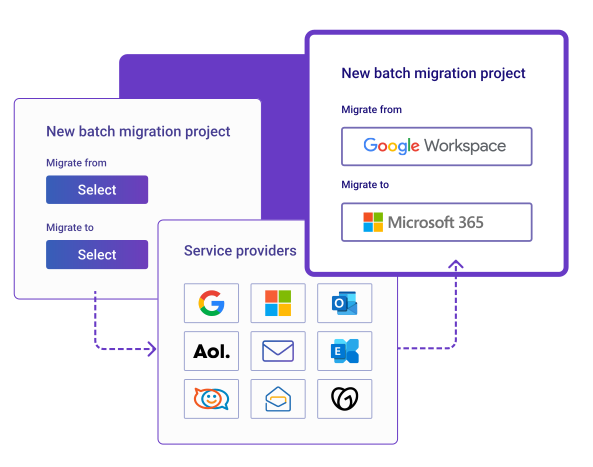

- 01Choose providersSelect the source provider and Microsoft 365 as the destination.
When to use VaultMe
Switching to Microsoft 365
Migrate users and business content from Google Workspace or another supported system into Microsoft 365.Mergers and reorganizations
Bring users and business content to Microsoft 365 during mergers, acquisitions, separations, or internal reorganizations.Onboarding and offboarding
Bring a new employee's existing content into their Microsoft 365 account, or transfer a departing employee's content into another company-controlled account.Account retention
Retain business content from former employee accounts in company-controlled Microsoft 365 accounts for future reference, legal review, or compliance.
Security and compliance

VaultMe protects migration content during transfer and processing, and uses it only to run and support the migration.
- Encrypted cloud-to-cloud transfers
- GDPR and CCPA compliant
- Vetted by independent third parties
Reviews
See what IT professionals say about VaultMe.
- Read the full review on CapterraWe've relied on VaultMe for nine years now, and it has consistently impressed us with its performance, attention to detail, and responsive support. Whether handling one-off migrations or larger batch jobs, the results have always been reliable.
- Read the full review on CapterraVaultMe works seamlessly. It walks you through the migration process, step by step. ... The process was smooth, quick, and a good value.

Pricing
No subscriptions or licenses.
- $0.20 per GB migrated
- $0.20 per 1,000 items migrated
Microsoft 365 migration guides
Explore step-by-step guides for common migration paths into Microsoft 365.
Get started with VaultMe
Set up your migration. Confirm readiness. Pay when you're ready.
Start your migrationHave questions?
