How to Archive Multiple Former Employee Accounts
When an employee leaves, their account may still contain customer correspondence, project files, contracts, meeting history, and business contacts. This content may be needed by managers, replacement employees, or other teams after the employee’s access has been disabled.
Closing the account before retaining its content can interrupt ongoing work and make important information difficult to recover. When several employees leave, administrators need a consistent process for preserving their content before the source accounts are closed.
- What does it mean to archive a former employee account?
- Why is it important to archive former employee content?
- Two approaches to archiving employee accounts
- Where can former employee content be archived?
- Should copied content be merged or kept separate?
- Comparing tools for archiving employee accounts
- How to archive multiple employee accounts with VaultMe
- Frequently asked questions
- Related articles
What does it mean to archive a former employee account?
Archiving a former employee account means copying its valuable business content into a company-controlled account. Depending on the services involved, this may include email, files, calendars, and contacts.
The destination could be a manager’s account, a replacement employee’s account, a shared company account, or an account created specifically for archived content. The objective is to keep the former employee’s work accessible to authorized users without continuing to rely on the original account.
Closing an account does not automatically archive its contents, and content that has not been retained may become unavailable after the provider’s recovery period expires.
Why is it important to archive former employee content?
Former employee accounts often contain information that is not stored anywhere else. A mailbox may hold the history of a customer relationship, while files in personal cloud storage may contain the latest versions of contracts, reports, or project documents. Calendars and contacts can also provide context that colleagues need to continue the employee’s work.
Retaining this content helps an organization:
- Maintain continuity when responsibilities are reassigned
- Give managers and replacement employees access to previous work
- Preserve correspondence, attachments, and project history
- Reduce dependence on former employees’ credentials
- Keep company-owned content under company control
An individual account may be copied manually, but this approach becomes difficult to manage when several employees are being offboarded. Email, files, calendars, and contacts may require different export and import procedures, and administrators must keep track of which source content belongs in each destination.
For this reason, multiple former employee accounts are usually archived with an automated migration tool.
Two approaches to archiving employee accounts
Organizations can retain former employee content in two fundamentally different ways. They can copy it into an active company-controlled account or preserve it outside active accounts in a dedicated backup or long-term archive.
| Approach | Where the content is retained | How it is accessed | Best suited for | Representative tools |
|---|---|---|---|---|
| Copy content into an active account | A manager’s account, a replacement employee’s account, a shared account, or a dedicated company archive account | Authorized employees access the copied email, files, calendars, and contacts directly through the destination account | Organizations that need former employee content for ongoing work, customer service, project continuity, or internal reference | Migration tools such as VaultMe, MigrationWiz, and Movebot |
| Retain content outside active accounts | An independent backup repository, compliance archive, or long-term storage system | Administrators search, export, or restore retained content when it is needed | Organizations with formal backup, regulatory-retention, legal-hold, eDiscovery, or disaster-recovery requirements | Backup and compliance products such as AvePoint Cloud Backup |
For many small and medium-sized businesses, the first approach is more practical. A manager or replacement employee usually needs direct access to previous correspondence, documents, calendars, and contacts. Copying that content into an active company-controlled account makes it available without requiring administrators to search an external archive and restore individual items.
The second approach is designed for long-term protection and governance. Archiving tools retain protected content outside the active account environment and provide features such as automated backups, long-term retention, immutable storage, and granular recovery. This is useful when the primary objective is compliance or recovery rather than continued day-to-day access.
This article focuses on copying former employee content into active company-controlled accounts because its primary audience is small and medium-sized businesses with operational retention needs. Enterprise-scale backup, compliance archiving, legal holds, eDiscovery, and information-governance projects form a separate domain and require a different planning process.
Where can former employee content be archived?
The right destination depends on who needs access, how long the content will be retained, and whether content from several employees will be stored together.
| Destination | Best suited for | Important considerations |
|---|---|---|
| Manager’s account | Situations where the manager will assume the former employee’s responsibilities. | The copied content may become mixed with the manager’s existing email, files, calendars, and contacts unless it is placed in separate folders or labels. |
| Replacement employee’s account | Roles in which a successor needs the former employee’s correspondence, documents, and working history. | Separating inherited content is critical as it helps the replacement distinguish it from content created in their own account. |
| Shared company account | Content that must be available to a team or department. | Access permissions must be controlled, and content from different employees should be organized consistently. |
| Dedicated archive account | Centralized retention of content from several former employees. | Each employee’s content should have a clearly identified folder or label to prevent unrelated mailboxes and files from becoming mixed together, and the destination account must have ample free storage space. |
| Separate archive account for each employee | Cases where content must remain completely isolated or be retained for different periods. | This provides the clearest separation but may require additional accounts, licenses, and administration. |
Should copied content be merged or kept separate?
Copied content can either be merged with content already in the destination account or kept in a separate location. The appropriate option depends on how the destination will be used and whether it will receive content from more than one former employee.
| Organization method | How it works | Best suited for | Main risk |
|---|---|---|---|
| Merge with existing content | Copied items are added to the destination’s existing folders, labels, calendars, contacts, or file structure. | A replacement employee taking over one account and continuing the same work. | Inherited content may be difficult to distinguish from the destination user’s own content. |
| Keep copied content separate | The copied content is placed under a newly created folder, label, or other identifiable location in the destination. | Managers, shared accounts, and archive accounts receiving content from one or more former employees. | The administrator needs a consistent naming structure for every source account. |
Separation is particularly important when several former employee accounts are copied into one destination. Each source should have a clearly named location, such as:
- Archive – alex.johnson@company.com
- Archive – morgan.lee@company.com
- Archive – salesteam2025@company.com
The migration tool should be able to create the required destination folder or label and preserve the source account’s internal structure beneath it.
Third-party migration tools commonly provide content-organization controls for this purpose.
Manual methods and free provider tools may be adequate for a single small account, but they often require administrators to create folders, run separate exports and imports, and reorganize the results manually. These limitations become more significant when multiple former employee accounts must be copied into the same destination.
Comparing tools for archiving employee accounts
The right archiving method depends on more than whether it can copy a mailbox. Administrators should also consider whether email and files can be handled in the same workflow, whether several former employees can be mapped to one destination, and how the copied content will be separated from content already in that account.
These differences affect the overall setup, the number of projects an administrator must configure, and the amount of manual organization required. The table below compares VaultMe, MigrationWiz, Movebot, and manual or free provider tools using these criteria.
| Tool or approach | Project structure | Multiple accounts and many-to-one migrations | Content organization | Main strengths | Trade-offs |
|---|---|---|---|---|---|
| VaultMe | Email, files, calendars, and contacts can be copied together in one migration workflow. | Accounts can be migrated in batches. Multiple former employee accounts can be mapped to one destination within the same project. | The administrator can merge copied content with existing destination content or keep it separate in a new migration folder that preserves the source structure. | One workflow for the employee’s core content; thorough preparation checks before execution; guided account mapping; detailed account- and item-level results. | Narrower provider support. VaultMe specializes in Google Workspace and Microsoft 365 with additional support for Exchange and IMAP mailbox migrations. |
| MigrationWiz | Mailboxes and documents are handled through different migration projects and license types. | Mailboxes can be added in bulk, and multiple source mailboxes can be directed to the same destination as separate migration items. | Content can be placed in a destination subfolder using advanced folder-mapping options. Calendar and contact folders require additional mappings. | Broad capabilities, detailed configuration options, and support for complex administrator-managed projects. | Complex feature-heavy documentation and setup. |
| Movebot | Mailbox migrations and file migrations are configured as separate projects or tasks. | CSV mappings support migrations in batches. Multiple source mailboxes can be mapped to one destination mailbox. | Each source mailbox can be directed to a separate destination subfolder by defining mailbox paths in the CSV mapping. | Broad support for file storage platforms.. | Many-to-one organization may require manually constructed source and destination paths. |
| Manual or free provider tools | Email, files, calendars, and contacts commonly require separate export, transfer, or import procedures. | Batch and many-to-one capabilities vary. Some accounts may need to be processed individually. | Administrators may need to create folders or labels and reorganize imported content manually. | Little or no software cost and potentially sufficient for one small account. | Considerable administrative work for multiple accounts, limited centralized reporting, inconsistent content separation, and separate procedures for different content types. |
How to archive multiple employee accounts with VaultMe
An IT administrator can use VaultMe to archive multiple former employee accounts by connecting the source and destination services, adding the accounts, mapping every source account to a company-controlled destination, and copying the selected content as a batch.
The accounts can be copied into different destinations or consolidated into one account. For example, some employees may be mapped to their managers, while others are mapped to a shared or dedicated archive account within the same project.
What content can VaultMe copy?
Depending on the source and destination combination, VaultMe can copy:
- Email, including folders or labels and attachments
- Files, their folder structure, and metadata
- Calendars and events
- Contacts and contact organization
VaultMe supports content migrations involving Google Workspace and Microsoft 365. It also supports mailbox migrations involving Exchange and IMAP-compatible email services. Exchange and IMAP support applies to email content, while the availability of files, calendars, and contacts depends on the migration route.
Can VaultMe archive accounts in batches?
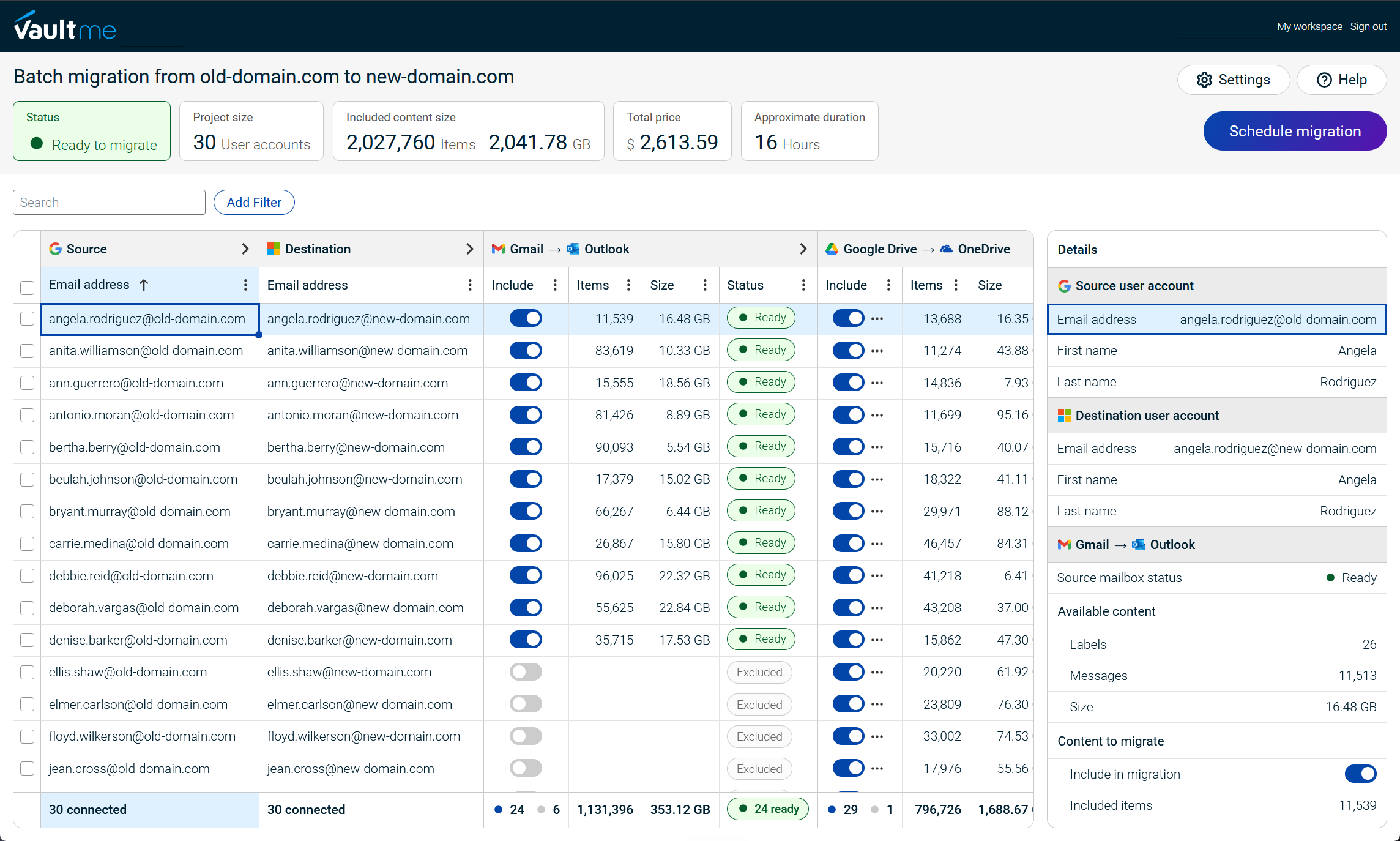
VaultMe supports batch migrations for administrators who need to archive several former employee accounts. Instead of configuring an independent project for every employee, the administrator can add account lists from a spreadsheet and manage all accounts within one project.
Each source account is mapped to its intended destination. The mappings can follow different patterns:
- One former employee account to one manager’s account
- One former employee account to one replacement employee’s account
- Multiple former employee accounts to one shared account
- Multiple former employee accounts to separate company-controlled account
Can VaultMe archive a single employee account?
VaultMe can archive one former employee account as well as batches of multiple accounts. The administrator adds the former employee’s source account, selects the company-controlled destination, chooses what content types to copy, and how to organize the copied content in the destination account.
Can VaultMe merge or separate the copied content?
VaultMe lets the administrator choose whether copied content should be merged with the content already in the destination or kept separate.
When separation is selected, VaultMe creates a new migration folder or label in the destination and preserves the source account’s organization beneath it. This makes it possible to identify the content belonging to each former employee, even when several accounts are copied into one destination.
The merge option is more appropriate when a replacement employee is continuing the same work and does not need inherited content to remain isolated. The separate option is generally preferable for managers, shared accounts, and dedicated archive accounts.

Frequently asked questions
How do I archive multiple former employee accounts?
Choose a company-controlled destination for each former employee, keep the source accounts accessible, and use a multi-account migration tool to copy the required business content. With VaultMe, an administrator can import the account list, map every source to its destination, and process the accounts as one batch project.
How do I copy a departing employee’s content into a company-controlled account?
Select an active destination account belonging to a manager, replacement employee, department, or dedicated company archive. Select a migration tool, and map the departing employee’s source account to that destination. Select the required email, files, calendars, and contacts, and copy the content before closing the source account.
How do I retain email and files after closing an employee account?
Email and files should normally be copied and verified before the employee account is closed. After closure, authorized users access the retained content through the company-controlled destination account rather than through the former employee’s credentials.
How do I archive a former employee’s mailbox into another account?
Use a mailbox migration tool to connect the source and destination email services and map the former employee’s mailbox to the receiving account. The copied mailbox should be placed in a clearly identified folder or label so that it does not become confused with the destination account’s existing email.
Can multiple former employee accounts be copied into one archive account?
Yes. A migration tool that supports many-to-one mappings can copy several former employee accounts into one company-controlled archive account. Each employee’s content should be kept in a separate folder or label so its source remains identifiable.
Can former employee files be retained along with their email?
Yes, provided the selected migration tool supports both mailbox and file content. VaultMe can copy email and files together in one workflow for supported Google Workspace and Microsoft 365 migrations, rather than requiring separate mailbox and file projects.
Do I need a migration tool to archive former employee accounts?
Manual and free provider tools may be sufficient for one small account. A paid migration tool is more practical when several accounts or content types are involved because it can provide batch processing, account mapping, content separation, preparation checks, monitoring, and result reporting.
Is copying former employee content the same as compliance archiving?
No. Copying content into an active company-controlled account keeps it available for operational use. Compliance archives and backup services retain content outside active accounts and may provide immutable storage, retention policies, legal holds, eDiscovery, or recovery points.
Related articles
Getting ready for a merger or acquisition? Learn how you can merge or consolidate user accounts: Best Cloud Migration Tools for Mergers and Acquisitions.
Have several individual Gmail accounts that you want to merge? Explore your options: How to Merge Gmail Accounts.
Need to migrate users from one Google Workspace to another? Learn what options are available: Transfer Google Workspace to Another Account: Migration Guide.
Planning a Google Workspace migration? VaultMe provides guidance on how to choose an appropriate tool in this article: Best Google Workspace Migration Tools for IT Administrators.