Migrate from Google Workspace to Microsoft 365 Step by Step
A Google Workspace to Microsoft 365 migration transfers Gmail to Outlook, Google Drive files to OneDrive, and calendars and contacts to their Microsoft equivalents. It also requires preparing and mapping user accounts, testing the migration, and completing a DNS cutover.
Organizations can use Microsoft’s native tools or third-party migration software. This guide compares both approaches and explains how to plan, perform, and verify the migration while minimizing disruption.


Terminology note: Office 365 is the former name commonly used for Microsoft 365 business services, while G Suite is the former name of Google Workspace. This guide uses the current product names except when discussing common search terms or legacy documentation.
- Step 1. Plan your Google Workspace to Microsoft 365 migration
- Step 2. Review tools for Google Workspace to Microsoft 365 migration
- Step 3. Select a Google Workspace to Microsoft 365 migration tool for your project
- Step 4. Prepare for the Google Workspace to Office 365 migration
- Step 5. Transfer user content from Google Workspace to Microsoft 365
- Step 6. After you migrate from Google Workspace to Office 365
- Additional resources
- Related articles
- Related videos
Step 1. Plan your Google Workspace to Microsoft 365 migration
Before starting the migration, define its scope and schedule, and prepare the destination.
During the planning stage:
-
Create an inventory of content in Google Workspace.
List user accounts, mailbox sizes, Google Drive sizes, shared drives (if any), calendars, and contacts. -
Choose what to migrate.
Create a full list of all active and inactive accounts. Then, decide which user accounts must be migrated to Microsoft 365 and which are no longer required. Note that while you may no longer be using some old mailboxes, you may need to retain them for future reference anyway. In this case, you can migrate them all into one mailbox in Microsoft 365 for archival purposes. Additionally, reviewing the contents of smaller accounts in your organization would be helpful. If a small account contains little to no content, not migrating it may reduce costs and migration time. -
Map user accounts.
Create a simple spreadsheet linking old accounts to the new ones. You'll need this list when setting up your migration. -
Plan the schedule.
While migration of a couple of small accounts can be completed within several hours, larger organizations typically need several days or even more. We recommend beginning the process early and allowing extra time for unexpected delays. -
Prepare licenses and storage.
Purchase the appropriate Microsoft 365 licenses and confirm that every destination mailbox and OneDrive account has enough capacity for the transferred content.Microsoft 365 provides a variety of business plans starting at just $6 per user per month. To help you choose the best option for your needs, Microsoft offers a handy tool: Find the right plan for your business. Remember that the amount of free storage space available to users may vary depending on a Microsoft 365 package. If some of your users have extra-large accounts in Google Workspace, you may need to account for that when selecting your plan in Microsoft.
Step 2. Review tools for Google Workspace to Microsoft 365 migration
Migration tools often appear similar because they work with many of the same types of business content. However, vendors take different approaches to planning migrations, guiding administrators, organizing projects, and resolving problems.
There is no single best approach for every organization. Before comparing individual products, it is helpful to understand the migration philosophy behind each type of solution.
Tools specializing in Google Workspace and Microsoft 365 migrations
Some migration tools concentrate on a small number of closely related productivity platforms instead of supporting every possible system. Their goal is to develop deeper knowledge of the differences between Google Workspace and Microsoft 365, including how each platform organizes email, files, calendars, contacts, and user accounts.
This specialization allows the migration workflow and documentation to be designed around the issues administrators are likely to encounter when moving between Google and Microsoft. Instead of assuming extensive migration experience, these tools generally place greater emphasis on preparation, guidance, and identifying problems before the migration begins.
The trade-off is narrower platform coverage. A specialized tool may be a strong fit for migrations centered on Google Workspace and Microsoft 365 but less suitable for organizations that need one platform for many unrelated legacy systems or enterprise workloads.
Representative product: VaultMe
VaultMe follows this specialized approach by focusing primarily on migrations involving Google Workspace and Microsoft 365. It treats the transfer of supported user content as one coordinated project rather than a collection of unrelated technical tasks.
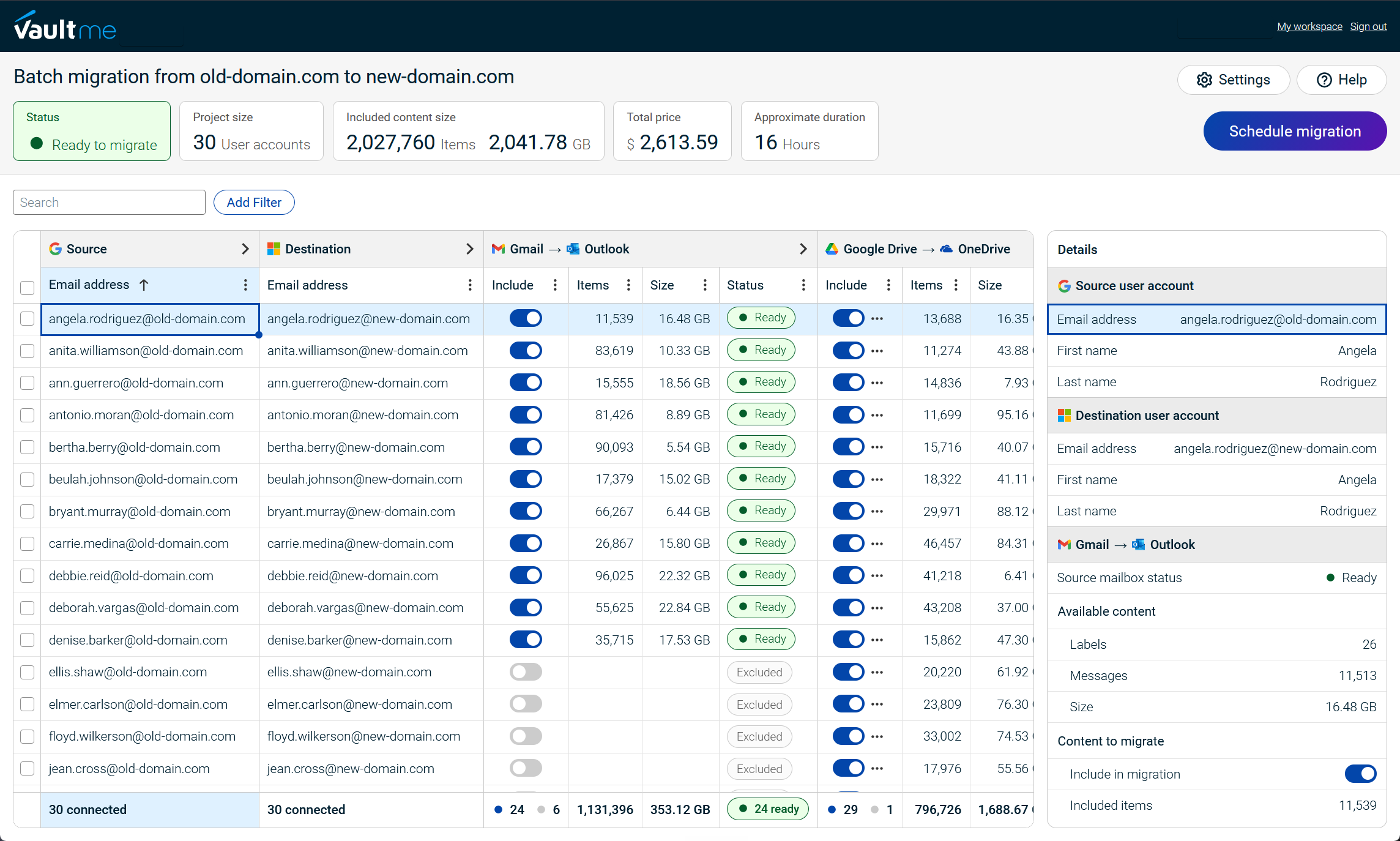
VaultMe’s migration philosophy emphasizes preparation and transparency. Administrators are guided through connecting environments, mapping users, organizing batches, checking account readiness, reviewing the migration plan, and verifying the final results. Pre-migration checks are central to the process because configuration and storage problems are easier to resolve before the migration starts.
This approach is designed for organizations that want to retain control of the migration without having to develop scripts or already possess extensive migration experience. The trade-off is that VaultMe is not intended to serve as a universal tool for every infrastructure, directory, or legacy-system migration.
Read VaultMe's customer stories: VaultMe in Practice.
Microsoft-focused migration tools with Google Workspace support
Some platforms support Google Workspace as part of a broader range of Microsoft, Exchange, archive, and tenant migration scenarios. They are generally designed for experienced administrators and service providers that want to use the same operating model across different projects.
Representative product: MigrationWiz
MigrationWiz follows this approach. It offers flexibility across many migration scenarios but assumes that administrators understand how to select, configure, and coordinate the appropriate project types. This makes it well suited to migration specialists and managed service providers, but less tailored to administrators seeking a guided Google-to-Microsoft migration journey.
See how VaultMe compares to MigrationWiz: VaultMe vs BitTitan MigrationWiz.
Workspace management platforms with migration capabilities
Workspace management platforms treat migration as part of a broader user and data lifecycle that may also include onboarding, offboarding, backup, archiving, and ongoing administration.
Representative product: CloudM
CloudM represents this approach by placing migration within a wider workspace-management and professional-services offering. It may suit organizations that want migration to support a longer-term administration strategy. The trade-off is that the broader platform and consultative model may be more than a one-time migration requires.
See how VaultMe compares to CloudM: VaultMe vs CloudM.
Microsoft’s native migration services
Microsoft’s native services approach migration from the destination platform’s perspective. Administrators use Microsoft’s processes to bring supported Google Workspace content into the corresponding Microsoft 365 services.
This approach is best suited to organizations with experienced Microsoft 365 administrators and requirements that closely match Microsoft’s supported migration paths. The organization remains responsible for coordinating the overall project, interpreting results, and troubleshooting problems.
Note that free tools may have limitations that paid third-party tools do not have. For example, the size of emails may be limited to 35 MB, or a maximum of 500,000 items can be migrated from a single user's mailbox. For more information about these limitations, refer to What you need to know about migrating your IMAP mailboxes to Microsoft 365 or Office 365.
Representative products: Microsoft Migration Manager, IMAP mailbox migration tool
Migration approaches compared
| Approach | Best suited for | Main advantage | Main trade-off | Representative tool |
|---|---|---|---|---|
| Tools specializing in Google Workspace and Microsoft 365 migrations | Organizations whose migration is centered on migrating user content between the Google and Microsoft ecosystems | The workflow, preparation guidance, and support are optimized for the behaviors and limitations of these platforms | Less suitable for organizations that need one product for many unrelated enterprise systems | VaultMe |
| Microsoft-focused migration tools with Google Workspace support | Migration specialists, managed service providers, and organizations running varied Microsoft migration projects | The same established platform can be used across Google Workspace, Exchange, Microsoft 365, archives, and other Microsoft-related scenarios | Google Workspace migration is one path within a broader platform and may involve separate projects or licenses for different workloads | MigrationWiz |
| Workspace management tools with migration capabilities | Organizations that view migration as part of ongoing user provisioning, offboarding, backup, and workspace administration | Migration can be combined with broader user-lifecycle and data-management processes | Organizations seeking only a one-time migration may not need the wider platform or consultative implementation model | CloudM |
| Microsoft’s native migration services | Organizations with straightforward requirements that closely match Microsoft’s supported migration paths | Available without purchasing a separate migration product and integrated with Microsoft 365 administration | The organization is responsible for coordinating multiple processes, interpreting documentation, and troubleshooting the project | Migration Manager, IMAP mailbox migration tool |
These approaches are not rankings. VaultMe prioritizes specialization and guided preparation; MigrationWiz prioritizes flexibility across Microsoft-related migration scenarios; CloudM treats migration as part of broader workspace management; and Microsoft’s native tools prioritize direct integration with the destination platform.
Step 3. Select a Google Workspace to Microsoft 365 migration tool for your project
The right migration tool is the one that matches your project size, scope, internal experience, and preferred way of managing the migration. Below are our suggestions for finding the tool that works best in your unique situation.
-
Consider the size of the migration.
Migration tools are often designed around different project sizes and operating models.
VaultMe primarily targets small and medium-sized projects involving approximately 5 to 500 user accounts. Its guided workflow is intended to help a single administrator or small IT team prepare, configure, and monitor the migration without building a complex migration operation.
MigrationWiz and CloudM are generally positioned for larger projects managed by experienced IT teams, migration specialists, or service providers. These projects may involve thousands of users, several administrators, multiple migration stages, and more complex coordination requirements.
Microsoft’s native tools can also support migrations in batches, but the organization must provide the administrative resources required to coordinate and troubleshoot the project.
Project size should be treated as a suitability indicator rather than a strict technical limit. The complexity of the accounts, amount of content, number of administrators, and required migration stages may matter as much as the number of users.
-
Review the migration tool's workflows.
Some migration tools migrate all content types in one project, while others offer separate tools for each content type.
-
Consider the administrator’s experience.
Some tools assume that the administrator understands migration endpoints, Google APIs, Microsoft 365 provisioning, identity mapping, migration batches, and troubleshooting. Others provide a more guided process.
Choose a tool that matches the people who will operate it. A platform designed for migration specialists may introduce unnecessary complexity for a first-time administrator. An experienced service provider, however, may prefer a platform that offers greater control over project configuration.
-
Evaluate preparation and verification.
A successful migration depends on what happens before and after content is transferred.
Before migration, determine how account-access problems, missing licenses, insufficient storage, incorrect user mappings, and unavailable services will be identified. After migration, establish how administrators will confirm the results and investigate skipped or unsupported items.
Tools that emphasize preparation may help prevent problems before launch. More flexible tools may expect administrators to design their own preparation and validation processes.
-
Consider the support model.
Decide whether your team expects to rely on documentation, in-product guidance, vendor support, a consultant, or a managed service.
Support is especially important when the migration runs over a weekend or when the organization lacks internal Google Workspace and Microsoft 365 expertise.
-
Run a trial migration.
Use the pilot to evaluate the setup process, migration results, reporting, and support experience. A realistic pilot provides a better basis for choosing a tool than product descriptions alone.
Google Workspace to Microsoft 365 tools compared
| Evaluation criteria | VaultMe | MigrationWiz | CloudM | Microsoft native tools |
|---|---|---|---|---|
| Typical project size | Small to medium projects, approximately 5–500 accounts | Mid-sized to enterprise projects | Mid-sized to enterprise projects | Small to enterprise projects |
| Assumed administrator experience | Designed for administrators with little or no previous migration experience | Assumes experience planning and configuring migration projects | Assumes migration experience or involvement from CloudM specialists | Assumes experience with Google Workspace, Microsoft 365, and specific migration processes |
| Migration workflow | Email, files, contacts, and calendars are managed as one migration project | Different content types are generally configured and managed through separate projects | Supported content types can be managed within one migration project | A separate tool for each content type |
| Pre-migration checks | A mandatory part of setup; the migration cannot begin until blocking account, permission, service, and storage issues are resolved | Validation is available but is not the organizing principle of the migration workflow | Pre-migration scanning is available but is not mandatory for every project | Scanning and validation depend on the Microsoft tool and content type |
| Self-service evaluation | Administrators can create a project, connect accounts, and complete the pre-migration scan without payment or a sales call | Administrators need to obtain a free trial license to test the tool | Access normally begins through a sales conversation, demo, or migration consultation | Administrators can test the native tools directly within an eligible Microsoft 365 environment |
| Support approach | Journey-based documentation, in-app guidance, contextual AI assistance, and human support | Extensive technical documentation organized around products and migration scenarios, with human support available | Technical documentation, human support, consulting, and managed migration services | Microsoft technical documentation, community resources, and migration partners |
Which tool should you consider?
- Consider VaultMe for a focused Google Workspace-to-Microsoft 365 migration of approximately 5–500 accounts when a small IT team wants a guided, preparation-centered process.
- Consider MigrationWiz for larger projects run by experienced migration teams or service providers that regularly manage different Microsoft-related migration scenarios.
- Consider CloudM for larger organizations where migration forms part of a broader workspace-management strategy or requires a consultative delivery model.
- Consider Microsoft’s native tools when the requirements match Microsoft’s supported migration paths and the organization has sufficient internal resources to coordinate the project.

Step 4. Prepare for the Google Workspace to Office 365 migration
Now that you’ve selected your migration tool, you can start preparing for your transition. Proper preparation is essential for a successful Google to Microsoft migration as it helps minimize disruptions and ensure content integrity.
To prepare for the Google Workspace to Microsoft 365 migration:
-
Set up the Microsoft 365 tenant.
To begin, navigate to Microsoft 365 for Business. During the sign-up process, you will need to provide information about your organization and verify the ownership of the domain.
After adding the domain, set up the admin account and configure the security settings of your Microsoft 365 account by adding SPF, DKIM, and DMARC records.
If you are not changing your domain name and user email addresses, do not change the MX records at this point. Otherwise, new emails will start arriving in Outlook immediately, and Gmail accounts will stop working.
Signing up for Microsoft 365 and configuring the admin account are critical tasks that may require more time than expected. Plan at least several days for this.
-
Create and activate user accounts.
Create a Microsoft 365 account for every user included in the migration and assign the required licenses. Where possible, keep usernames and email addresses consistent between Google Workspace and Microsoft 365 to simplify user mapping.
Remember that OneDrive accounts are not fully functional immediately after you create them. You or your users need to sign in to their OneDrive accounts before migration to activate them. For instructions on activating OneDrive for user accounts as an admin, see this article: Pre-provision OneDrive for users in your organization.
-
Ensure that users with large accounts have sufficient storage space in Microsoft 365 for their migrated content.
Compare the amount of Gmail and Google Drive content associated with each user against the storage available under the assigned Microsoft 365 license.
Most Microsoft 365 business users have up to 50 GB of Outlook storage space and 1 TB of OneDrive storage space.
If some users have over 50 GB of email and 1 TB of Drive files in the source accounts, modify their storage limits in Microsoft 365 before the migration or choose a different Microsoft 365 package.
-
Review compatibility concerns.
Prepare for incompatibility issues and download any unsupported content in advance, if necessary.
| Compatibility concern | What happens | Recommended preparation |
|---|---|---|
| Gmail labels | Microsoft 365 uses folders rather than labels. An email can have multiple Gmail labels but can belong to only one custom Outlook folder. | If necessary, ask users to reorganize Gmail so that each message belongs to only one custom label before migration. |
| Long file paths | OneDrive and SharePoint limit the complete file path, including the filename, to 400 characters. Depending on the migration tool, deeply nested content may be reorganized or skipped. | Ask users to shorten folder and file names and reduce the number of nested folder levels where necessary. |
| Google Maps | Microsoft 365 has no direct equivalent. | Export this content separately where possible. |
| YouTube items | Microsoft 365 has no direct equivalent. | Download the videos and move them to Microsoft Stream/Clipchamp, with files stored in SharePoint or OneDrive. |
| Google Photos | Google offers very limited APIs for migration of Google Photos. | Export this content separately and add to OneDrive. |
| Google Keep | Microsoft 365 has no direct equivalent. | Export important notes and recreate or reorganize them in OneNote or another selected application. |
| Google Sites | Microsoft 365 has no direct equivalent. | Pages, navigation, permissions, embeds, and styling must be rebuilt. |
| Google Drawings | Microsoft 365 has no direct equivalent. | Export this content separately where possible. Google Drawings may be converted to PNG, so they are preserved visually but are no longer editable diagrams. |
-
Prepare users for the transition.
Tell users when the migration will occur, when they should stop making changes in Google Workspace, and when they can begin using Microsoft 365.
Explain which services are changing and provide instructions for signing in to Outlook, OneDrive, and SharePoint.
-
Back up any critical content (optional).
While most migration services do not remove the content from the source accounts, it's a good practice to back up any critical content during the transition period.
-
Prepare the cutover and pilot.
Select a representative pilot group that includes different mailbox sizes, Drive usage patterns, and shared-content requirements.
Plan the final DNS cutover for a low-traffic period. If appropriate, lower the DNS time-to-live value several days beforehand so that the later MX-record change can propagate more quickly.
Do not deactivate Google Workspace accounts before or during the migration. The migration tool must retain access to the source content until the transfer and any follow-up synchronization are complete.
Step 5. Transfer user content from Google Workspace to Microsoft 365
To minimize disruptions to daily operations, consider migrating user content over the weekend. Before starting the migration, make sure all essential tasks are completed, users are notified of the schedule, and backups are created.
Keep all Google Workspace source accounts active until the migration and verification process is complete.
Take the following steps:
-
Launch the pilot migration.
Start with the pilot group selected during preparation. Use the pilot to observe migration patterns, including transfer speed, throttling, common warnings, interruptions, and differences between account types.
These results will help you estimate batch durations and the overall migration timeline. They will also set realistic expectations for administrator involvement, user impact, and any possible issues that may arise during the remaining batches.
-
Launch the production batches.
Start the planned batches according to the migration schedule. Run them sequentially or concurrently based on the tool’s capacity, provider limits, and the resources available to monitor the project.
-
Monitor active migrations.
For each batch:
- Track account and batch progress
- Review any warnings
- Watch for storage or service-access problems
Do not deactivate Google Workspace accounts or change mail routing when the transfer finishes. Verification and cutover should be completed during the next stage.
Step 6. After you migrate from Google Workspace to Office 365
Take the following steps after you migrate user content:
-
Evaluate the migration results.
After you migrate user content, ask users or selected administrators to compare the content in the source accounts with the migration results in the destination accounts. If you’ve used VaultMe, download the migration reports. These reports contain complete lists of all items copied to the destination and their locations in the old and new accounts. -
Educate your users.
Before completely switching from Google Workspace to Microsoft 365, ensure that your users know how to work with their new accounts and all services that you'll be using. Training users before making the switch will help you avoid disruptions in daily work. You can use the following learning materials to help your team: Microsoft 365 basics video training. -
Run a delta migration before the cutover.
This will help test all connections and reduce the amount of content that will need to be copied during the final sync. -
Update DNS records.
When you are ready to start using Microsoft 365 instead of Google Workspace, modify your domain’s DNS records to point email to Microsoft 365. After you update the DNS records in your domain registrar, emails will start arriving in Outlook. Allow time for DNS changes to propagate.Test:
- Incoming messages from external addresses
- Outgoing messages to external addresses
- Internal mail delivery
- Replies to existing conversations
- Messages sent to aliases and distribution groups
-
Run another sync-up migration immediately after the cutover.
This will help capture the final changes. -
Finalize Microsoft 365 settings.
Adjust any final settings in Microsoft 365, such as adding the company logo and setting up email forwarding, auto-replies, and signatures. At this stage, you may also choose to create shared libraries for collaboration.Recreate or configure items that could not transferred automatically, such as:
- Email aliases
- Distribution lists and Microsoft 365 Groups
- Shared mailboxes
- Shared and resource calendars
- Mailbox rules and automatic replies
- Unsupported Google Workspace content
- Cancel your Google Workspace subscription.
Avoid deactivating user source accounts immediately after the migration. First, ensure that you are happy with the results of the migration and nothing has been overlooked. We recommend waiting at least 30 days before permanently deleting the old system.
Additional resources
To find learning content for your team, refer to Microsoft's learning portal: Small Business Help & learning.
For easy-to-follow video resources on using your Microsoft 365 subscription, subscribe to Microsoft's official YouTube channel: Microsoft 365 Help for Small Businesses.
Join the Microsoft Community for help with any issues with your account setup.
Related articles
If you are a Google Workspace or Office 365 administrator, learn how to choose an email migration tool for your project: Best Email Migration Tools and Services for IT Admins.
Planning an Office 365 migration? Learn what to expect and how you can prepare: Office 365 Migration Tools: How to Migrate to Microsoft.
Planning a tenant-to-tenant migration? VaultMe's migration guide provides useful recommendations: How to Perform Microsoft 365 Tenant-to-Tenant Migrations With or Without a Domain Change.
Need to migrate user content after a merger or acquisition? Learn what tools are available: Best Cloud Migration Tools for Mergers and Acquisitions.
Wondering what will happen when you migrate your Google files to Microsoft? Our article provides an explanation: Migrate Google Docs to Office 365.
Need to transfer email to Office 365? Explore your options: Migrate Gmail to Office 365.
Transferring Zimbra users to Microsoft 365? Use VaultMe's migration guide: Zimbra to Office 365 Migration: VaultMe's How-to Guide.
Related videos
Video Guide: How to Migrate Google Workspace to Office 365 or Microsoft 365