How to Perform Microsoft 365 Tenant-to-Tenant Migrations Step by Step
A Microsoft 365 tenant-to-tenant migration copies business content from user accounts in one Microsoft 365 environment to user accounts in another. It is commonly required after a merger, acquisition, divestiture, or rebranding. Depending on the project, the copied content may include email, calendars, contacts, OneDrive files, and shared content.
This guide focuses primarily on copying core employee content. SharePoint sites, Teams structures, devices, Entra ID configuration, and security policies require separate tools or procedures.
- How can an IT administrator migrate multiple Microsoft 365 accounts?
- Same domain vs. new domain
- How to plan a tenant-to-tenant migration
- Scenario 1: Tenant–to-tenant migration with domain change
- Scenario 2: Tenant-to-tenant migration when the domain stays the same
- How to avoid downtime during a tenant-to-tenant migration
- Best automated tools for Microsoft 365 tenant-to-tenant migration
- What are the free Microsoft 365 tenant-to-tenant migration tools?
- Why choose VaultMe for a Microsoft 365 tenant-to-tenant migration?
- Frequently asked questions about tenant-to-tenant migrations
- Additional resources
- Related articles
How can an IT administrator migrate multiple Microsoft 365 accounts?
An IT administrator can migrate multiple employee accounts using one of the specialized migration tools that we discuss in this article. The full process involves preparing and licensing the destination accounts, connecting both Microsoft 365 tenants through administrator authorization, adding user accounts and mapping them, and copying their business content as a batch.
Migration tools can copy business content, but administrators remain responsible for destination-account provisioning, domain configuration, DNS, licensing, and cutover decisions.
Same domain vs. new domain
One decision has a profound effect on the migration plan: whether users will keep their existing email domain.
When the domain changes, destination accounts can usually be created with their permanent email addresses before business content is copied. This makes it easier to prepare and test the destination tenant in advance.
When the domain stays the same, the destination accounts must initially use a temporary domain, such as the target tenant’s onmicrosoft.com domain. (For more information, see Add or replace a onmicrosoft.com fallback domain in Microsoft 365.)
The custom domain cannot be connected to both Microsoft 365 tenants simultaneously. During cutover, administrators must remove it from the source tenant, add it to the destination tenant, and assign it to the destination accounts.
| Consideration | Domain changes | Domain stays the same |
|---|---|---|
| Destination accounts | Created with their permanent new addresses | Initially created with temporary addresses |
| Custom domain | Usually already available in the destination tenant | Must be disconnected from the source and added to the destination |
| Primary cutover risk | Updating identities, addresses, and connected applications | Coordinating domain release, DNS, mail flow, and account renaming |
| User impact | Users receive new email addresses and possibly new sign-in names | Users keep familiar addresses but still receive new destination-tenant accounts |
| Rollout options | Easier to complete in stages | Usually requires a coordinated domain cutover |
Changing the domain is generally easier from a technical perspective because the old and new addresses can exist at the same time. Keeping the domain reduces the visible change for users, but it requires more precise cutover planning.
How to plan a tenant-to-tenant migration
Inventory business content and settings
Before selecting a migration date or tool, administrators should inventory the source tenant and define the exact scope of the project.
| Planning area | What to inventory | Why it matters |
|---|---|---|
| Users and identities | User accounts, sign-in names, aliases, licenses, and authentication methods | Every source account must be mapped to the correct destination account, and user accounts must be pre-configured |
| Primary mailboxes, archives, shared mailboxes, and distribution lists | Certain types of mailboxes may need to be handled separately | |
| OneDrive | Owned and shared content, folder structures, storage usage, and sharing permissions | Destination accounts need sufficient storage, and sharing relationships may need to be recreated |
| SharePoint | Sites, libraries, lists, permissions, metadata, and customizations | SharePoint libraries in the destination need to be recreated |
| Calendars | Owned and shared calendars | Some resources must be recreated or configured separately in the destination tenant |
| Security and compliance | Retention policies, legal holds, sensitivity labels, conditional access, and eDiscovery requirements | These settings may affect whether content can be copied and how it must be retained |
| Applications and devices | Connected applications, automated processes, mobile devices, and Outlook profiles | Integrations and user devices may require new credentials or configuration after cutover |
After completing the inventory, administrators should decide:
- Which business content must be copied
- Which resources and settings must be recreated
- Which source accounts must remain available
- How long the source tenant must be retained
Prepare the destination accounts
Every participating user needs a destination account with the required Microsoft 365 licenses and sufficient storage.
OneDrive accounts will also need to be provisioned before files can be copied. For instructions, see Pre-provision OneDrive for users in your organization.
Administrators should confirm that destination mailboxes and OneDrive accounts have enough storage capacity for the source content.
Map the accounts
Account mapping tells the migration tool which destination account should receive each source account’s business content. Every participating source account must be paired with the correct destination account before the migration begins.
For migrations involving multiple employees, administrators can import the account list from a spreadsheet and create the mappings in bulk rather than configuring every employee individually.
Example:
| Scenario | Source | Destination |
|---|---|---|
| Domain changes | alex@oldcompany.com | alex@newcompany.com |
| Domain stays the same | alex@company.com | alex@targettenant.onmicrosoft.com |
When the domain changes, each source account is mapped to its permanent destination address. When the domain stays the same, it is mapped to a temporary destination address until the custom domain is reassigned during cutover.
Administrators should review every mapping carefully. An incorrect mapping could copy one employee’s business content into another employee’s account.
Avoid granting users access to destination accounts
In the workflow described here, users should continue working exclusively in the source accounts until cutover. They should not use the destination accounts for everyday work before cutover, as activity in both environments can cause confusion, duplicate content, conflicting changes, and uncertainty about which account contains the latest version.
Be prepared to run delta migrations
Include multiple delta migrations in your migration schedule to copy new and updated business content from the source accounts. These sync-ups keep the destination accounts as current as possible while users continue working in the source.
The recommended sequence is:
- Complete the initial migration.
- Keep users working exclusively in the source accounts.
- Run delta migrations before cutover.
- Instruct users to stop using the source accounts at the agreed cutover time.
- Complete the domain and DNS changes.
- Run another delta migration immediately after cutover.
- Validate the results before users begin working in the destination accounts.
- Run another delta migration if necessary.
This approach establishes a clear source of truth during the transition and minimizes the amount of business content that must be synchronized after cutover.
Test before the main migration
A pilot migration should include a representative selection of users. This may include accounts with large mailboxes, complex folder structures, and shared content.
A typical migration includes four content-copying phases:
- Readiness checks: Confirm account access, licenses, storage, mappings, and known compatibility concerns.
- Pilot migration: Copy content for a small group and review the results.
- Initial migration: Copy most of the selected business content while users continue working in the source accounts.
- Delta migration: Copy eligible content created or changed after the initial migration.
The plan should treat content copying and cutover as separate activities. Most content can be copied before the cutover, while changes to mail flow, domains, sign-in names, and user access are completed during a shorter transition window.
Scenario 1: Tenant–to-tenant migration with domain change
When the domain changes, each user receives an address under a different domain. This commonly happens after a rebranding, merger, acquisition, or consolidation.
This is usually the simpler of the two domain scenarios. The destination accounts can be created with their permanent addresses before the migration begins. No temporary domain is required, and the source domain does not need to be disconnected during cutover. Because the old and new domains can remain active at the same time, the migration can also be completed in stages more easily.
The main scenario-specific decision is what happens to messages sent to the old addresses. The organization may:
- Forward messages from the old addresses to the new accounts after the migration
- Configure automatic replies announcing the address change
- Keep the old mailboxes active for a defined transition period
- Retire the old addresses after customers and partners have been notified
Mail sent to the new domain can be directed to the destination tenant while the old domain continues routing mail to the source tenant. This provides greater flexibility during the transition, but the organization must establish when the new addresses become authoritative and how long the old addresses will remain available.
Scenario 2: Tenant-to-tenant migration when the domain stays the same
When the domain stays the same, users retain addresses, but their destination accounts belong to a different Microsoft 365 tenant.
A custom domain cannot be connected to two Microsoft 365 tenants simultaneously. Destination accounts must therefore be created with temporary addresses, such as alex@targettenant.onmicrosoft.com. Source accounts are mapped to these temporary destination accounts while business content is copied.
During cutover, the custom domain must be disconnected from the source tenant and added to the destination tenant. This makes the cutover more tightly coordinated than a migration in which the domain changes.
Prepare the domain for reassignment
Microsoft will not release a custom domain while source-tenant objects still reference it. (For more information, see Remove a domain from Microsoft 365.)
Before cutover, administrators must identify references associated with:
- User sign-in names
- Primary email addresses and aliases
- Shared mailboxes
- Distribution lists
- Microsoft 365 Groups
- Contacts and other mail-enabled objects
- Applications or services configured with the domain
These references must be replaced with another domain or removed before the custom domain can be disconnected.
Reassign the domain during cutover
The domain-specific cutover sequence is:
- Replace or remove all remaining references to the custom domain in the source tenant.
- Disconnect the domain from the source tenant.
- Add and verify the domain in the destination tenant.
- Replace the temporary destination addresses with the permanent custom-domain addresses.
- Update MX and other required DNS records for the destination tenant.
- Confirm that the custom domain is assigned to the correct destination accounts.
The greatest risk is an unexpected dependency preventing the source tenant from releasing the domain. A complete inventory and a rehearsed cutover procedure help minimize delays.
Unlike the changed-domain scenario, the source and destination addresses cannot remain active simultaneously under the same custom domain. The organization must define a clear cutover window in which responsibility for the domain changes from the source tenant to the destination tenant.
How to avoid downtime during a tenant-to-tenant migration
The most effective way to avoid downtime is to copy most business content before cutover, let employees continue working in the source tenant, and use delta migrations to capture subsequent changes. This reduces the final transition from a lengthy transfer to a shorter, controlled switch between tenants.
A low-downtime migration should follow these steps:
- Prepare the destination tenant in advance. Create and license destination accounts, provision OneDrive, confirm storage capacity, configure permissions, and verify every source-to-destination account mapping.
- Run readiness checks. Identify authentication, access, licensing, storage, and configuration problems before content copying begins. VaultMe performs pre-migration checks and provides actionable warnings so administrators can resolve common issues before they affect the migration.
- Complete the initial migration while users remain productive. Use an automated migration tool to copy email, OneDrive files, calendars, and contacts while employees continue working exclusively in their source accounts. If you choose a cloud-based tool like VaultMe, the migration will not require a local computer or server to remain online.
- Run one or more delta migrations. Delta migrations copy content created or updated after the initial migration. Running them shortly before cutover minimizes the amount of data that remains to be synchronized.
- Use a defined cutover window. At the scheduled time, ask users to stop working in the source accounts. Complete any required domain, DNS, mail-flow, and account changes, then direct users to the destination tenant.
- Run a final delta migration and validate the results. Copy the last changes from the source accounts, confirm that mail is flowing correctly, and review migration reports before employees resume work.
A migration involving a new email domain can often be completed in stages because the old and new addresses can operate at the same time. When the same custom domain is retained, some interruption may be unavoidable while the domain is released from the source tenant, added to the destination tenant, and DNS changes take effect. Preparing the domain references in advance and rehearsing the cutover can keep this window as short as possible.
VaultMe helps small and midsized organizations minimize Microsoft 365 migration downtime through a preparation-first workflow, repeatable delta migrations, real-time monitoring, and item-level reporting.
However, no migration tool controls every part of the transition. Administrators remain responsible for identity configuration, domain reassignment, DNS updates, licensing, application dependencies, and user communications.
Best automated tools for Microsoft 365 tenant-to-tenant migration
Microsoft 365 migrations can be completed with Microsoft-native tools, commercial third-party tools, or scripts and manual methods. The main differences are preparation, workload coverage, identity support, coexistence capabilities, and complexity.
| Tool | Key differentiators | Best fit | Important considerations |
|---|---|---|---|
| VaultMe | Uses a preparation-first workflow with thorough pre-migration checks designed to identify preventable issues before copying begins. Designed for administrators who are not migration specialists. | Small and midsized projects (5-500 accounts) that need email, OneDrive files, calendars, and contacts copied through one guided workflow. | Has narrower workload coverage than enterprise migration suites and is best suited to core user content. |
| BitTitan MigrationWiz | Offers broad source-system and workload support through a mature SaaS platform commonly used by migration service providers. | Repeatable migrations with well-defined workload scopes and administrators familiar with configuring separate migration projects. | Licensing and configuration vary by workload, making broader projects more difficult to estimate and administer. The setup may be complex for first-time users. |
| Quest On Demand Migration | Combines Microsoft 365 content migration with identity, directory, coexistence, and hybrid-environment capabilities. | Large or complex enterprise projects involving Entra ID, Active Directory, or extended coexistence. | The enterprise-level scope introduces greater cost, implementation effort, and administrative complexity. |
| ShareGate | Combines SharePoint and Teams migration with restructuring, assessment, and ongoing governance features. | Organizations using migration as an opportunity to reorganize and govern Microsoft 365 content. | Its strongest capabilities center on SharePoint, Teams, and governance rather than simpler core-content projects. |
| Cloudiway | Combines multi-workload migration with coexistence features such as directory synchronization, mail routing, and calendar availability. | Complex transitions in which source and destination tenants must operate together for an extended period. | Coexistence and multi-workload configuration can add unnecessary complexity to a straightforward migration. |
| AvePoint | Provides broad coverage of Microsoft 365 collaboration content, including SharePoint, Teams, Groups, and selected Power Platform components. | Content-heavy projects with detailed SharePoint and Teams requirements. | A service with quote-based pricing which may be excessive for a straightforward one-time migration. |
| Microsoft native tools | Provide Microsoft-supported, workload-specific capabilities with direct administrative control. | Experienced Microsoft 365 teams with clearly defined requirements for Exchange, OneDrive, or SharePoint. | Setup is technical and fragmented across workloads, and some native migrations require additional Microsoft licenses. Support may be limited to community forums. |
| Free and manual methods | Reduce third-party software costs by relying on scripts, Microsoft administrative features, and manual export and import procedures. | Very small projects with narrow requirements and experienced administrators. | There is no unified workflow. Preparation, monitoring, reporting, error handling, and validation require substantial manual effort. |
What are the free Microsoft 365 tenant-to-tenant migration tools?
There is no free tool that provides a complete Microsoft 365 tenant-to-tenant migration across user content, identities, and collaboration workloads.
PowerShell scripts can help administrators prepare accounts, create mappings, check tenant configuration, and automate repetitive tasks. However, PowerShell does not provide a complete content-copying workflow by itself. Administrators must select, configure, monitor, and validate the relevant process for each workload.
Manual methods, such as exporting and importing mailbox content or downloading and uploading files, may be practical for a very small number of accounts. These approaches require substantial administrator effort and may not preserve folder structures, content properties, permissions, or sharing relationships as completely as a purpose-built migration tool.
Microsoft also provides native cross-tenant capabilities for Exchange, OneDrive, and SharePoint. These tools are sometimes described as free because they are administered through Microsoft 365, but that description can be misleading. Native mailbox and OneDrive migrations currently require a Cross-Tenant User Data Migration add-on license, in addition to the appropriate Microsoft 365 workload licenses.
Free and manual approaches are most realistic when the project has very few accounts, a narrow content scope, and an experienced Microsoft 365 administrator. For larger projects, the time required for preparation, scripting, monitoring, troubleshooting, and validation can exceed the cost of a commercial migration tool.
Why choose VaultMe for a Microsoft 365 tenant-to-tenant migration?
VaultMe is built around a preparation-first migration process. Before business content is copied, the tool runs thorough checks across the source and destination accounts. These checks identify common problems involving account access, authentication, licenses, permissions, destination storage, and other readiness requirements.
When VaultMe finds a potential problem, it provides an actionable warning before the migration begins. This gives administrators an opportunity to correct preventable issues early instead of discovering them after content has already failed to copy. Preparation is integrated into the workflow rather than treated as a separate manual process.
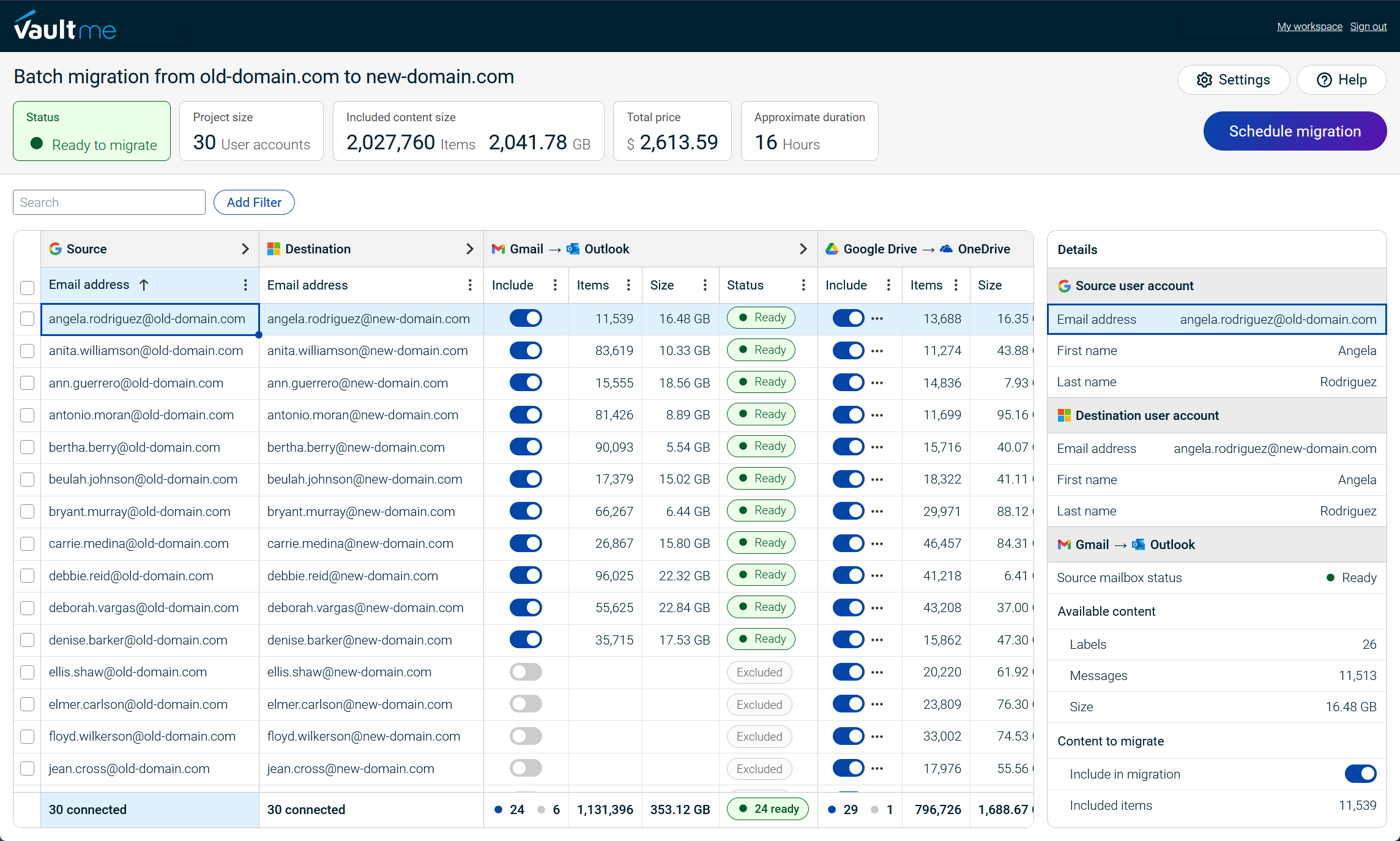
VaultMe copies email, OneDrive files, calendars, and contacts through a single cloud-based interface. Administrators can connect accounts individually or through administrator authorization, map source accounts to destination accounts, choose which content types to include, and monitor progress in real time. Nothing needs to be installed, and no local computer or server must remain online while the migration runs.
After the initial migration, administrators can run multiple delta migrations to copy eligible content created or updated in the source accounts. Item-level reports show what was copied, where it appeared in the destination, and which items require attention. This supports both pre-cutover synchronization and final validation.
VaultMe does not require a subscription or long-term license commitment. Administrators can connect and scan the accounts, review the migration scope, readiness, projected duration, and exact cost, and then decide whether to proceed. This makes VaultMe particularly suitable for small and midsized organizations that want a guided way to copy core user content without adopting a larger enterprise migration suite.
For more information on how VaultMe can help you with your Microsoft 365 migration project, see Migrate to Microsoft 365.

Frequently asked questions about tenant-to-tenant migrations
How can an IT admin migrate multiple employee accounts between Microsoft 365 tenants?
The administrator should create and license the destination accounts, authorize access to both tenants, add account lists, and map every source account to the correct destination. A batch migration tool can then run readiness checks, copy the selected business content in batches, perform multiple delta migrations, and provide results for each employee account.
How are source and destination accounts mapped?
Account mapping tells the migration tool which destination account should receive each source account’s business content. Administrators can import the employee list from a spreadsheet and create the mappings in bulk. The addresses may be identical, use different domains, or use temporary destination addresses.
Does every employee need to authorize the migration individually?
Not when the migration tool supports administrator authorization and the administrator has the required permissions in both tenants. Administrator authorization allows multiple employee accounts to be connected without asking every user to sign in. Individual authorization may still be used when administrator access is unavailable, but not all tools support this feature. VaultMe allows connecting the accounts without admin access.
Can the same custom domain be connected to two Microsoft 365 tenants?
No. A custom domain cannot be connected to both tenants simultaneously. If employees keep the same domain, their destination accounts must initially use temporary addresses. During cutover, the domain is disconnected from the source tenant, added to the destination tenant, and assigned to the destination accounts.
Can employees keep their existing email addresses?
Employees can keep their existing addresses if the custom domain is reassigned to the destination tenant. Keeping the same visible address does not eliminate the need to create, license, and map the destination accounts.
Can employees continue working during the migration?
Employees can continue working in their source accounts while the initial migration and pre-cutover delta migrations run. They should not work in the destination accounts before cutover because activity in both environments can cause confusion and conflicting changes.
How are destination accounts kept current before cutover?
Administrators can run multiple delta migrations to copy business content created or updated after the initial migration. Another delta migration should be run immediately after cutover to capture the final eligible changes from the source accounts.
What should an administrator check before starting the migration?
The administrator should verify account access, destination licenses, permissions, mailbox and OneDrive storage, account mappings, and OneDrive provisioning. Thorough readiness checks help identify preventable problems before business content is copied, but not all tools run comprehensive checks. VaultMe runs pre-migration checks for account access, destination storage, licenses, permissions, and other readiness requirements.
Additional resources
Plan a Microsoft 365 tenant-to-tenant migration
Cross-tenant mailbox migration
Related articles
Planning a Microsoft 365 migration? Learn what tools are available and how to choose one for your specific situation: Best Microsoft 365 Migration Tools for IT Administrators.
Looking for a Microsoft 365 migration tool for a mid-sized business? Learn how to choose the best service for your project: Best Microsoft 365 Migration Services for Mid-Sized Businesses.
Need to transfer the company's user accounts to Microsoft 365? VaultMe provides step-by-step instructions in this article: How to Migrate to Microsoft 365.
Preparing for a merger or acquisition? Learn how you can merge user accounts: Best Cloud Migration Tools for Mergers and Acquisitions.
Need to offboard former employees? See VaultMe's guide on archiving former users' accounts: How to Archive Multiple Former Employee Accounts.
Are you an administrator of a small company IT team? Find out what needs to be considered when choosing a migration tool: Best Migration Tools for a Small Company IT Team: 4 Options Compared.