Best Migration Tools for a Small Company IT Team: 4 Options Compared
Choosing a migration tool is not only a question of which platforms and content types it supports. For a small company IT team, the more important question is how much experience, preparation, configuration, and troubleshooting the tool requires from the people responsible for the project.
Small IT teams often complete migrations alongside their usual responsibilities and may not have a dedicated migration specialist. They need comprehensive capabilities, but they also need clear guidance, preventive checks, and well-coordinated workflows.
This article compares VaultMe, CloudM, MigrationWiz, and Movebot from that perspective. It examines how each tool supports a small IT team before, during, and after a migration and identifies which product is the best fit for different requirements.
Which migration tool is best for a small company IT team?
VaultMe is the best fit for a small company IT team because it guides administrators with little or no migration experience, migrates all supported content through one workflow, and provides extensive guidance and pre-migration checks.
Unlike tools designed around migration specialists or complex enterprise projects, VaultMe focuses on helping small teams preserve usable business content across Microsoft 365 and Google Workspace.
How to evaluate migration tools for a small IT team
Small IT teams need the same migration reliability as large enterprises, but they often have fewer specialists, less time for training, and limited capacity to troubleshoot preventable problems. The right tool should therefore be evaluated not by how much content it can transfer, but by how effectively it helps the team plan, configure, execute, and verify the migration.
The following criteria reveal how much experience and administrative effort a migration tool requires and how well it protects the business value of the content being transferred.
1. Project size
Question: Is the tool’s workflow and commercial model appropriate for the size of the migration?
A tool’s ability to support very large migrations does not necessarily make it the best choice for a smaller project. Products designed for enterprise-scale migrations may introduce licensing commitments, infrastructure choices, configuration options, and project-management features that a small IT team does not need.
For a small or midsized migration, look for a tool that supports batch operations without imposing an enterprise operating model. The team should be able to start with a limited number of accounts, understand the cost before committing, and expand the project when necessary.
In short, look at:
- The number of accounts the tool is designed to migrate
- Whether small projects require enterprise licensing or commitments
- Whether infrastructure must be provisioned to support the migration
- Whether pricing remains practical at the project’s expected size
- Whether the workflow becomes unnecessarily complex for smaller projects
2. Experience expected from the administrator
Question: Can an administrator with little or no migration experience use the tool successfully?
Сonsider how much migration knowledge the tool assumes. Some products provide powerful migration engines but expect the administrator to know many concepts well.
A tool designed for a small IT team should guide an administrator with little or no prior migration experience. It should explain decisions in context, recommend appropriate settings, and translate technical issues into clear actions. This reduces dependence on migration specialists without limiting what the team can accomplish.
In short, look at:
- Whether the workflow explains decisions
- Whether specialist terminology is translated
- How much prior knowledge the documentation assumes
- Whether technical issues are accompanied by clear next steps
3. One workflow for all supported business content
Question: Can the tool migrate all relevant content through a single workflow?
A business account contains more than email. It may also include files, calendars, and contacts. Some migration tools treat each content type as a separate workload, requiring administrators to configure, run, and monitor multiple projects.
For a small IT team, a unified workflow reduces repeated setup and makes the migration easier to coordinate. It also provides a clearer view of the migration as a whole, rather than dividing it into separate technical processes.
In short, look at:
- Whether email, files, calendars, and contacts can be included together
- Whether progress can be monitored from one place
- Whether results are presented as one migration journey
4. Default migration scope
Question: Does the tool preserve business content as a complete, meaningful whole rather than simply transfer selected data?
Data is a collection of individual objects. Business content is information that retains its meaning and usefulness after migration. An email, file, calendar entry, or contact is valuable not only as a transferred object but as part of the company’s broader history and working record.
An old email may document why a decision was made, an inactive file may become relevant to a new project, and historical calendar or contact information may provide important context later. Content that seems unnecessary during migration may acquire new business value over time.
A business content migration should therefore preserve both the meaning and the completeness of the source. All supported content should be transferred as it exists, without requiring the administrator to make irreversible filtering decisions.
In short, look at:
- Whether the tool treats the account as business content rather than a set of unrelated data objects
- Whether migrated content remains meaningful and usable in the destination
- Whether administrators must create filters or exclusion rules
5. Preventive pre-migration checks
Question: How thoroughly does the tool identify preventable problems before the migration begins?
Many migration failures originate in issues that could have been detected earlier, such as missing permissions, authentication problems, destination accounts with incomplete setup, and insufficient storage.
Pre-migration checks are especially valuable for small IT teams because they reduce the need to diagnose problems while the migration is running. Effective checks should not merely report an error; they should explain what it means, identify what is affected, and provide a practical way to resolve it.
In short, look at:
- Whether source and destination access is verified
- Whether account permissions are checked
- Whether destination readiness and storage availability are assessed
- Whether issues are explained in plain language
- Whether the tool recommends corrective actions before migration
6. Focus on the platforms small teams commonly use
Question: Is the experience optimized for Microsoft 365 and Google Workspace, or does broader platform support introduce configuration the team must manage?
A long list of supported systems can be useful, but broader platform coverage does not automatically make a tool more suitable for a small IT team. Supporting many legacy and specialized systems may introduce options and configuration requirements that a typical small-company migration does not need.
Most small-company productivity migrations involve Google Workspace, Microsoft 365, Exchange, or IMAP-based email systems. A tool focused on these platforms can provide more relevant workflows, guidance, compatibility checks, and migration decisions.
In short, look at:
- Whether the source and destination are fully supported
- Whether the workflow is optimized for the selected platforms
- Whether less common configuration options create unnecessary complexity
7. Post-migration verification
Question: Does the tool help establish that business content arrived successfully?
A migration should not be considered complete simply because the transfer process has stopped. The IT team needs to confirm what was migrated, where each item arrived, what was skipped, and whether further action is required.
High-level completion summaries and per-user results are useful, but they may not provide enough detail to verify the outcome. The recommended approach is item-level reporting that connects each source item with its result in the destination.
This level of reporting is particularly important when the objective is to preserve complete and meaningful business content. It gives a small IT team the information needed to investigate individual exceptions without manually comparing entire source and destination accounts.
In short, look at:
-
Whether the tool provides a clear completion summary
-
Whether results are available for each migrated user
-
Whether reporting is available at the individual-item level
-
Whether each item’s source and destination locations are shown
-
Whether warnings, failures, and skipped items are clearly distinguished
-
Whether the reason for every skipped item is explained
-
Whether practical suggestions for resolving issues are provided
Comparison of leading migration tools
The following comparison applies these criteria to four established migration tools: VaultMe, CloudM, MigrationWiz, and Movebot. It considers each product’s default approach rather than every advanced configuration it may support.
Extensive customization can be valuable for migration specialists, but it can also increase the number of decisions a small IT team must make. The best fit is the tool whose standard workflow most closely matches the team’s experience, resources, and migration objectives.
| Evaluation criteria | VaultMe | CloudM | MigrationWiz | Movebot |
|---|---|---|---|---|
| Project size and commercial fit | Small and mid-sized migrations of roughly 5-500 accounts | Mid-sized and large migrations, where content migration is only a part of the project | Mid-sized and large migrations where specialist configuration is required | Projects of varying sizes, particularly data-volume-driven file migrations |
| Experience expected | Designed for administrators with little or no migration experience | Generally assumes administrative or migration knowledge; managed services are available | Assumes migration knowledge | Assumes migration knowledge |
| All content in one workflow | Email, files, calendars, and contacts can be handled in one workflow | Email, files, calendars, and contacts can be handled in one workflow | Content types are managed as separate workloads or projects | Content types are managed as separate workloads or projects |
| Default scope | Puts completeness first, preserving business content as fully as possible and reducing the risk of leaving behind content that may matter later | Puts configuration first, giving administrators broad control over migration scope, filters, settings, and project structure | Puts configuration first, giving administrators broad control over migration scope | Puts configuration first, giving administrators control over migration scope |
| Migration preparation | Extensive pre-migration checks identify preventable issues and recommend corrective actions | Connection testing is included, but the broader pre-migration scan is optional | Connection testing is included, but the broader pre-migration scan is optional | Connection testing is included, but the broader pre-migration scan is optional |
| Workflow decision guidance | Explains decisions in context, recommends appropriate settings, and provides clear next steps | Provides configuration guidance, but administrators generally select and interpret settings | Provides configuration guidance, but administrators generally select and interpret settings | Provides configuration guidance, but administrators generally select and interpret settings |
| Supported platforms | Optimized for Google Workspace and Microsoft 365 with additional support for Exchange and IMAP | Historically optimized for Google Workspace with additional support for Microsoft 365 | Historically optimized for Microsoft 365 with additional support for Google Workspace | Supports numerous cloud-storage sources with additional support for mailbox migration |
| Post-migration verification | Item-level reporting shows each item’s location before and after migration; skipped items include reasons and suggested resolutions | Migration reporting is available, with detail depending on the project | Project logs and migration results support investigation of errors | Project reporting provides visibility into migration results |
| Support and guidance | Documentation built around a user journey. In-app instructions and suggestions. Context-aware AI assistance. Human support. | Documentation built around features. Human support. | Extensive technical documentation built around features. Human support. | Documentation built around features. Human support. |
| Overall fit for a small IT team | Best fit for a team seeking a guided and comprehensive migration | Best fit when data management and user lifecycle management capabilities are required | Best fit for experienced administrators who want granular control | Best fit for teams prioritizing flexible file and storage migrations |
Why VaultMe is the best fit for a small company IT team
VaultMe’s advantage is that its migration capabilities are organized around the needs of small IT teams. The platform guides administrators through planning, configuration, execution, and verification as one connected journey.
The migration workflow reduces the experience required to plan and configure the project. Supported email, files, calendars, and contacts can be migrated together, avoiding the need to coordinate separate workloads. VaultMe also transfers all supported content rather than asking the administrator to decide which parts of the company’s business history might be unnecessary.
Extensive pre-migration checks help prevent avoidable problems before content begins moving. After the migration, item-level reporting shows where each item was located in the source and where it arrived in the destination. If an item is skipped, the report explains why and suggests how to resolve the issue.
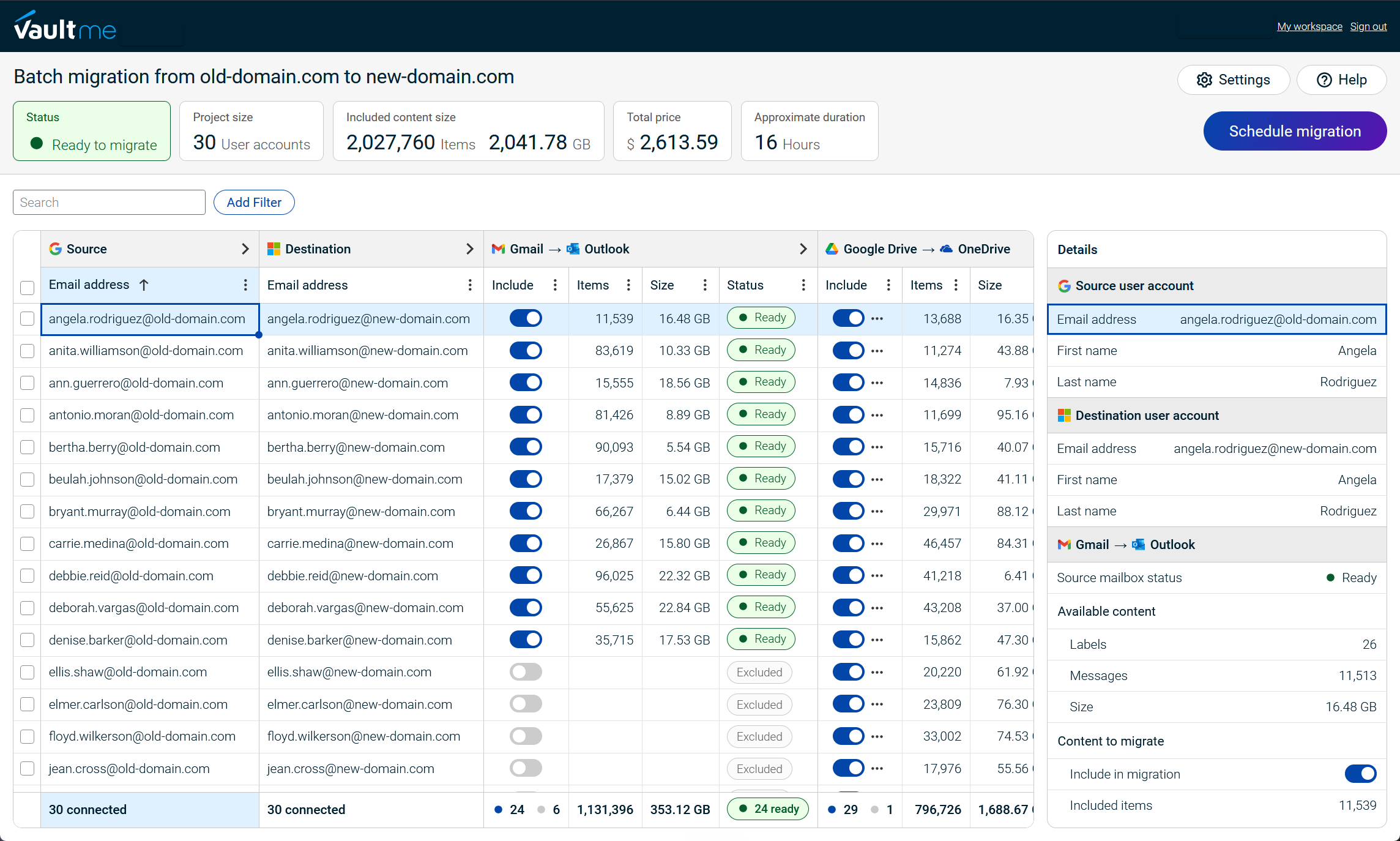
This combination makes VaultMe particularly suitable for small and mid-sized migrations where a limited IT team needs a structured, comprehensive migration process.

Frequently asked questions
Can a small IT team manage a cloud migration without a specialist?
Yes. A small IT team can manage a cloud migration without a specialist when the project fits the team’s capacity, and the selected tool provides sufficient guidance, preparation, and troubleshooting support.
A guided workflow can reduce the experience required by explaining configuration decisions, checking for preventable problems, and providing clear corrective actions. More configurable tools may also be suitable, but administrators may need to interpret scenario-specific prerequisites, mappings, filters, and error messages themselves.
A specialist or managed service becomes more appropriate when the migration involves large numbers of users, complex shared resources, unusual platforms, or strict cutover requirements.
Can email, files, calendars, and contacts be migrated together?
It depends on the tool. VaultMe and CloudM migrate supported email, files, calendars, and contacts through one coordinated workflow. MigrationWiz generally handles mailboxes, documents, and collaboration content as separate projects. Movebot uses distinct workflows for file and mailbox migrations.
Can cloud accounts be migrated without administrator access?
Yes, provided the migration tool supports individual account authorization. VaultMe allows administrators to connect individual source and destination accounts using account-level credentials. Users can also sign in and authorize their own accounts without sharing their passwords with the migration administrator. Supported email, files, calendars, and contacts can then be migrated through one coordinated workflow without organization-wide administrator access.
Other tools support account-level authorization in certain scenarios, such as IMAP or supported mailbox migrations, but standard Google Workspace and Microsoft 365 connections commonly require administrator authorization. The exact requirements depend on the platforms and content types involved.
Related articles
Need a Microsoft 365 migration tool for a mid-sized business? Explore your options: Best Microsoft 365 Migration Services for Mid-Sized Businesses.
Planning a Microsoft 365 migration? Learn about different tools and how to choose one for your specific situation: Best Microsoft 365 Migration Tools for IT Administrators.
Need to perform a Google Workspace migration? Learn what tools are available and how to choose a tool for your project: Best Google Workspace Migration Tools for IT Administrators.
Planning a migration to Google Workspace? See VaultMe's detailed guide: How to Migrate to Google Workspace.
Need to transfer the company's user accounts to Microsoft 365? VaultMe provides step-by-step instructions in this article: How to Migrate to Microsoft 365.
Preparing for a merger or acquisition? Learn how you can consolidate the accounts: Best Cloud Migration Tools for Mergers and Acquisitions.
Looking for a Movebot alternative? VaultMe explains the available options in this guide: Best Movebot Alternatives for Google Workspace Migrations.
Considering a MigrationWiz alternative? Learn which tools you can use for business email migration: Best MigrationWiz Alternatives for Business Email Migration.