Best Way to Migrate Email Accounts to Office 365
There is no single migration approach that is best for every organization. Microsoft offers free, native migration methods that may work well for straightforward projects and experienced administrators. For more complex migrations, or when ease of use, dedicated support, automation, and reduced administrative effort are priorities, third-party migration tools generally provide a better experience.
This guide compares the available approaches and several email migration tools, including their pricing, supported source platforms, content coverage, support options, and limitations. It also examines VaultMe as a third-party option for transferring email and other account content to Microsoft 365.
Note: Office 365 is the legacy name for Microsoft 365, Microsoft’s current package of productivity and collaboration services. However, many administrators and businesses still use “Office 365” when referring to Microsoft 365 and its hosted email service, Exchange Online.
- How to choose the right Microsoft 365 email migration method
- Option 1: Use Microsoft’s Free Migration Tools
- Option 2: Use a third-party Microsoft 365 migration tool
- Migrate email accounts to Office 365 with VaultMe
- Migrate with other third-party tools
- Microsoft's free tools vs. VaultMe
- Conclusion
- Frequently asked questions
- Related articles
How to choose the right Microsoft 365 email migration method
There is no universally best way to migrate email accounts to Microsoft 365. The most suitable method depends on the scope and constraints of the project.
Before choosing between Microsoft’s free migration options and a third-party tool, consider the following factors:
- Number of accounts. Migrating one personal mailbox is very different from moving hundreds of users. Larger migrations usually require stronger automation, reporting, and other capabilities.
- Source platform. The available methods vary depending on whether email is coming from Google Workspace, another Microsoft 365 tenant, an Exchange server, an IMAP provider, or a personal email account.
- Content types. Some methods transfer only email, while others can also migrate calendars, contacts, and files. Transferring these content types separately may increase the project’s complexity.
- Administrator experience. Microsoft’s native tools can require technical knowledge, careful configuration, and troubleshooting. A guided third-party service may be more practical for users without extensive migration experience.
- Budget. Free tools can reduce licensing costs, but they may require more administrative time. A paid tool can be worthwhile if it simplifies the process, lowers the risk of errors, or reduces disruption.
- Support requirements. Access to responsive technical support can be critical during a time-sensitive migration. Support for free methods is often more limited or less migration-specific than the assistance offered by third-party providers.
For a small and straightforward migration managed by an experienced administrator, a free Microsoft tool or an IMAP migration may be sufficient.
When a project involves multiple content types, personal accounts, limited in-house expertise, or a need for hands-on support, a third-party migration tool will generally provide a smoother experience.
Option 1: Use Microsoft’s Free Migration Tools
Microsoft provides native migration tools within the Microsoft 365 and Exchange admin centers. These tools do not normally require a separate migration-software license. However, organizations must also account for the administrator time required to configure, monitor, troubleshoot, and verify the migration.
The available method depends on the source platform:
- IMAP migration tool: Moves email from Gmail and other IMAP-compatible services into Exchange Online. It transfers messages and mail folders but does not migrate contacts, calendars, or tasks. Microsoft also applies limits, including a maximum of 500,000 items per mailbox and a 35 MB maximum message size for this migration type. For more information, see What you need to know about migrating your IMAP mailboxes to Microsoft 365 or Office 365.
- Google Workspace migration: Microsoft provides a dedicated migration process for migrating email, calendars, and contacts from Google Workspace. The tool does not transfer files. For more information, see Perform a Google Workspace (formerly G Suite) migration to Microsoft 365 or Office 365.
- Exchange Server migration: Organizations moving from an on-premises Exchange environment can use cutover, staged, or hybrid migration methods, depending on the Exchange version, number of mailboxes, and desired migration schedule. For more information, see Decide on a migration path in Exchange Online.
Pros of Microsoft’s free migration tools
- No separate third-party migration-tool license is generally required.
- The tools are provided and documented by Microsoft.
- Several migration paths are available for Exchange Server, Google Workspace, and IMAP-compatible systems.
- Administrators can migrate users in batches and monitor progress from Microsoft’s admin interfaces.
- Native Google Workspace and Exchange migration methods can transfer more than email alone.
- They can be cost-effective for straightforward projects managed by experienced Microsoft 365 administrators.
Cons of Microsoft’s free migration tools
- Setup can be technical and may involve migration endpoints, service accounts, CSV files, and PowerShell scripts.
- IMAP migration transfers only email and folders, not contacts, calendars, or files.
- Migration support is generally limited to documentation and community forums. This may not be sufficient when a project is time-sensitive, technically complex, or affected by an unexpected error.
- Personal accounts and small one-user projects may not fit workflows designed primarily for organizational administrators.
- The absence of a software fee does not eliminate the operational cost of planning, execution, verification, and remediation.
Microsoft’s native tools are most attractive when the migration has a supported source, the administrator understands both environments well, and the project can accommodate manual configuration and validation.
For users who want a more guided process, broader content support, or access to dedicated migration assistance, a third-party tool may be the better choice.
Option 2: Use a third-party Microsoft 365 migration tool
Third-party migration tools provide an alternative to Microsoft’s free migration methods. They are designed to reduce the technical and administrative work involved in transferring email accounts to Microsoft 365.
Depending on the service, a third-party tool may offer guided setup, support for personal accounts, migration monitoring, direct customer assistance, and the ability to move calendars, contacts, files, and other content alongside email.
Features vary between providers, so users should verify that a tool fits their requirements before purchasing it.
Pros of third-party migration tools
- Guided workflows offered by some tools can make migration easier for less-experienced administrators.
- Setup may require fewer manual steps than Microsoft’s native tools.
- Some services support personal Gmail and Outlook.com accounts as well as business accounts.
- A single tool may migrate email, calendars, contacts, and files.
- Direct customer support may be available if the migration encounters a problem.
- Automation can reduce repetitive work and the risk of configuration errors.
- Migration status and results may be easier to monitor and understand.
Cons of third-party migration tools
- They add a software or service cost to the project.
- Supported source platforms and content types vary between providers.
- Some products are designed primarily for enterprise administrators and may be unnecessarily complex for smaller projects.
- Pricing may be based on users, mailboxes, data volume, or the content types being transferred.
- Provider-specific limits may apply to mailbox size, individual items, migration passes, or project duration.
- Users must evaluate the provider’s security, privacy, and data-handling practices.
Third-party tools are generally the better choice when ease of use, broader content coverage, personal-account support, or direct assistance is more important than minimizing upfront cost. For users seeking a guided migration service that works with Microsoft 365, VaultMe is one option to consider.
Migrate email accounts to Office 365 with VaultMe
VaultMe is a cloud-based migration tool for small businesses, IT administrators, and managed service providers. It can migrate personal accounts as well as organization-managed accounts to Microsoft 365, making it suitable for projects that do not fit Microsoft’s administrator-focused migration methods.
For migrations to Microsoft 365, VaultMe supports email transfers from Google Workspace, Microsoft 365, personal Gmail, Outlook.com, Exchange, Zoho Mail, Zimbra, GoDaddy, IMAP, AOL, Yahoo Mail, Comcast, and other email providers. When supported by the source platform, it can also migrate files, calendars, and contacts in the same guided workflow.
VaultMe runs in a web browser, so there is no software to install and no need to keep a local computer online. Before payment, it checks the connected accounts and shows the migration’s scope, expected duration, readiness issues, and price.
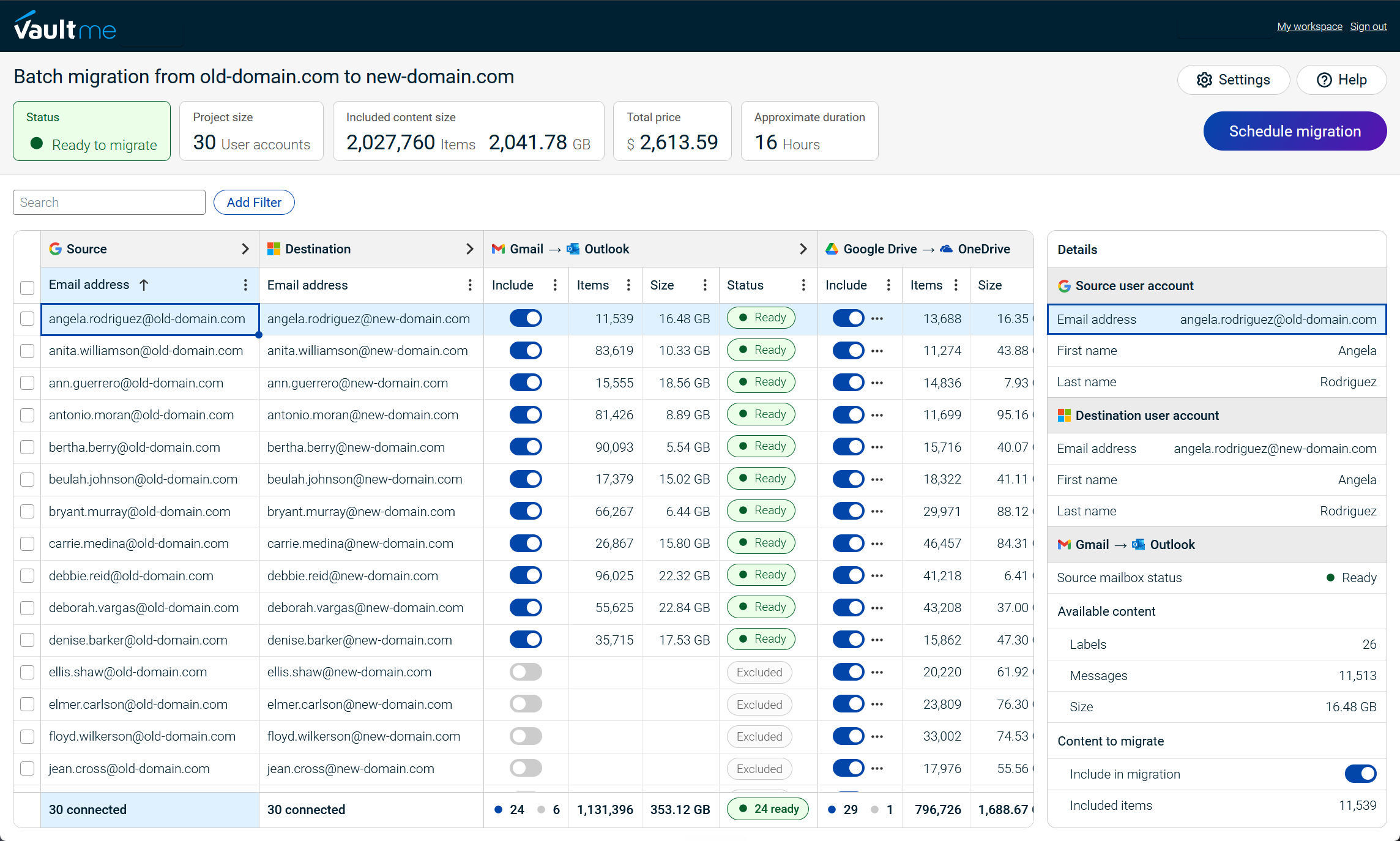
Pros of VaultMe:
- Supports personal accounts as well as business accounts.
- Provides a guided workflow for users who are not migration specialists.
- Can migrate email, files, calendars, and contacts together when the selected platforms support those content types.
- Supports Google Workspace-to-Microsoft 365 and Microsoft 365 tenant-to-tenant migrations.
- Can migrate email from numerous IMAP-compatible email services.
- Requires no downloads, agents, servers, or local installations.
- Performs readiness checks for account access, permissions, licenses, and destination storage.
- Provides real-time monitoring and detailed migration reports.
- Offers documentation, in-app guidance, context-aware AI assistance, and human support.
- Allows users to configure and review the migration before paying.
- Uses pay-as-you-go pricing without subscriptions, migration licenses, or upfront commitments.
Cons of VaultMe
- VaultMe is a paid service.
- The final price includes both an account migration fee and usage-based data fees, so larger migrations cost more.
- Its multi-account migration service is built primarily for small and medium-sized projects of approximately 5 to 500 accounts, so very large enterprise migrations may require a different approach.
For small businesses, IT administrators, and MSPs who value ease of use and direct assistance, VaultMe offers a practical alternative to Microsoft’s free tools. It is especially useful when personal accounts are involved or when email, files, calendars, and contacts need to be migrated through one workflow.

Migrate with other third-party tools
BitTitan MigrationWiz
MigrationWiz is a cloud-based tool commonly used by IT teams and managed service providers. Its mailbox migration product supports sources including Microsoft 365, Exchange, Google Workspace, Zimbra, and IMAP or POP systems. BitTitan states that its standard mailbox migration license supports up to 50 GB of data and as many as 10 migration passes per user.
MigrationWiz is a strong candidate for administrators managing repeatable business migrations. However, its project-based interface, licensing choices, and configuration requirements may be more than a nontechnical user needs for a small migration.
CloudM Migrate
CloudM supports migrations from Google Workspace, Microsoft 365, Box, Dropbox, and various legacy platforms. Depending on the migration path, it can transfer email, files, folders, calendars, contacts, permissions, and collaboration data. Customers can run the migration internally, purchase expert guidance, or use a managed migration service.
CloudM is particularly relevant to complex Google Workspace-to-Microsoft 365 projects. Its enterprise scope and sales-led pricing process may make it less practical for an individual or a very small migration.
AvePoint Migration
AvePoint’s migration platform supports Exchange mailboxes, Gmail, Microsoft 365, Google Drive, OneDrive, SharePoint, Teams, Slack, Box, Dropbox, IMAP, POP3, and PST sources. It offers self-managed, supported, and fully managed migration options, along with discovery, scheduling, reporting, and validation features.
AvePoint is well suited to large or technically complex projects that extend beyond email. For a simple mailbox transfer, however, its broad feature set may introduce unnecessary cost and complexity.
Microsoft's free tools vs. VaultMe
The table below compares Microsoft’s native migration methods with VaultMe. The right choice depends on the source account, required content, administrator experience, budget, and desired level of support.
| Criteria | Microsoft’s Free Migration Tools | VaultMe |
|---|---|---|
| Best suited for | Administrators with Microsoft 365 migration experience and a supported business environment | Small businesses, IT administrators, and managed service providers that want a predictable, guided migration |
| Personal-account support | Limited; personal accounts may be migrated through IMAP or manual methods, but the workflows are primarily designed for organizational administrators | Yes; supports personal Gmail and Outlook.com accounts, including personal-to-business migrations |
| Business-account support | Yes | Yes |
| Email migration | Yes | Yes |
| Additional content types | Depends on the migration method; IMAP transfers only email, while certain Google Workspace and Exchange migrations can also move calendars, contacts, tasks, or rules | Can migrate email, files, calendars, and contacts together for supported Google Workspace and Microsoft 365 migration paths |
| Source platforms supported | Exchange Server, Google Workspace, and other IMAP-compatible email systems | Google Workspace, Microsoft 365, Gmail, Outlook.com, Exchange, Zoho Mail, Zimbra, GoDaddy, AOL, Yahoo Mail, Comcast, and other IMAP-compatible providers |
| Setup experience | May require migration endpoints, service accounts, CSV files, and PowerShell scripts | Guided, browser-based setup with no software, servers, or agents to install |
| Pre-migration checks | Administrators must review prerequisites and validate much of the environment themselves | Built-in checks for account access, permissions, licenses, destination storage, and other potential blockers |
| Migration monitoring | Available through Microsoft’s administration interfaces, but interpretation and troubleshooting require administrator involvement | Real-time project and account-level monitoring with actionable warnings, progress information, and detailed item-level reports |
| Available support | Primarily documentation and community forums | User-journey based documentation, in-app guidance, context-aware AI assistance, and human support |
| Price | No separate migration-tool fee in most cases | Multi-account migration costs $59.99 per migrated user plus $0.20 per GB and $0.20 per 1,000 items |
| Free trial or pre-purchase review | Not applicable because the native tools do not have a separate software charge | Available |
| Primary limitations | Technical setup; different procedures for different sources; limited migration-specific support; IMAP does not move calendars, contacts, or files | Paid service; cost increases with data volume and item count; primarily intended for projects of approximately 5–500 accounts |
Conclusion
The best way to migrate email accounts to Office 365 (now called Microsoft 365) is the method that fits the project’s actual requirements. Microsoft’s free tools can handle supported migrations without a separate software fee, but they often require technical expertise and provide limited migration-specific assistance.
For projects where ease of use, personal-account support, multiple content types, and direct assistance matter, a third-party tool generally provides a better experience. VaultMe offers a guided option for moving supported email and other account content to Microsoft 365, with upfront readiness checks and pricing available before the migration begins.
Before committing to any method, confirm that it supports the required source accounts and content types, then evaluate its total cost (including administrator time and troubleshooting, not just the purchase price).
Frequently asked questions
Is Office 365 the same as Microsoft 365?
Office 365 is the legacy name of Microsoft 365. Microsoft 365 is the current name for the package that includes Exchange Online and other productivity and collaboration services. Many people still use “Office 365” when referring to Microsoft 365 email.
Can I migrate a personal email account to Microsoft 365?
Yes, but support depends on the migration method. Microsoft’s native tools are primarily designed for administrators and organizational accounts, although some personal accounts can be transferred using IMAP or manual processes. VaultMe supports migrations from personal Gmail and Outlook.com accounts to Microsoft 365.
Can I migrate email to Microsoft 365 for free?
Microsoft provides native migration methods that generally do not require a separate migration-tool license. However, the destination mailboxes still require suitable Microsoft 365 licenses, and the project may involve significant administrator time. Free methods may also provide limited support and content coverage.
Does an IMAP migration transfer calendars and contacts?
No. A standard IMAP migration transfers email messages and mail folders but does not migrate calendars, contacts, or files. A different native method or a third-party service is required if those content types must also be moved.
Can files be migrated with email?
Some third-party tools can migrate files, email, calendars, and contacts within the same project. VaultMe supports these content types for compatible Google Workspace and Microsoft 365 migration paths. For other source providers, the available migration may be limited to email.
Will migrating email delete it from the source account?
Migration tools typically copy content rather than move it. VaultMe leaves the original content in the source account throughout the migration.
How long does an email migration to Microsoft 365 take?
Migration time depends on the number of accounts, data volume, item count, source platform, provider throttling, and the selected tool. A small mailbox may finish relatively quickly, while a multi-account project can take considerably longer. VaultMe provides a projected duration after it scans the connected accounts.
Can users continue working during the migration?
In many cases, yes. Users can often continue accessing their source accounts while content is copied. However, ongoing activity may slow the migration, and changes made during the transfer may require an additional synchronization pass.
Is a third-party migration tool worth the cost?
It can be, especially when the project involves personal accounts, multiple content types, limited administrator experience, or a need for direct support. The relevant comparison is not simply "free versus paid," but the total cost of software, setup, administrator time, troubleshooting, and correcting migration errors.
Related articles
Need to migrate users from Google Workspace to Microsoft 365? Explore your options: Best Way to Migrate Users from Google Workspace to Microsoft 365.
Looking for a MigrationWiz alternative? Learn what options are available: Best MigrationWiz Alternatives for Business Email Migration.
Need to perform a tenant-to-tenant migration? VaultMe's guide provides valuable information: How to Perform Microsoft 365 Tenant-to-Tenant Migrations With or Without a Domain Change.
Managing migrations for a small business IT team? Learn how to choose a migration tool: Best Migration Tools for a Small Company IT Team: 4 Options Compared.
Preparing for M&A? Learn how you can consolidate user accounts: Best Cloud Migration Tools for Mergers and Acquisitions.