Best Way to Migrate Users from Google Workspace to Microsoft 365
For organizations migrating multiple users and several content types, the best approach is usually a migration tool that supports centralized user mapping, readiness checks, batch migration, monitoring, and reporting.
Microsoft provides native migration services, and very small migrations can be performed manually. However, these approaches require administrators to coordinate separate processes for email, files, calendars, and contacts. As the number of users and the amount of content increase, managing those processes becomes more time-consuming and difficult.
A third-party migration tool brings the work into a more manageable workflow. Depending on the product, administrators can map users, organize migration batches, check accounts before launch, monitor progress, troubleshoot problems, and verify the results from one place. This reduces repetitive work and gives the organization greater visibility throughout the project.
Third-party migration tools are paid. However, the price of the software should be compared with the time and effort required to manage a migration manually. A tool that reduces configuration work, identifies problems early, and makes the results easier to verify can save many hours of administrator time. It can also help the organization complete the move with less disruption for users.
- How to migrate users from Google Workspace to Microsoft 365
- What user account migration includes
- Three ways to migrate users from Google Workspace to Microsoft 365
- Google Workspace to Microsoft 365 migration tools compared
- VaultMe: A specialized Google Workspace to Microsoft 365 migration tool
- Why a paid migration tool is usually worth the cost
- Conclusion
- Frequently asked questions
- Related articles
How to migrate users from Google Workspace to Microsoft 365
The best way to migrate multiple Google Workspace users to Microsoft 365 is to use a migration tool that can transfer email, files, calendars, and contacts in coordinated batches. Microsoft’s native tools may suit experienced administrators, while a specialized tool such as VaultMe can simplify preparation, user mapping, monitoring, and verification for small and mid-sized migrations.
At a high level, the migration involves these steps:
- Inventory your Google Workspace environment. Identify the users, Gmail content, My Drives, Shared Drives, calendars, contacts, groups, and shared resources that must be migrated.
- Choose a migration method. Compare a specialized tool such as VaultMe with Microsoft’s native mailbox and file-migration services. Consider content coverage, project size, administrator experience, reporting, support, and total administrative effort.
- Prepare Microsoft 365. Add and verify the company domain, create destination users, assign licenses, provision Exchange mailboxes and OneDrive accounts, and confirm that sufficient storage is available.
- Map source and destination users. Match every Google Workspace account with the correct Microsoft 365 account and decide how Shared Drive content will be organized in SharePoint.
- Run readiness checks and a pilot migration. Check permissions, licenses, storage, service availability, file-path limitations, and unsupported content. Test the process with a representative group of users before migrating everyone.
- Migrate users in batches. Transfer Gmail content to Exchange Online, Google Drive files to OneDrive or SharePoint, and supported calendars and contacts to their Microsoft 365 equivalents. Monitor warnings and failures while each batch runs.
- Complete the cutover. Notify users, perform a final synchronization, update the domain’s MX and other required DNS records, and verify internal and external mail flow.
- Verify the results before retiring Google Workspace. Review migration reports, confirm that users can access their content, resolve skipped items, and keep the source accounts active until the migration has been fully validated.
For detailed preparation, migration, cutover, and verification instructions, see our step-by-step Google Workspace to Microsoft 365 migration guide.
What user account migration includes
A Google Workspace user account can contain much more than messages in Gmail. It may also include years of files, calendars, and contacts. Moving a user to Microsoft 365 means transferring this content to several different services while preserving as much of its organization and context as possible.
A typical user migration may include:
- Gmail messages, attachments, and labels
- Google Drive files and folders with timestamps
- Google Docs, Sheets, and Slides that must be converted to Microsoft Office formats
- Personal calendars and meeting information
- Personal contacts and contact details
- Content stored in Shared Drives
Google Workspace and Microsoft 365 organize this content differently. Gmail labels do not behave exactly like Outlook folders, and Google-native files must be converted. Microsoft 365 also has destination-specific limitations that may affect content stored successfully in Google Workspace. For example, file paths in OneDrive and SharePoint cannot exceed 400 characters.
Administrators must also prepare the destination environment. This includes creating Microsoft 365 users, assigning licenses, provisioning mailboxes and OneDrive accounts, confirming storage capacity, and mapping each Google account to the correct destination. They must then decide how to organize migration batches, test the process, monitor the transfer, change mail-routing records, and verify the results.
With so many interconnected tasks to track, migrating an organization to Microsoft 365 is no easy job. The most practical approach is to delegate at least the content-transfer portion of the project to a reliable migration tool. The tool can handle the repetitive work of migrating business content, monitoring progress, and reporting problems, while the administrator remains in control of account preparation, scheduling, communication, and the final cutover.
For instructions on migrating from Google Workspace to Microsoft 365, see VaultMe's migration guide: Migrate from Google Workspace to Microsoft 365 Step by Step.
Three ways to migrate users from Google Workspace to Microsoft 365
Organizations can migrate user content with a third-party migration tool, Microsoft’s native migration services, or a combination of manual exports and imports. All three approaches can work, but they differ substantially in cost, coverage, and the amount of work left to the administrator.
1. Use a third-party migration tool
For most organizations migrating multiple users, a third-party migration tool is the most manageable option.
These tools automate much of the work involved in transferring content between Google Workspace and Microsoft 365. Depending on the product, an administrator can add and map users in bulk, select the content to migrate, organize users into batches, monitor progress, and review the results from one interface.
A third-party tool may also run checks before the migration begins. These checks can identify missing licenses, inaccessible accounts, insufficient destination storage, incorrect user mappings, and other issues that could interrupt the transfer. Finding these problems in advance is generally easier than troubleshooting them after a migration has started.
Another advantage is centralized reporting. Instead of checking several services independently, the administrator can see which users have completed, which migrations require attention, and whether any items were skipped. This makes it easier to keep the project on schedule and verify the outcome.
The main disadvantage is cost. Third-party tools usually charge per user, per workload, or per migration project. However, the license price should be considered alongside the administrator time the tool can save. For a multi-user migration, reducing repetitive configuration, monitoring, and troubleshooting may cost less than handling the same work manually.
2. Use Microsoft 365’s native migration tools
Microsoft provides native tools for organizations moving from Google Workspace. These services are available within an eligible Microsoft 365 environment, so there is no separate third-party migration-tool fee.
However, Microsoft does not provide one native tool that handles the entire Google Workspace migration. Administrators typically use separate services for different types of content.
The Google Workspace migration process in the Exchange Admin Center can transfer mail, rules, calendars, and contacts to Exchange Online. Google Drive content is migrated separately with Migration Manager, which copies files from users’ My Drives to OneDrive and from Shared Drives to SharePoint.
Using native tools therefore requires the administrator to configure, run, monitor, and verify at least two migration processes. Each process has its own prerequisites, supported content, limitations, and reports. The administrator must then coordinate the results as part of the wider migration schedule.
Microsoft’s native tools can be a reasonable choice for organizations with experienced Microsoft 365 administrators, straightforward requirements, and enough internal time to manage the project. They may be less convenient for a small IT team completing its first Google Workspace migration.
3. Export and import user data manually
The third option is to export content from Google Workspace and import or upload it to Microsoft 365 manually.
Users or administrators can export Google data, download files from Google Drive, upload them to OneDrive, and import calendars and contacts into their Microsoft applications. An IMAP migration can also be used to copy email, but it does not transfer Drive files, calendars, or contacts.
Manual methods avoid the cost of dedicated migration software, but they create significantly more work. Content may need to be exported, reorganized, converted, uploaded, and checked separately for every user. Administrators also have limited centralized visibility into the overall status of the project.
This approach may be acceptable for one or two small accounts or a simple email-only transfer. It becomes increasingly difficult to manage as the number of users, volume of content, and range of workloads grow.
It is also important to remember that a migration without a third-party license is not necessarily free. The organization must account for the time employees or administrators spend exporting content, resolving errors, and verifying the results.
Google Workspace to Microsoft 365 migration tools compared
Migration options can appear similar until their workloads, workflows, and administrator requirements are compared directly. Some tools manage several types of user content within one project, while others require a separate process for each workload.
The following table compares common options for migrating users from Google Workspace to Microsoft 365.
| Method or tool | Pricing model | Workflows | Best suited for | Main tradeoff |
|---|---|---|---|---|
| VaultMe | Paid, usage-based and user account-based tool | Email, files, contacts, and calendars can be migrated in one workflow | Organizations running small to medium-sized migrations (5-500 accounts) that prioritize preparation and predictable results | Migration costs depend on the amount of data transferred |
| MigrationWiz | Paid third-party tool, with licensing that varies by content type | Different content types are configured and managed through separate projects | Experienced migration teams and managed service providers | More configuration and project coordination; complex setup |
| CloudM | Paid third-party tool, pricing is generally provided through sales | Migration can be managed as part of a broader workspace-management platform | Larger organizations and projects requiring professional services | The wider platform may be more than a one-time migration requires |
| Movebot | Paid, usage-based tool; mailbox transfers are charged per mailbox and file migrations per gigabyte | Mailbox and file migrations are configured as separate projects | Organizations and MSPs that want broad platform support and usage-based pricing | File-migration costs depend on the amount of data transferred |
| Microsoft Exchange Admin Center migration | Free | Mailbox content is configured and migrated in batches | Organizations with experienced Exchange Online administrators | Does not migrate Google Drive content; support is limited to community forums |
| Microsoft Migration Manager | Free | Files are migrated separately from mailbox content | Organizations that want to use Microsoft’s native file-migration process | Must be coordinated with a separate mailbox migration; support is limited to community forums |
| IMAP migration | Free | Mailboxes are configured and transferred separately | Simple email-only migrations | Does not migrate files, calendars, or contacts; support is limited to community forums |
| Manual export and import | Free | Content is downloaded, converted, uploaded, and checked manually | One or two small accounts | High administrative effort and no centralized reporting; support is limited to community forums |
Note: "Free" can be a misleading description of native or manual migration methods. Even when no separate migration add-on is required, the organization still needs Microsoft 365 licenses for destination users. It must also account for the time required to prepare accounts, configure migration processes, monitor transfers, resolve errors, and verify the results.
For this reason, the lowest software price does not always produce the lowest overall migration cost. A paid tool may offer better value when it saves administrator time and makes a multi-user migration easier to control.
VaultMe: A specialized Google Workspace to Microsoft 365 migration tool
VaultMe is one third-party tool organizations can use to migrate user content from Google Workspace to Microsoft 365. It focuses primarily on migrations involving the Google and Microsoft ecosystems rather than trying to support every possible legacy system or infrastructure workload.
This specialization allows VaultMe to organize the migration around the differences between the two platforms. Administrators can manage supported email, file, calendar, and contact content as one coordinated project instead of setting up an unrelated process for each type of data.
A typical VaultMe migration follows a guided workflow:
- Connect the Google Workspace and Microsoft 365 environments.
- Add and map source and destination users.
- Select the content to migrate.
- Organize users into migration batches.
- Run a pre-migration scan with multiple readiness checks.
- Start and monitor the migration.
- Review reports and run follow-up synchronizations.
Pre-migration checks are a central part of this process. Before a migration can begin, VaultMe checks the connected accounts for issues that may prevent content from being transferred. These may include missing licenses, unavailable services, insufficient destination storage, and permission problems.
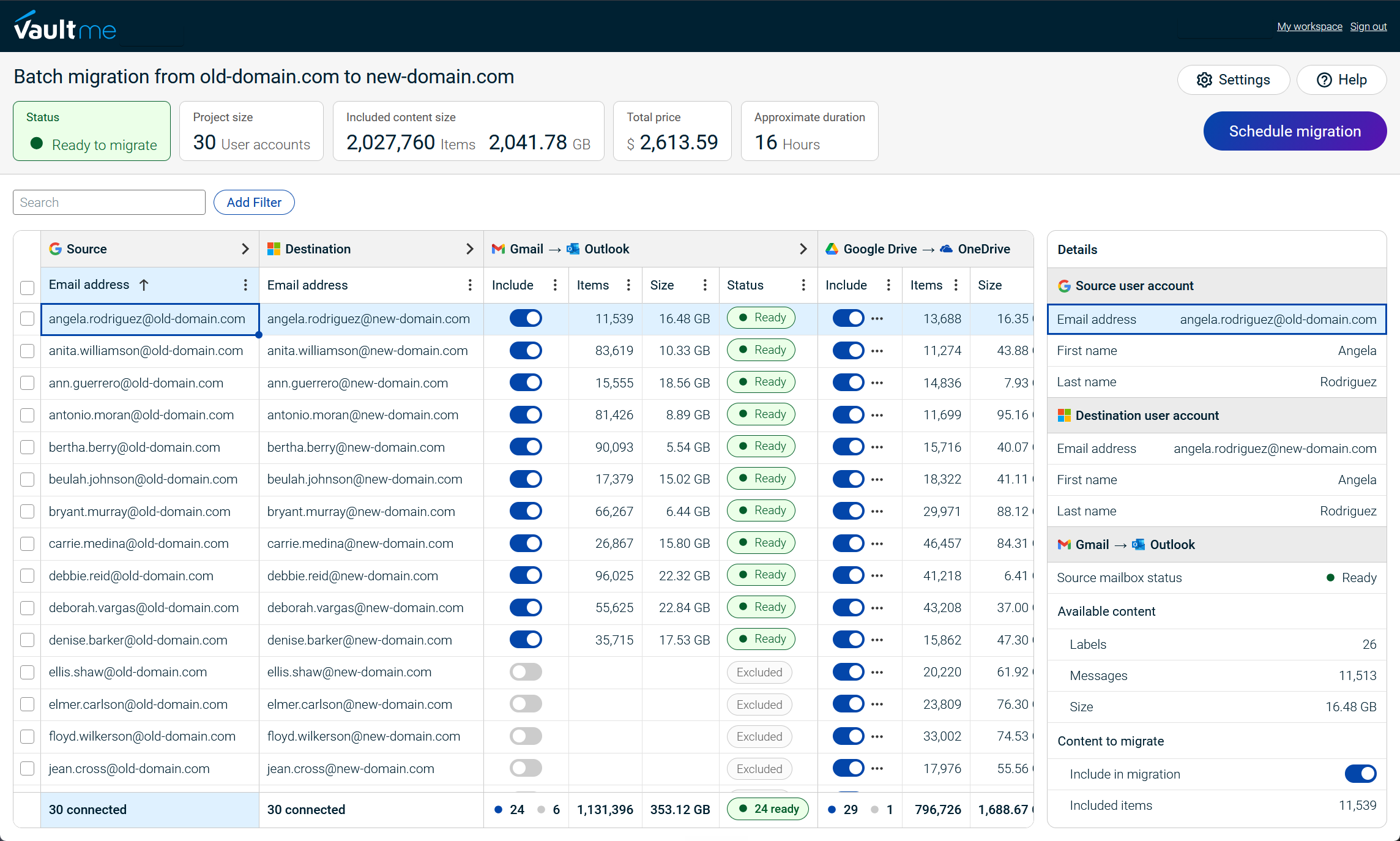
The administrator can then resolve these problems before launching a production batch. This reduces the likelihood that a scheduled migration will be interrupted by an account that was not properly prepared.
VaultMe also supports sync-up migrations. These follow-up runs copy eligible content that was added or changed after the initial transfer. This allows organizations to migrate most data in advance and then capture recent changes closer to the final cutover.
The tool is primarily designed for small and medium-sized projects involving approximately 5 to 500 accounts. It can be a practical option for a single administrator or small IT team that wants to retain control of the project without building scripts or learning several separate migration systems.
Administrators can create a VaultMe project, connect their environments, and complete the pre-migration assessment before purchasing the full migration. This provides an opportunity to review account readiness and better understand the project before committing to the transfer.
For more information on how VaultMe compares to other Microsoft 365 migration tools, see Best Microsoft 365 Migration Tools for IT Administrators.

Why a paid migration tool is usually worth the cost
A migration tool does not eliminate the need to plan the project, prepare Microsoft 365 accounts, communicate with users, or manage the final cutover. Its value lies in reducing the amount of repetitive technical work required to move and verify user content.
For a small migration, the software cost may appear easier to avoid. As the number of users grows, however, the time required to configure accounts, track separate workloads, investigate failures, and confirm the results can quickly exceed the price of a migration tool.
-
It reduces administrator time Without specialized software, administrators may need to configure separate processes for email, files, calendars, and contacts. They must prepare user lists, map source and destination accounts, start transfers, check progress, and investigate problems for each workload.
A migration tool automates many of these repetitive tasks. Bulk account authorization, migration batches, and centralized monitoring allow an administrator to manage many accounts without repeating the same steps for every user.
The time saved can be particularly valuable for small IT teams that must continue supporting normal business operations while the migration is underway.
For more advice on choosing a migration tool for a small company IT team, see Best Migration Tools for a Small Company IT Team: 4 Options Compared.
-
It makes the migration easier to manage A multi-user migration generates a large amount of status information. Administrators need to know which users are ready, which transfers are running, which have completed, and which require attention.
A reliable migration tool brings this information into one management interface. Instead of tracking progress across manual files and separate services, the administrator can review the project by user or batch and respond to problems if they appear.
This visibility also makes it easier to communicate progress to managers and users. The administrator can identify whether the migration is on schedule and estimate when each group will be ready to start using Microsoft 365.
-
It identifies problems before they interrupt the migration Many migration failures are caused by configuration issues rather than the transfer technology itself. A destination account may be missing a license, a OneDrive account may not be provisioned, a mailbox may lack sufficient storage, or a source account may not have the required permissions.
Migration tools that include pre-migration checks can identify these issues before production transfers begin. Resolving them during preparation is usually faster and less disruptive than discovering them during a scheduled migration window.
Early checks also provide a more realistic view of the project. Administrators can identify incompatible content, unusually large accounts, and other exceptions that may require special handling.
-
It simplifies troubleshooting and verification Completing a migration does not automatically mean that every item was transferred. Administrators still need to review warnings, investigate skipped content, retry unsuccessful transfers, and confirm that users can find their data in Microsoft 365.
Detailed reports help administrators understand what was copied, where it was placed, and which items require attention. When an issue occurs, clear error information can reduce the time spent searching logs or comparing source and destination accounts manually.
Reports also create a record of the migration. This can be useful when responding to user questions, documenting the project, or confirming that the organization reviewed the results before closing its Google Workspace environment.
-
It reduces the cost of migration problems The direct cost of a migration tool is predictable. The cost of a poorly managed migration is not.
An overlooked account, delayed cutover, or incomplete transfer can require additional administrator hours and repeated migration attempts. It may also disrupt employees who cannot find important messages, files, or calendar events after the move.
Migration software cannot remove every risk, but it can make problems easier to prevent, detect, and resolve. For organizations moving multiple users, that additional control can make the software more economical than a lower-cost process that requires substantially more manual work.
The best value therefore does not necessarily come from the tool with the lowest price. It comes from the option that provides the right combination of content coverage, preparation, monitoring, reporting, and support for the organization’s migration.
Conclusion
For most organizations migrating multiple users from Google Workspace, the best approach is to use a reliable third-party migration tool.
Manual methods and Microsoft’s native tools can transfer supported content, but they leave more work for the administrator. Email, files, calendars, and contacts may require separate processes, each with its own configuration, monitoring, limitations, and reports.
A paid migration tool adds a predictable software cost, but it can save many hours of administrative work. Bulk user mapping, pre-migration checks, centralized monitoring, follow-up migrations, and detailed reports make the project easier to manage and the results easier to verify.
VaultMe is one option designed specifically for migrations involving Google Workspace and Microsoft 365. It allows administrators to manage supported user content as one coordinated project while retaining control over scheduling, preparation, and the final cutover.
Frequently asked questions
What is the easiest way to migrate multiple Google Workspace users to Microsoft 365?
For most organizations, the easiest method is a third-party migration tool that supports bulk user mapping, migration batches, pre-migration checks, progress monitoring, and reports. This reduces the amount of repetitive work required from the administrator.
Can Microsoft 365 migrate users directly from Google Workspace?
Yes. Microsoft provides native migration tools for supported Google Workspace content. Exchange migration handles mail, rules, calendars, and contacts, while Migration Manager handles Google Drive and Shared Drive content. These processes must be configured and managed separately.
Is a special Microsoft migration license required?
Microsoft does not currently document a separate Google Workspace migration add-on comparable to the Cross-Tenant User Data Migration license. However, destination users must have the appropriate Microsoft 365 licenses before their content can be migrated.
Can a Google Workspace to Microsoft 365 migration be completed for free?
A migration can be completed without purchasing third-party migration software, but it is not entirely free. The organization still needs Microsoft 365 licenses and must account for the time required to export or migrate content, resolve problems, and verify the results.
What content should be migrated for each user?
A typical migration may include Gmail messages and attachments, Google Drive files, Google Docs, Sheets and Slides, personal calendars, contacts, and relevant shared content. The exact scope should be defined before selecting a migration method.
Does an IMAP migration transfer Google Drive files, calendars, and contacts?
No. IMAP migration transfers email only. Google Drive files, calendars, contacts, and other content require separate migration processes.
Why use VaultMe for a Google Workspace to Microsoft 365 migration?
VaultMe manages supported email, file, calendar, and contact content as one coordinated migration project. It also provides bulk user mapping, pre-migration checks, batch management, monitoring, sync-up migrations, and detailed reports. It is primarily designed for small and medium-sized projects involving approximately 5 to 500 accounts.
Related articles
Planning a Microsoft 365 migration? Learn about different tools and how to choose one for your specific situation: Best Microsoft 365 Migration Tools for IT Administrators.
Need to transfer the company's user accounts to Microsoft 365? VaultMe provides step-by-step instructions in this article: How to Migrate to Microsoft 365.
Looking for a Movebot alternative? VaultMe explains the available options in this guide: Best Movebot Alternatives for Google Workspace Migrations.
Considering a MigrationWiz alternative? Learn which tools you can use for business email migration: Best MigrationWiz Alternatives for Business Email Migration.
Looking for a migration tool for a small to mid-sized business? Learn how you can choose the best tool for your project: Best Microsoft 365 Migration Services for Mid-Sized Businesses.