Migrate Personal Gmail Accounts to Google Workspace
Many businesses begin with personal Gmail accounts because they are familiar, accessible, and sufficient for a small team. As the company grows, however, separate personal accounts can make it harder to manage access, maintain consistent business identities, retain company content, and apply organization-wide security policies.
Moving to Google Workspace brings users under a dedicated company domain and gives administrators centralized control over accounts and business content. The transition involves more than creating the new Google Workspace environment: each existing Gmail account must be mapped to the correct destination user, and its email, Google Drive files, contacts, and calendars must be transferred.
This guide explains how a small business can plan and complete that transition. It covers setting up Google Workspace, inventorying and mapping personal Gmail accounts, comparing migration methods, transferring and validating content, and moving day-to-day business activity to the new company accounts.
What a personal Gmail to Google Workspace migration involves
Businesses can migrate content from personal Gmail accounts to Google Workspace by creating destination users under the company’s domain and transferring each user’s email, Google Drive files, contacts, and calendars.
The company needs to create a new managed Google Workspace environment because existing personal Google accounts cannot be converted into business accounts.
A Gmail to Google Workspace migration commonly includes four major content types:
- Email: Gmail messages, attachments, and labels
- Files: Files and folders stored in Google Drive
- Contacts: People saved in Google Contacts
- Calendars: Calendars and events
The migration does not transfer every service or setting associated with a personal Google account. Content such as Google Photos, saved passwords, purchases, chats, third-party application sign-ins, and some account preferences normally remains in the source account and has to be handled separately.
The source accounts can remain active after the migration. The business can later decide whether to configure forwarding or retain the source accounts for reference.
Prepare for the Gmail to Google Workspace migration
Preparation begins with creating the Google Workspace environment and ends with an approved mapping between the source accounts and destination users.
Before transferring content, the business should know which accounts are included, who can authorize them, where their content will be transferred, and whether the destination has sufficient storage.
Set up Google Workspace
If Google Workspace is not already active, the first step is to create an account for the business and connect it to the company’s domain. The person completing the setup becomes a Google Workspace administrator and can create users, configure services, manage security, and review migration activity.
To set up Google Workspace for your organization:
-
Choose or register the company domain
Google Workspace uses the company’s domain to create business addresses such as jane@company.com or sales@company.com. You can purchase your domain beforehand from the domain registrar of your choice or directly from Google Workspace during the setup of your Google Workspace environment.
-
Sign up for Google Workspace
Sign up for Google Workspace using the company’s information and select the appropriate subscription. During setup, create the initial administrator account.
-
Verify domain ownership
Google requires the business to prove that it controls the domain. The verification process normally involves adding a TXT record supplied by Google to the domain’s DNS settings.
The basic process is:
- Obtain the verification record from the Google Workspace setup screen.
- Sign in to the domain host or DNS provider.
- Add the TXT record without changing its value.
- Save the DNS record.
- Return to Google Workspace and complete verification.
DNS changes may not be visible immediately. If verification does not succeed, check that the record was added to the correct domain and that no part of the value was omitted. Google provides domain verification instructions for common domain hosts.
-
Create the destination users
Create a Google Workspace user for every person or business function that will receive migrated content. Each user receives an address at the company domain, a Google Workspace sign-in, and access to the services enabled by the administrator, such as Gmail, Google Drive, Contacts, and Calendars.
Google recommends creating the users before activating Gmail for the domain. This ensures that messages sent to the new addresses have valid recipients once the MX records direct mail to Google. Users can be added individually or in bulk from the Admin console. See Google’s instructions for adding Google Workspace users.
Use consistent naming conventions and confirm each address before beginning the migration. Changing destination addresses after content has been transferred can create additional administrative work.
-
Activate Gmail for the company domain
To receive mail at the new company addresses, update the domain’s MX record so that it directs email to Google.
Activating Gmail for the company domain does not affect messages sent to the existing @gmail.com addresses.
We recommend not granting users access to the new Google Workspace accounts before the migration. This will prevent them from creating new content in the destination, keep the accounts in a predictable state, and make migrated content easier to verify before the cutover.
After updating the MX record:
- Send a test message to each type of company address.
- Confirm that users can send and receive mail.
- Check that replies display the correct company address.
- Allow for DNS propagation if mail does not reach Google immediately.
Google’s Gmail activation checklist covers user creation and MX configuration.
The administrator should also configure:
- SPF, which identifies the systems authorized to send email for the domain
- DKIM, which adds a verifiable signature to outgoing messages
- DMARC, which tells receiving systems how to handle messages that do not pass authentication checks
Google recommends configuring these records to protect the company domain from spoofing and improve message authentication.
Inventory the source accounts
Create a complete list of the personal Gmail accounts that contain business content. Do not rely on employee memory or begin migrations from an informal list.
A migration inventory can include:
| Field | Example |
|---|---|
| Source Gmail address | jane.company@gmail.com |
| Account owner | Jane Smith |
| Destination address | jane@company.com |
| Email storage | 14 GB |
| Drive storage | 32 GB |
| Content selected | Email, files, contacts, calendars |
| Source access confirmed | Yes |
| Authorization status | Pending |
| Migration status | Not started |
| Validation owner | Jane Smith |
Ask users to check for less obvious accounts, including addresses created for departments, projects, online services, or previous employees. A source account should not be excluded simply because it is no longer used for daily communication.
The inventory should also record which content types are needed. Some accounts may contain only email, while others may contain important Drive folders, customer contacts, or business calendars.
Map the source accounts to destination users
An account mapping identifies where the content from each source account will be transferred.
A typical mapping connects one source account with one destination user:
| Source account | Google Workspace destination |
|---|---|
| company.sales@gmail.com | sales@company.com |
| jane.company@gmail.com | jane@company.com |
| invoices.company@gmail.com | finance@company.com |
However, several personal Gmail accounts can be consolidated into the same Workspace account when they belong to the same person or business function. Confirm that the migration method supports many-to-one mappings and determine how content from each source will remain identifiable in the destination.
Review each mapping with the account owner and the Google Workspace administrator. A small address error can place business content in the wrong destination account.
Confirm access
Personal Gmail accounts are controlled by their owners, not by the Google Workspace administrator. So before scheduling a migration, confirm that every account owner can:
- Sign in to the source account
- Complete any two-step verification challenge
- Access the recovery email address or phone number
- Review the content selected for migration
- Authorize the connection when requested
- Participate in validation after the transfer
Accounts belonging to former employees require special attention. The business should determine whether it has authorized access before including such an account. If nobody can sign in or approve access, creating a Google Workspace destination or adding the account to the migration plan does not recover the source content.
Review storage and sharing
Check the amount of content in the source accounts and compare it with the storage available in Google Workspace.
Storage checks should include:
- Gmail messages and attachments
- Files owned by the source user
- Space required for accounts that will be consolidated
For the destination accounts, the administrator can review storage from the Admin console and identify users who will be approaching their limits after the migration. Google provides instructions for reviewing Google Workspace storage use.
Drive content also requires an ownership review. A file visible in a user’s Drive may be:
- Owned by the user
- Shared by another personal account
- Shared by an external collaborator
- Available through a shared folder
- Accessible only through a link
If you are planning to migrate shared content, the storage check in the destination accounts must account for shared content. While this content does not use storage space before the migration, copies of these files will use destination accounts' storage space after the migration.
It is important to understand before the migration whether shared files need to be included in the migration and whether some of the content will need to be re-shared with collaborators after the migration.
Before starting, ask users to identify if there are:
- Business-critical shared files
- Folders shared with customers or partners
- Files owned by former employees
This preparation creates a reliable basis for selecting a migration method, transferring the required content, and validating the results for every destination user.
Choose a migration tool
Migration methods differ in the content they support and how much coordination they require. Some tools transfer only Gmail messages or Drive files, while others support email, Google Drive files, contacts, and calendars.
Businesses should also confirm that a service supports personal Gmail accounts as the source; support for Google Workspace sources does not necessarily include consumer @gmail.com accounts.
Migrate with VaultMe
VaultMe supports personal Gmail to Google Workspace migrations and transfers four major content types:
- Gmail messages, attachments, timestamps, and labels
- Google Drive files with metadata and folder structures
- Google Contacts and contacts labels
- Google Calendars and events
Email, files, contacts, and calendars can be included in one migration workflow. Administrators can manage the account mappings, review readiness information, and follow migration progress from one place.
Because the transfer runs online, users do not need to create local archives or keep their computers running.
Source account owners still need to authorize access to their personal Gmail content, and VaultMe offers two options: the administrator can sign in to their accounts using the account credentials, or they can send a sign-in link to users and instruct them to connect the accounts themselves.
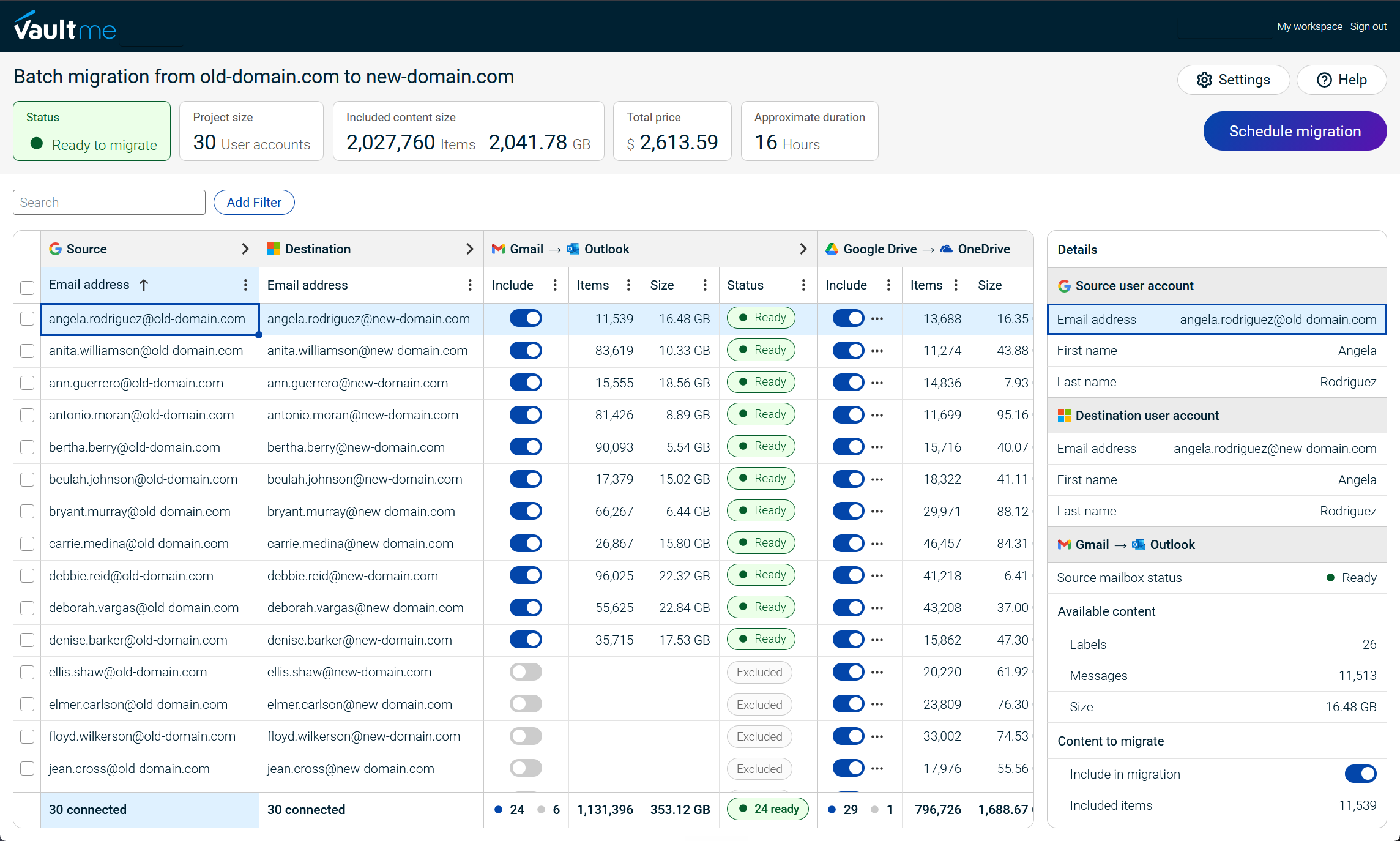
To learn more about how VaultMe can help you with your migration project, see Migrate to Google Workspace.
Use Google’s native and manual tools
Google does not provide one native process that transfers email, Google Drive files, contacts, and calendars together from personal Gmail accounts to Google Workspace. Each content type requires a separate tool or manual process.
Google’s Admin data import tool supports email from personal Gmail. The Google Workspace administrator requests access, and the source account owner authorizes the connection. The administrator can then import messages into the mapped Google Workspace user.
The remaining content types require separate processes:
- Drive files can be downloaded directly or exported with Google Takeout and uploaded to the destination. A Takeout archive does not provide a direct account-to-account migration and does not retain folder organization.
- Contacts can be exported to a CSV or vCard file and imported into the destination account. Contact labels, suggested contacts, custom fields, and duplicates should be checked after import.
- Calendars can be exported as .ics files and imported into Google Workspace.
The native and manual approach may suit migrations with limited content or where only one content type is required. For broader projects, administrators must coordinate separate processes, files, authorizations, and validation records for each user.
Other personal third-party migration tools
CloudM, Movebot, and MigrationWiz support a variety of Google and mailbox migration scenarios, but support for personal Gmail accounts is different from support for managed Google Workspace accounts. A tool may support Google Workspace as an organization-wide source without providing a direct connection for individual consumer accounts.
CloudM
CloudM’s current public documentation does not clearly identify personal Gmail accounts as a direct Google source. Its migration guide lists Google Workspace, IMAP, and Google Takeout as separate source options.
A personal Gmail mailbox may be accessible through CloudM’s generic IMAP connector, provided that the account owner can supply the required authorization. This route is limited to email and does not establish support for Google Drive files, contacts, or calendars.
Movebot
Movebot explicitly supports personal Google Drive accounts as sources for file migrations. Movebot also offers a generic IMAP source for mailbox migrations, which may provide an indirect route for transferring email from personal Gmail.
Movebot is therefore a confirmed option for personal Google Drive files, with the exact mailbox configuration and content coverage requiring confirmation.
MigrationWiz
BitTitan states that free Gmail and Google account migrations are not supported.
MigrationWiz is therefore not an option for this source scenario, even though it supports other Google Workspace migration paths.
| Tool | Drive files | Contacts | Calendars | |
|---|---|---|---|---|
| VaultMe | Full support | Full support | Full support | Full support |
| Google native tools | Yes | Manual process | Manual process | Manual process |
| CloudM | IMAP route may be possible | Not confirmed | Not confirmed | Not confirmed |
| MigrationWiz | No | No | No | No |
| Movebot | IMAP route may be possible | Full support | No | No |
The table evaluates support specifically for personal Gmail accounts, not managed Google Workspace sources.
"Full support" means the provider clearly documents the content type for this source scenario. "Manual process" means that a separate export/import process is required. "Not confirmed" means that current public documentation does not establish support and the capability should be verified with the provider.
VaultMe is the only option compared here with clearly documented support for transferring email, Drive files, contacts, and calendars from personal Gmail accounts through one coordinated workflow. Google’s native tools can cover the same general content categories through separate processes, while the other services provide only partial, indirect, or unconfirmed support for this particular source.

Perform and review the migration
For the small businesses covered by this guide (typically with no more than about 30 source accounts), the migration can usually be organized as one batch. Running a pilot with one representative account first provides an opportunity to confirm the configuration before starting the remaining transfers.
Run a pilot with one account
Choose an account that contains all main types of content included in the project, such as Gmail messages, Drive files, contacts, and calendar events. If possible, select an account with many custom Gmail labels and shared files so that the pilot reflects the expected migration results.
The pilot should confirm that:
- The user can authorize access to the source account.
- The destination has sufficient storage.
- The selected content types appear in Google Workspace.
- The migration method produces reports that are useful for review.
After the administrator and account owner approve the pilot results, the same configuration can be used for the remaining accounts.
Migrate the remaining accounts as one batch
Before starting the batch, confirm that each source owner is available to authorize access and that every destination user has been created in Google Workspace.
A simple migration tracker is usually sufficient:
| User | Source authorized | Source authorized | Report reviewed | User confirmed |
|---|---|---|---|---|
| Jane Smith | Yes | Complete | Yes | Yes |
| Sales account | Yes | In progress | No | No |
| Alex Brown | Pending | Not started | No | No |
Users should know when the migration will begin, which content types are included, and when they will be asked to review their Google Workspace accounts.
They should also understand that their personal Gmail and Google Workspace accounts remain separate.
Review migration reports
Migration reports provide a more reliable basis for review than checking a few visible folders. Some migration services provide only summary information, while tools such as VaultMe provide item-level reporting for email, files, contacts, and calendars.
The administrator should review the reports for successfully transferred, skipped, failed items, and items with warnings. Skipped items may fall outside the selected migration scope or be in an unsupported format.
All reports must be downloaded and retained as important business documents.
Ask users to confirm their content
Users know their own Gmail labels, Drive folders, contacts, and calendars better than the administrator. Each user should participate in the final review and confirm that the business content they expect to use is available in Google Workspace.
This review does not need to cover every individual item. Users can confirm their most important messages, folders, files, contacts, and upcoming calendar events while the administrator reviews the migration reports.
Any missing or unexpected content should be reported before the source accounts are retired or business activity shifts fully to Google Workspace.
Account for new content
Personal Gmail accounts may continue receiving messages or accumulating new content while the company is transitioning to Google Workspace. Remember to run delta migrations if there is a gap between the migration date and the cutover.
Complete the transition to Google Workspace
After the migration has been reviewed, the business can begin using Google Workspace as its primary environment. The transition includes adopting the company-domain addresses, handling messages sent to the old Gmail addresses, updating external services, and deciding how long the source accounts should remain active.
Begin using the Google Workspace accounts
Set a clear date from which users should conduct business through their new Google Workspace accounts. From that point, new messages, files, contacts, and calendar events should be created in Google Workspace.
The following will need to be updated:
- Gmail signatures
- Business cards and email templates
- Website and contact-page addresses
- Customer and supplier records
- Invoices, proposals, and other business documents
- Newsletter and mailing-list subscriptions
- Mobile devices and email applications
The administrator should also confirm that users can access the Google Workspace services they need and that the company’s email authentication records are active.
Handle messages sent to the old Gmail addresses
The personal Gmail addresses may continue receiving business messages after the transition. Users can configure forwarding so that new messages arrive in their Google Workspace inboxes.
Gmail supports forwarding all new messages, except spam, or forwarding only messages that match selected filters. The destination address must be verified before forwarding begins. See Google’s instructions for automatically forwarding Gmail messages.
Users can also add an automatic reply that informs senders about the new company address. The message should be brief and include the exact address the sender should use in the future.
For example:
Thank you for your message. My business email address is now jane@company.com. Please use this address for future correspondence.
Gmail’s automatic reply feature is described in Google’s Out of Office AutoReply documentation.
Forwarding and automatic replies depend on the source account remaining active. They should therefore be treated as transition measures rather than replacements for updating the sender’s records.
Update external services and sign-ins
Migrating Gmail, Drive files, contacts, and calendars does not update accounts on third-party websites. Users may still rely on their personal Gmail addresses for:
- Accounting and payment services
- Customer relationship management systems
- Social media accounts
- Advertising platforms
- Cloud applications
- Supplier portals
- Software subscriptions
Each service should be reviewed separately. Where the service permits it, change the account email to the new Google Workspace address and confirm that password recovery and security notifications reach the correct user.
Services connected through Sign in with Google require particular attention. A new Google Workspace account has a different Google identity from the personal account, even when both accounts belong to the same person. Transferring Google content does not transfer the third-party sign-in relationship.
Review file and calendar collaboration
External collaborators may still have links to files owned by the source accounts. Users should confirm that important files are shared from the intended Google Workspace accounts and that customers, suppliers, and other partners have the required access.
The same applies to calendars. Existing events may still display a personal Gmail address as the organizer. Users should review important upcoming meetings, shared calendars, and booking links and update them where necessary.
Frequently asked questions
Can personal Gmail accounts be converted into Google Workspace accounts?
No. A personal Gmail account and a domain-based Google Workspace account are separate Google accounts. The business must create Google Workspace users and then transfer the required email, files, contacts, and calendars.
Does Google transfer email, Drive files, contacts, and calendars together?
No. Google’s Admin data import tool supports email from personal Gmail, but Drive files, contacts, and calendars require separate processes. Google does not provide one native migration workflow for all four content types in this scenario.
Will Gmail labels be preserved?
This depends on the migration method. VaultMe transfers Gmail messages with their labels, while native or manual methods may organize labels differently.
Will a migration transfer ownership of the files?
No. A migration only copies the files. It does not move content or transfer ownership.
Can users continue receiving messages at their old Gmail addresses?
The source accounts can continue receiving messages while they remain active. Users can also configure forwarding to their Google Workspace email addresses and add an automatic reply announcing the new company address.
Does the migration include Google Photos and account settings?
No. This guide covers Gmail messages, Google Drive files, Google Contacts, and Google Calendars. Google Photos, passwords, chats, purchases, third-party sign-ins, and most account settings are not included.
How long does a Gmail to Google Workspace migration take?
Migration time depends on the number of accounts, the amount and type of content, Google service limits, and the selected migration method. A pilot with one representative account can provide a more useful estimate for the remaining users.
Related articles
Need to migrate mailboxes for an organization? Learn what tools are available and when to use them: Best Email Migration Tools for IT Admins Compared.
Considering a "free" Google Workspace migration? Find out what considerations you must keep in mind: Best Way to Migrate Email to Google Workspace.
Planning a Google Workspace migration? Know what to expect: Google Workspace Migration: VaultMe's How-to Guide.
Explore the most popular Google Workspace migration tools for IT admins: Best Google Workspace Migration Tools for IT Administrators.
Need to migrate from Outlook to Google Workspace? Learn how to do that: Google Workspace Migration for Microsoft Outlook.
Considering a CloudM alternative for your Google Workspace migration? Learn what options are available: Best CloudM Alternatives for Google Workspace Migration.