Best Way to Migrate Email to Google Workspace
The best way to migrate email to Google Workspace depends on the complexity of the migration and the resources available to manage it.
Google’s Data Migration Service is usually the best free option for a straightforward, email-only migration managed by an experienced administrator. VaultMe is a better fit for organizations that want guided preparation, detailed migration reports, dedicated support, or the ability to migrate other business content alongside email.
In practical terms:
- Best free method: Google’s Data Migration Service
- Best guided method for business migrations: VaultMe
- Best overall method: The option that matches your source email system, data requirements, technical expertise, and need for migration support
This guide will help you choose between Google’s native migration service and VaultMe based on the outcome you need, not simply the price or number of features.
- Start with the migration outcome, not the tool
- Choose the best method for your situation
- When Google’s Data Migration Service is the best way
- When VaultMe is the better way
- Google Data Migration Service vs. VaultMe
- The hidden cost of a free email migration
- Frequently asked questions
- Can users continue receiving email during the migration?
- Does migrating email automatically change the domain’s MX records?
- Do users have to give the administrator their passwords?
- Can VaultMe migrate more than email?
- How long does an email migration to Google Workspace take?
- Does migrating email delete it from the original account?
- Do Google Workspace user accounts need to be created before the migration?
- Related articles
Start with the migration outcome, not the tool
Before selecting a migration method, define what a successful migration should look like. The least expensive or most feature-rich tool is not necessarily the best choice if it creates unnecessary work or does not support the required outcome.
Start by answering four questions:
- Is email the only content you need to migrate?
Some organizations only need historical messages. Others also need to transfer calendars, contacts, or files. A method designed primarily for email may require additional tools and processes for other content. - Where is the email currently stored?
The available migration methods depend on whether the source is Microsoft 365, Google Workspace, personal Gmail or Outlook account, or another provider that supports IMAP. Confirm compatibility before committing to a tool. - Who will manage the migration?
Google’s native service can work well for administrators who are comfortable configuring, monitoring, and troubleshooting migrations. A guided service may be more appropriate when the person managing the project has limited migration experience or cannot dedicate significant time to it. - How will you confirm that the migration succeeded?
Completing a migration job does not automatically prove that every expected message arrived correctly. Decide in advance whether you need basic status information or detailed reports that help identify skipped, failed, or otherwise problematic items.
These answers determine whether a free native service is sufficient or whether paying for additional guidance, reporting, and support is worthwhile.
Choose the best method for your situation
Google’s Data Migration Service and VaultMe can both transfer email to Google Workspace, but they are designed for different priorities. The table below provides a starting point based on common migration scenarios.
| Migration situation | Recommended starting point | Why |
|---|---|---|
| Small, straightforward, email-only migration | Google Data Migration Service | It is included with Google Workspace and may be sufficient when advanced capabilities are unnecessary. |
| Small or midsize business without migration specialists | VaultMe | Its guided workflow and migration-specific support reduce the expertise required to manage the project. |
| Email plus files, calendars, or contacts | VaultMe | Eligible business content can be handled as part of one coordinated migration project. |
| Migration requiring detailed verification | VaultMe | Detailed item-level reports help administrators review migration results and investigate problematic items. |
| Experienced IT team with a strict software budget | Google Data Migration Service | Administrators can avoid an additional tool fee if they have the time and expertise to handle preparation and troubleshooting. |
| Migration from an unusual or legacy email system | Confirm compatibility first | The best method depends on the source system, authentication requirements, and type of data available. |
These recommendations are not absolute. A technically straightforward migration may still benefit from a third-party service if the organization has limited time or requires additional assurance. Conversely, an experienced IT team may prefer Google’s native service even for a large number of mailboxes when email is the only content being transferred and minimizing software costs is the main priority.
For step-by-step instructions for migrating to Google Workspace, see Google Workspace Migration: VaultMe's How-to Guide.
When Google’s Data Migration Service is the best way
Google’s Data Migration Service is often the best starting point for a straightforward, email-only migration. It is available through the Google Admin console and does not require purchasing a separate migration product.
The service is most suitable when:
- The source email system and authentication method are supported by Google.
- Only email needs to be migrated.
- An experienced administrator can prepare, configure, and monitor the migration.
- The organization is comfortable relying on Google’s migration status information and support resources.
- Avoiding an additional software fee is more important than reducing administrative effort.
This makes Google’s service a practical choice for organizations with uncomplicated requirements and sufficient internal expertise. For example, an IT administrator migrating standard mailboxes from a supported source may not need the additional capabilities of a paid migration service.
However, "free" does not necessarily mean that the migration has no cost. Administrators still need to spend time confirming compatibility, preparing source and destination accounts, mapping users, resolving authentication problems, monitoring progress, and investigating failed or skipped items. If other business content must also be transferred, additional migration processes may be required.
Before selecting this method, review Google’s current Data Migration Service documentation. Supported sources, prerequisites, and migration procedures can change, so decisions should be based on the current documentation rather than an older tutorial.
Google’s native service is therefore the best choice when its built-in capabilities satisfy the full project scope. If the migration requires more guidance, detailed verification, migration-specific support, or the transfer of content beyond email, a dedicated service such as VaultMe may be a better fit.
When VaultMe is the better way
VaultMe is a better fit when the organization wants to reduce the time, uncertainty, and technical effort involved in transferring email to Google Workspace. It is particularly useful for teams that do not perform migrations regularly or need more guidance than a native migration service provides.
Consider using VaultMe when:
- The person managing the project has limited email migration experience.
- Administrators want to identify account or configuration problems before the migration begins.
- Detailed item-level migration reports are required to review the outcome.
- The project needs migration-specific human support.
- Files, calendars, or contacts must be transferred along with email.
- Reducing internal administrative work is more important than avoiding a migration-tool fee.
VaultMe is a cloud migration service specializing in migrations involving Google Workspace and Microsoft 365. It also supports email transfers from Exchange and other IMAP compatible providers. For eligible Google and Microsoft accounts, a migration project can include email, files, calendars, and contacts rather than treating each type of content as an entirely separate undertaking.
The tool guides administrators through connecting accounts, mapping users, selecting content, and preparing the migration. Pre-migration checks help surface potential issues before copying begins, while progress information and detailed reports help administrators understand what happened during the transfer. Migration-specific support is available when questions or problems arise.
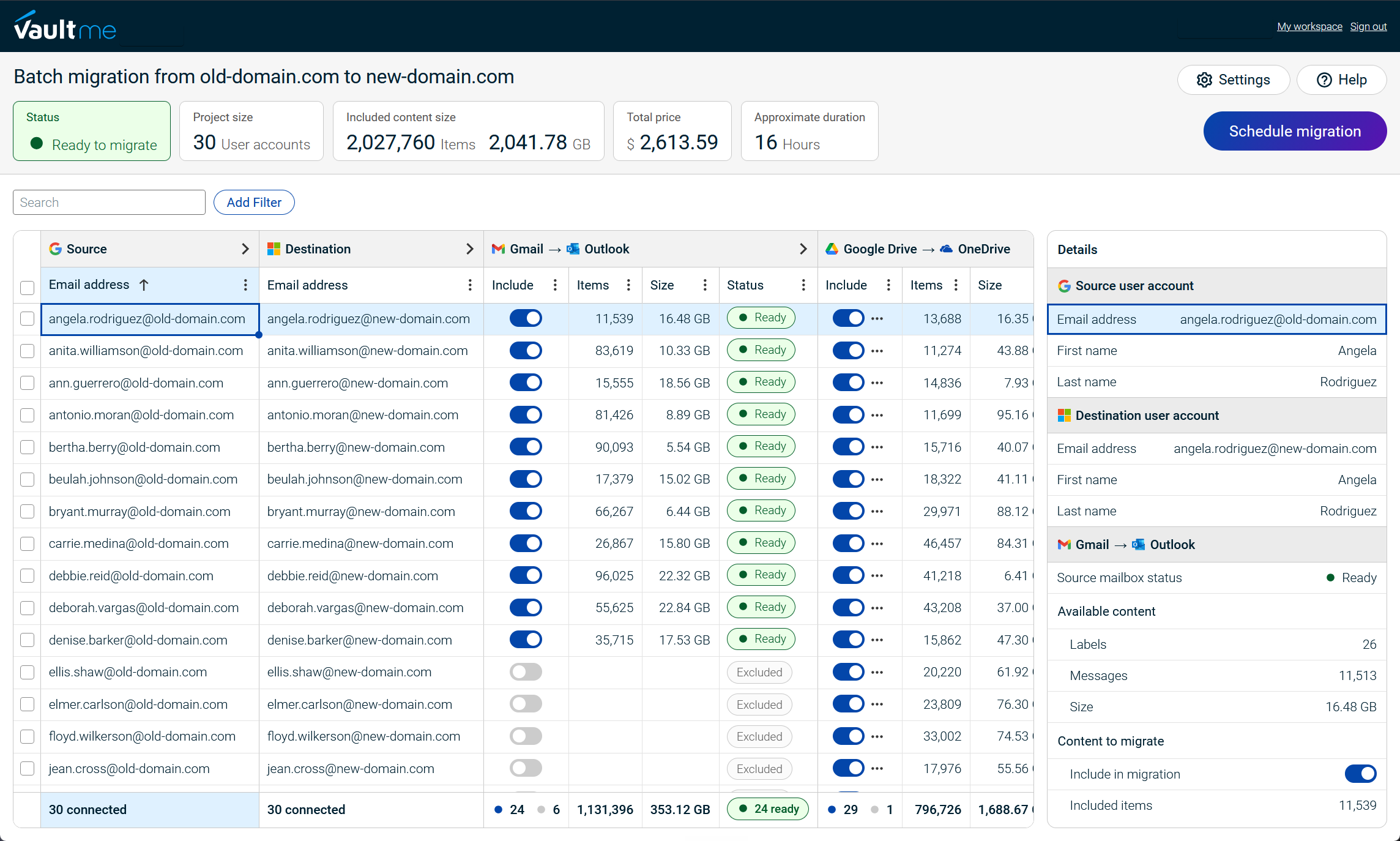
These capabilities can be valuable even when the underlying email migration appears straightforward. A small business, for example, may have only a modest number of mailboxes but no employee with the time or expertise to troubleshoot unexpected authentication or account-configuration issues.
VaultMe is a paid service, so it may not be the best choice for every organization. An experienced administrator performing a supported, email-only migration may find that Google’s native service already meets the project’s needs. VaultMe becomes the stronger option when guided preparation, clearer verification, broader content support, or reduced administrative effort justifies the additional cost.
For more information on how VaultMe can help you with your migration project, see Migrate to Google Workspace.
Google Data Migration Service vs. VaultMe
The main difference between Google’s Data Migration Service and VaultMe is not whether they can copy email. It is how much of the migration process the organization wants to manage on its own.
| Consideration | Google Data Migration Service | VaultMe |
|---|---|---|
| Additional tool fee | No separate migration-tool fee | Paid service |
| Primary use case | Small straightforward migration of email into Google Workspace | Guided business-content migration involving Google Workspace or Microsoft 365 |
| Email sources | Microsoft 365, another Google Workspace account, personal Gmail, and IMAP services such as Yahoo, iCloud, GoDaddy, Zoho Mail | Microsoft 365, Exchange, another Google Workspace account, personal Gmail and Outlook, and IMAP services such as Yahoo, iCloud, GoDaddy, Zoho Mail |
| Content beyond email | Can import calendars, contacts, and tasks from Exchange Online; migrations from Google Workspace, Gmail, and IMAP sources are primarily email-focused | Can migrate email, files, calendars, and contacts from supported Google and Microsoft accounts in one workflow |
| Setup experience | A Google Workspace super administrator configures the import, maps users, selects settings, and reviews the results | A guided workflow helps administrators connect accounts, map users, select content, and prepare the migration |
| Authentication | Connection requirements depend on the source. Exchange Online uses administrator authorization. Google Workspace migrations require authorization from the source super administrator. IMAP migrations require each user’s password or app-specific password to be entered during setup. | Administrators can connect source accounts using the required credentials or generate individual sign-in links so users can securely connect and authorize their own accounts. Administrator-level authorization is also available for supported Google Workspace and Microsoft 365 migrations. |
| Progress and reporting | Shows imported, skipped, failed, and warning counts and provides downloadable reports | Shows migration progress and provides detailed item-level reports for each migrated user |
| Support | Google documentation, Workspace support options, and administrator communities | Journey-based documentation, context-aware AI help, human support. |
| Best suited to | Administrators who want a native solution and are comfortable managing configuration and troubleshooting | Organizations that prioritize guided preparation, migration-specific assistance, and coordinated migration of supported business content |
Google’s service is the more economical choice when its capabilities cover the complete project. VaultMe adds value when the organization wants more guidance, dedicated migration support, or a single project covering multiple types of business content.
Source support and migration capabilities can change. Confirm the current requirements in Google’s documentation and with VaultMe before beginning the migration.

The hidden cost of a free email migration
Google’s Data Migration Service does not require a separate software purchase, but the tool fee is only one part of the migration cost. The organization must also account for the time required to prepare, manage, verify, and troubleshoot the project.
A useful way to evaluate the options is:
Total migration cost = tool fee + administrator time + troubleshooting + remediation
Before choosing a free migration method, estimate how much internal work the project will require. This may include:
- Manually checking whether source and destination accounts are ready for migration
- Confirming that each destination account has enough available storage
- Collecting credentials or coordinating account authorization
- Estimating how long the migration is likely to take
- Identifying configuration issues that could interrupt the migration
- Coordinating separate workflows for email, files, calendars, and contacts
- Monitoring the progress of different content types across multiple tools or projects
- Consolidating results from separate migration reports
- Finding appropriate documentation and troubleshooting problems without human assistance
An experienced administrator may be able to complete this work efficiently, making Google’s native service the most economical option. For a team with limited migration experience, however, unexpected authentication, configuration, or data-quality issues can consume considerably more time than anticipated.
A paid service such as VaultMe introduces a direct tool cost but can reduce other types of project work. Guided preparation, pre-migration checks, user sign-in links, migration-specific support, and detailed reports can make it easier to connect accounts, identify problems, and review the outcome.
This does not mean that a paid tool is always less expensive overall. The better comparison is between the complete cost of managing each option, not simply a price of zero versus a paid migration fee.
Frequently asked questions
Can users continue receiving email during the migration?
Yes. Migrating historical messages and routing new email are separate processes. Users can generally continue receiving messages in their existing accounts while historical content is copied. After the destination accounts are ready, the organization updates its MX records to direct new email to Google Workspace.
Does migrating email automatically change the domain’s MX records?
No. Migration tools copy existing content but do not automatically redirect incoming email. A Google Workspace administrator must update the domain’s MX records separately when the organization is ready to switch mail delivery.
Do users have to give the administrator their passwords?
It depends on the migration method and source account. Google’s IMAP migration requires administrators to provide each user’s password or app-specific password during setup. Other Google migration paths can use administrator authorization instead. With VaultMe, administrators can generate individual sign-in links that allow users to connect and authorize their own accounts without sharing their passwords. Depending on the source system, administrators may also connect accounts directly or use administrator-level authorization.
Can VaultMe migrate more than email?
Yes. For supported Google Workspace and Microsoft 365 accounts, one VaultMe migration project can include email, files, calendars, and contacts. Migrations from standard IMAP accounts are limited to email.
How long does an email migration to Google Workspace take?
Migration time depends on the number and size of the mailboxes, the source provider’s connection limits, the types of content being transferred, and any errors that require attention.
VaultMe scans the connected accounts before the migration and automatically estimates the completion time. The estimate is based on each account’s characteristics and the performance of similar past migrations.
Does migrating email delete it from the original account?
No. Email migration normally copies messages to Google Workspace rather than moving or deleting them from the source. The original accounts should remain available until the organization has reviewed the results and confirmed that the migration is complete. Source-account retention policies and subscription changes should be managed separately.
Do Google Workspace user accounts need to be created before the migration?
Yes. Create and license the destination users and enable Gmail before importing their email. Each source mailbox must then be mapped to the correct Google Workspace account. Creating these accounts early also gives administrators time to verify addresses, permissions, and storage capacity before copying begins.
Related articles
Can't select an IMAP migration tool? Explore your options: Best IMAP Migration Tools for Businesses.
Need to perform a Google Workspace migration? Learn what tools are available and choose the one for your project: Best Google Workspace Migration Tools for IT Administrators.
Looking for a Movebot alternative? VaultMe explains your options: Best Movebot Alternatives for Google Workspace Migrations.
Considering a MigrationWiz alternative? Learn what other tools are available and what they are designed for: Best MigrationWiz Alternatives.
Looking for a CloudM Migrate alternative? Explore the different options: Best CloudM Alternatives for Google Workspace Migration.
Need to migrate from one Google Workspace to another? Learn how you can do that:
Migrate Google Workspace Users Between Domains.
Need to migrate from personal Gmail accounts to Google Workspace? Explore the available options: Migrate Personal Gmail Accounts to Google Workspace.