How to Migrate Google Workspace Users Between Domains
Migrating Google Workspace users between domains does not move the existing user accounts. Administrators create and license destination accounts, map each source user to the appropriate destination user, and copy supported email, Drive files, calendars, and contacts.
If users will have addresses on a new domain, both environments can operate concurrently during the migration. If users must retain their current domain, most content should be migrated to temporary destination accounts before the domain is released from the source account and added to the destination.
Third–partly migration tools like VaultMe can coordinate user mapping, readiness checks, content migration, reporting, and final synchronization. Administrators remain responsible for creating users, transferring the domain, configuring Workspace settings, and switching mail delivery.
This guide covers migrations between separate Google Workspace accounts. If users remain in the same Workspace account and only their email domain is changing, administrators can generally add the new domain and rename the existing users without performing a content migration.
- What does it mean to move Google Workspace users between domains?
- Identify your domain migration scenario
- Plan the Google Workspace migration
- Prepare the destination Google Workspace environment
- Migrate user content with VaultMe
- Complete the migration when the domain is not moving
- Complete the migration when the domain is moving
- Common mistakes when migrating users between domains
- Creating destination users too late
- Using incorrect user mappings
- Moving the domain before the initial migration
- Overlooking references to the moving domain
- Changing MX records too early
- Assuming all Google Workspace settings are included
- Skipping the final synchronization
- Deleting the source account immediately
- Frequently asked questions
- Related articles
What does it mean to move Google Workspace users between domains?
In a standard migration between separate Google Workspace accounts, an administrator cannot simply move an existing user from the source environment to the destination. Instead, the administrator creates a new destination account for the user and copies supported content from the source account into it.
For example, alex@old-domain.com and alex@new-domain.com are separate Google accounts, even if they belong to the same person. The administrator maps the two accounts so the migration tool knows where Alex’s email, Google Drive files, calendars, and contacts should be copied.
For example:
| Source account | Destination account |
|---|---|
| alex@old-domain.com | alex@new-domain.com |
A complete user transition therefore involves three separate tasks:
- Create the destination identity. Set up the user, assign a Google Workspace license, and configure the appropriate organizational unit, groups, aliases, roles, and security policies.
- Migrate the user’s content. Use a migration tool such as VaultMe to copy supported email, files, calendars, and contacts into the destination account.
- Switch the user to the destination. Confirm mail delivery, provide the new sign-in details, update connected applications, and validate access to the migrated content.
The migration tool handles the content transfer, but it does not move the user account itself or reproduce the surrounding Google Workspace configuration. Those parts must be prepared separately by the administrator.
If the original domain is also moving, the user may initially be created under another domain in the destination Google Workspace account. After the domain is released from the source and added to the destination, the administrator renames the destination user to their final address.
Identify your domain migration scenario
The migration process depends on whether users will receive addresses on a different domain or keep their existing addresses.
| Scenario | Example | Migration approach |
|---|---|---|
| Move to a different domain | alex@old-domain.com becomes alex@new-domain.com | Create destination users on the new domain and migrate their content |
| Keep the existing domain | alex@company.com moves to another Google Workspace account but retains the same address | Pre-migrate content to temporary destination accounts, transfer the domain, rename the users, and run a final sync |
Moving to a different domain is simpler because the source and destination addresses can exist at the same time. Keeping the existing domain requires a coordinated cutover because a domain cannot be attached to two Google Workspace accounts simultaneously.
Plan the Google Workspace migration
Before creating destination users or transferring content, document what needs to move and how each source account will map to the destination.
Create a user inventory
List all active, suspended, archived, and former users. For each account, record:
- Primary email address and aliases
- Destination email address
- Google Drive and Gmail storage use
- Google Groups membership
- Administrative roles
- Whether the account will remain active or be archived
Map source and destination users
Create a source-to-destination mapping for every account.
| Source user | Destination user |
|---|---|
| alex@old-domain.com | alex@new-domain.com |
| taylor@old-domain.com | taylor@new-domain.com |
Check the mappings carefully. An incorrect mapping can copy one user’s content into another user’s account.
Decide what content to migrate
Determine whether users need their:
- Gmail messages
- Google Drive files
- Calendars
- Contacts
Also identify Google Workspace data that requires separate handling, such as Google Photos, calendar resources, Google Sites, and third-party applications.
Create a migration schedule
Plan an initial migration for historical content followed by a final sync near cutover. This approach allows users to continue working while most of their content is copied in advance.
Prepare the destination Google Workspace environment
Preparation depends on whether users will move to a new domain or keep the domain currently attached to the source Google Workspace account.
If the domain is not moving
When users receive addresses on a different domain:
- Add and verify the destination domain in the destination Google Workspace account.
- Configure the destination domain’s MX, SPF, DKIM, and DMARC records.
- Create each destination user with their final email address.
- Assign the required licenses.
- Confirm that every account has enough storage for the incoming content.
- Recreate required Google Groups, organizational units, aliases, policies, and other Google Workspace settings.
The source and destination accounts can operate at the same time because they use different domains.
If the domain is moving
The moving domain cannot belong to both Google Workspace accounts at the same time. Users therefore need other addresses on both sides of the migration until the domain is released from the source and added to the destination.
To prepare:
- Choose the source users’ post-cutover domain. Use another domain already attached to the source Google Workspace account or add and verify a temporary domain.
- Choose the destination users’ pre-cutover domain. Add a temporary staging domain.
- Create and license the destination users on the pre-cutover domain.
- Confirm sufficient destination storage for the incoming content.
- Map each original source user to the corresponding destination user.
- Prepare the required account renames but do not perform them yet.
The initial migration should use the users’ current source addresses:
| Migration stage | Source user | Destination user |
|---|---|---|
| Initial migration | alex@company.com | alex@temporary-domain.com |
| After domain cutover | alex@secondary-domain.com | alex@company.com |
Source users should be renamed only after the initial content migration has finished and the cutover begins.
Migrate user content with VaultMe
VaultMe can copy Gmail messages, Google Drive files (owned, shared, and files from shared drives), calendars, and contacts from the source users to their destination accounts. It does not transfer domains or Google Workspace configuration.
To set up the migration:
- Go to vaultme.com and select the option to migrate multiple user accounts.
- Choose Google Workspace as both the source and destination.
- Authorize the source and destination Google Workspace accounts.
- Map every source user to the corresponding destination user.
- Select the types of content to migrate.
- Complete VaultMe’s pre-migration checks and resolve any reported issues.
- Review the migration plan and start the transfer.
If the domain is moving, map source users to their temporary destination addresses. The mappings can be updated after the destination users receive their final addresses.
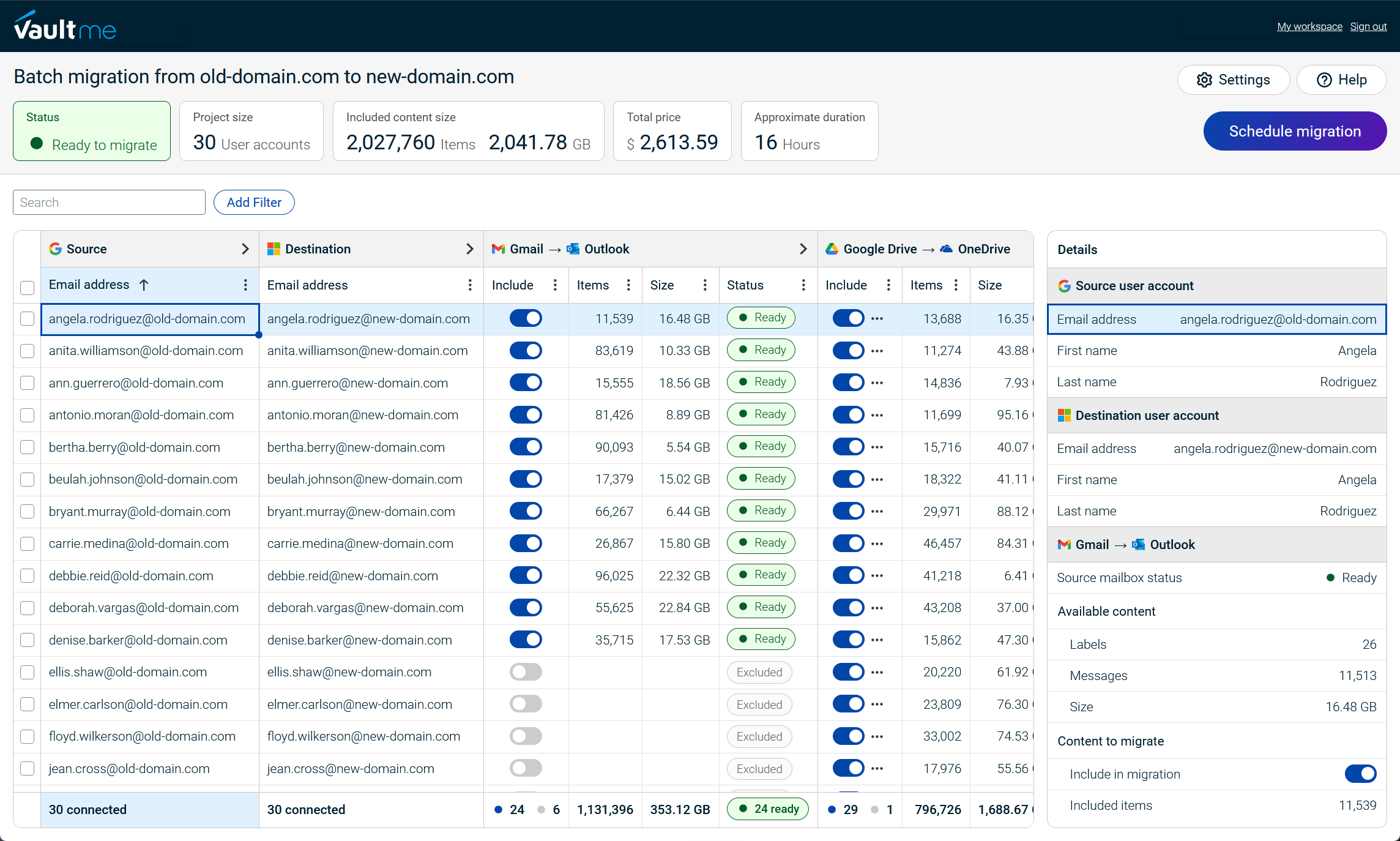
Start with a small pilot group before migrating every user. The pilot should include accounts with large mailboxes, substantial Google Drive content, shared files, and active calendars. Review the results before starting the main migration.
For more information on how VaultMe can help with your Google Workspace migration project, see Migrate to Google Workspace.
VaultMe's key strengths
- Specialized tool for Google Workspace migrations.
- Designed with the business content preservation philosophy in mind.
- Strong focus on migration preparation and validation.
- Journey-based documentation, in-product guidance, context-aware AI assistance, and human support.
Read verified VaultMe user reviews on Capterra.
Learn how VaultMe compares to other third-party migration tools: Best Google Workspace Migration Tools for IT Administrators.
Learn how VaultMe compares to Google's native tools: Transfer Google Workspace to Another Account: Migration Guide.
Complete the migration when the domain is not moving
When users receive addresses on a different domain, the source and destination Google Workspace accounts can remain active at the same time. This allows most content to be migrated before users switch accounts.
1. Run the initial migration
Copy users’ historical email, Google Drive files, calendars, and contacts to their destination accounts. Users can continue working in the source accounts while this migration runs.
2. Review the migration results
Check VaultMe’s reports and inspect representative destination accounts. Confirm that the expected content is present and organized correctly.
3. Prepare mail delivery
Ensure that MX, SPF, DKIM, and DMARC records have all been configured correctly. Decide how messages sent to the old addresses will be handled after cutover, such as forwarding or routing them to the new addresses.
4. Switch users to the destination accounts
At the scheduled cutover time, instruct users to begin signing in with their new addresses. Update email signatures, shared contact information, and third-party application accounts as needed.
5. Synchronize recent content
Run a final sync to copy content created or changed in the source accounts after the initial migration began.
6. Validate the destination
Confirm that users can sign in, send and receive email, access their files, and use their calendars and contacts. Keep the source Google Workspace account available until the migration has been fully reviewed.
Complete the migration when the domain is moving
Moving the existing domain requires a scheduled cutover after most user content has been copied.
1. Run the initial content migration
Copy historical content from users at the moving domain to their destination accounts with the temporary domain. Source users continue working with their original addresses while this migration runs.
Review the results and resolve any issues before beginning the domain cutover.
2. Rename source users and other objects
At the beginning of the cutover window:
- Change the source Google Workspace account’s primary domain if the moving domain is currently primary.
- Rename source users to the domain selected during preparation.
- Remove aliases and any remaining references to the moving domain.
The domain cannot be removed until it is no longer used by an object in the source Google Workspace account.
3. Release the domain from the source
Remove the moving domain from the source Google Workspace account. Allow additional time because Google may not make a removed domain immediately available to another account.
4. Add the domain to the destination
Add and verify the primary domain in the destination Google Workspace account, then rename destination users from their pre-cutover addresses to their final addresses.
5. Switch mail delivery
Update the domain’s MX records so that new email reaches the destination Google Workspace account.
6. Run the final synchronization
After the accounts are renamed, VaultMe automatically displays their updated email addresses. VaultMe identifies Google Workspace accounts by their unique Google IDs, which do not change when an administrator changes a user’s address. The existing source-to-destination mappings therefore remain valid and do not need to be recreated.
Run a synchronization to copy content created or changed after the initial migration.
7. Validate the migration
Confirm that users can sign in, send and receive email, and access their migrated email, Google Drive files, calendars, and contacts. Also verify Google Groups, sharing permissions, calendar resources, and third-party applications before decommissioning the source Google Workspace account.

Common mistakes when migrating users between domains
Creating destination users too late
Destination accounts must exist, be licensed, and have sufficient storage before user content can be migrated.
Using incorrect user mappings
A mapping error can copy content to the wrong destination account. Review source-to-destination mappings before starting the migration.
Moving the domain before the initial migration
When the existing domain is moving, copy historical content before releasing it from the source Google Workspace account. This reduces the amount of work required during cutover.
Overlooking references to the moving domain
Google will not release a domain while it is still used by users, Google Groups, aliases, or resources. Inventory these objects during preparation.
Changing MX records too early
MX records determine where new email is delivered. Update them only when destination users are ready to begin using their new accounts.
Assuming all Google Workspace settings are included
A user content migration does not recreate organizational units, policies, administrative roles, routing rules, or third-party application settings.
Skipping the final synchronization
Users can create or modify content while the initial migration runs. A final synchronization copies these changes after cutover.
Deleting the source account immediately
Keep the source Google Workspace account available until the migration results, mail flow, permissions, and user access have been verified.
Frequently asked questions
Do Google Workspace user accounts move between domains?
Not during a standard content migration. Administrators create accounts for the users in the destination Google Workspace account and copy supported content from each source account to its mapped destination account.
Google does not support directly merging separate Google Workspace accounts. Learn more: Limitations with multiple domains.
What content can VaultMe migrate between Google Workspace accounts?
VaultMe can migrate supported Gmail messages, Google Drive files (owned and shared), shared drives, calendars, and contacts. It does not transfer the domain, create destination users, or reproduce Google Workspace configuration such as licenses, organizational units, administrative roles, security policies, or Gmail routing rules.
Can the same domain belong to two Google Workspace accounts?
No. A domain attached to the source Google Workspace account cannot be added to the destination account at the same time. It must first be released from the source and then added and verified in the destination. See Google’s domain guidance.
When should source users be renamed if the domain is moving?
Source users should retain their original addresses during the initial content migration. Rename them at the beginning of the cutover window, after the initial migration has finished and before removing the domain from the source Google Workspace account.
Before Google permits the domain to be removed, users, Google Groups, aliases, and other references using it must be renamed or removed. See Google’s domain-removal instructions.
Does renaming users break their VaultMe migration?
No. VaultMe identifies Google Workspace accounts by their unique Google IDs rather than their email addresses. These IDs do not change when an administrator renames an account. VaultMe automatically displays the updated addresses, and the existing migration mappings remain valid.
How long does it take to move a domain between Google Workspace accounts?
The content migration can be completed in advance, but the domain change occurs during cutover. Google states that a domain removed from one managed Google Account may take up to 48 hours to become available for another. Include this possibility in the cutover schedule. See Google’s domain-reuse guidance.
Is user content deleted from the source during migration?
No. VaultMe copies supported content to the destination accounts without deleting it from the source. Keep the source Google Workspace account active until the migration results and destination access have been fully verified.
Related articles
Considering a CloudM alternative for a Google Workspace migration? VaultMe's guide explains what options are available: Best CloudM Alternatives for Google Workspace Migration.
Need help choosing a migration tool that fits your needs? Learn what tools are available: Best Google Workspace Migration Tools for IT Administrators.
Planning a migration to Google Workspace? See VaultMe's guide: How to Migrate to Google Workspace.
Need to migrate users from Google Workspace to Microsoft 365? Learn how to do that efficiently: Best Way to Migrate Users from Google Workspace to Microsoft 365.
Need a tool for your Microsoft 365 migration? Learn about different tools and how to choose one for your specific situation: Best Microsoft 365 Migration Tools for IT Administrators.
Are you an administrator in a small company IT team? Learn what you must consider when selecting a tool for migration projects: Best Migration Tools for a Small Company IT Team: 4 Options Compared.
Want to migrate business content from personal Gmail accounts to Google Workspace? VaultMe's guide provides step-by-step instructions: Migrate Personal Gmail Accounts to Google Workspace.