Best IMAP Migration Tools for Businesses
IMAP migration tools simplify migrating business email across multiple domains and email providers. Businesses can use native utilities from Microsoft or Google or choose a third-party service such as VaultMe.
There is no single best option for every project. The right choice depends on the number of accounts, administrator experience, budget, support requirements, and other factors. This article compares the available tools, including their advantages, limitations, pricing, and support.
- What is IMAP migration?
- How to choose an IMAP migration tool
- Tools that simplify IMAP migration compared
- VaultMe: A cloud IMAP migration tool for businesses
- Free and native IMAP migration tools
- How VaultMe compares to free and native tools for IMAP migrations
- Conclusion
- Frequently asked questions
- Related articles
What is IMAP migration?
An IMAP migration copies email messages and mail folders from one hosted mailbox to another. The migration tool connects to the source server through the Internet Message Access Protocol, reads the email available there, and recreates it in the destination mailbox.
IMAP can be used with both personal and business accounts. The protocol does not distinguish between them; the same migration process and limitations apply as long as the provider permits IMAP access.
Limitations of IMAP migration
IMAP is widely supported, but it provides access to a limited part of an email account. Businesses should consider the following restrictions:
- Only email is migrated. IMAP does not transfer contacts, calendars, tasks, files, mail rules, signatures, forwarding settings, account settings, or delegated permissions.
- Admin authorization is unavailable. The administrator must connect each account individually using the accounts' credentials.
- Provider limits may apply. Email providers may restrict the number of messages, amount of data, or number of connections available through IMAP. These restrictions cannot be removed by the migration tool. For example, Yahoo Mail limits access to large folders. Yahoo’s standard IMAP server may expose only the 10,000 most recent messages in each folder. If a folder contains more than 10,000 messages, older email may not be available to an IMAP migration unless the content is reorganized.
- Tool limits may apply. For example, Microsoft’s native IMAP migration method supports a maximum of 500,000 items per mailbox and a maximum message size of 35 MB. Messages outside these limits will not migrate through that method. For more information, see What you need to know about migrating your IMAP mailboxes to Microsoft 365 or Office 365.
- Large messages may be rejected. Even if the source exposes a message through IMAP, the destination provider may refuse it because of message-size, attachment-size, or mailbox-policy limits.
- Labels do not always behave like folders. Gmail uses labels rather than traditional folders. Because one message can have several labels, an IMAP migration may recreate the organization differently or produce duplicates in the destination.
- Authentication can be restrictive. Providers may disable basic password authentication, require app passwords, enforce multifactor authentication, or limit administrator access to user mailboxes.
These limitations mean that IMAP migration is most appropriate when a business needs to copy standard email and folders. If contacts, calendars, files, or provider-specific content must also be preserved, a broader account-migration method is required.
IMAP migration as a fallback method
IMAP migration is often used as a fallback when no direct, provider-specific migration method is available. Most email platforms support IMAP, so it provides a common way to access and copy email between otherwise incompatible systems.
Businesses typically use an IMAP migration when the source is a legacy server, web-hosting mailbox, smaller email provider, or another platform without a dedicated migration API. It can also provide an alternative when a migration tool does not support a direct connection to the source service.
When a provider-specific migration method is available, it is usually the better choice because it may preserve more content and metadata. Examples include:
- A direct Google Workspace connection that accesses Gmail, Google Calendar, Google Contacts, and Google Drive.
- A direct Microsoft 365 connection that accesses Outlook email, calendars, contacts, and OneDrive.
IMAP remains useful because of its broad compatibility, but it should generally be treated as an email-only fallback.
How to choose an IMAP migration tool
Because IMAP is a standard protocol, most migration tools offer the same basic transfer functions. Folder mapping, batch processing, progress monitoring, and routine error handling are standard capabilities rather than meaningful differentiators.
Businesses should focus on the factors that vary more significantly between providers:
- Mailbox authentication. Some tools require the administrator to connect the accounts, while others also generate sign-in links that the mailbox owners can use to connect to the migration tool.
- Pre-migration assessment. Determine whether the tool can scan the connected mailboxes, identify likely blockers, check destination capacity, and estimate the project’s scope before the migration starts.
- Price transparency. Some providers require a sales conversation or license purchase before the full cost is known. Prefer a tool that can calculate the project price from the actual accounts and content being migrated.
- Migration-specific support. Check whether assistance is limited to documentation and community forums or includes access to people with migration experience.
- Project size. A tool designed for a handful of mailboxes may not suit a 500-account project, while an enterprise platform may be unnecessarily expensive and complicated for a small business.
- Provider-limit guidance. No tool can remove restrictions imposed by Microsoft, Google, Yahoo or another email host. However, some tools do a better job of identifying these restrictions in advance and explaining how to prepare affected mailboxes.
- Verification detail. Check whether the tool provides only a completion status or produces item-level records showing what migrated, where it was placed, and why particular messages were skipped.
- Consolidation options. If several source mailboxes must be copied into one destination account, confirm that the tool supports many-to-one migrations and keeps the imported content organized.
- Capabilities beyond IMAP. If the project includes Google Workspace or Microsoft 365 accounts, consider whether the tool can use direct platform connections instead of IMAP. This may allow the business to migrate calendars, contacts, and files alongside email.
- Security and data handling. Review how credentials and migration data are protected, whether transfers are encrypted, how long temporary data is retained, and which privacy or compliance standards the provider follows.
The best choice is therefore not the tool with the longest list of standard IMAP features. It is the one whose pricing, assessment process, support, verification, security, and broader migration capabilities fit the business project.
Tools that simplify IMAP migration compared
| Migration option | Example tools or services | Best for | Pricing | Main limitation |
|---|---|---|---|---|
| Guided cloud migration tool | VaultMe | Small and medium-sized projects that need upfront assessment, transparent pricing, detailed verification, and human support | Pay-as-you-go account, data, and item fees | Paid service |
| Native destination tools | Microsoft 365 IMAP migration, Google Workspace data import tool | Administrators moving email into the provider that supplies the migration tool | Usually included with the destination service | Destination-specific, technical to configure, and generally supported only through documentation |
| Command-line IMAP utility | Imapsync | Technical administrators who want direct control over mailbox synchronization | Depends on how the software or service is obtained and deployed | Requires command-line expertise and more hands-on administration |
| Enterprise migration platform | MigrationWiz, CloudM | Larger organizations, managed service providers, and complex migration programs | Service licensing, packages, or custom quotes | May be unnecessarily expensive or complex for smaller projects |
| Fully managed migration service | CloudM Serviced Migrations or a specialist Microsoft 365 migration partner | Businesses that want a third party to plan and execute the project | Custom project-based pricing | Usually the most expensive option and provides less direct control |
VaultMe: A cloud IMAP migration tool for businesses
VaultMe is a cloud-based service for migrating email between IMAP-compatible accounts. It is designed for small and medium-sized business projects and runs entirely through a browser, without requiring local migration software or servers.
VaultMe's key strenghts
- Flexible mailbox authentication. An administrator can connect mailboxes directly when the required credentials are available. Alternatively, VaultMe can generate secure sign-in links that account owners use to connect their own mailboxes without sharing their credentials with the administrator.
- Pre-migration assessment. VaultMe scans connected accounts before the migration starts. It checks account access and destination capacity, identifies readiness issues, calculates the project scope, and provides an estimated duration.
- Avoids Gmail duplication. When Gmail messages have multiple labels, VaultMe migrates each message once instead of creating a separate copy for every label.
- Transparent pricing. Businesses can configure the project, connect and scan the accounts, and see the calculated price before paying. VaultMe does not require a sales call, subscription, or advance purchase of migration licenses.
- Migration-specific support. Assistance is available through detailed user-journey based documentation, in-app guidance, a context-aware AI assistant, and human support from migration professionals.
- Item-level verification. Migration reports show which messages were copied, where they were placed in the destination, and why particular items produced warnings or could not be migrated. The reports can be downloaded as Excel files.
- Many-to-one consolidation. Multiple source mailboxes can be copied into one destination account. This is useful for consolidating accounts or retaining former employees’ email in a company-controlled mailbox.
- Capabilities beyond IMAP. When Google Workspace or Microsoft 365 accounts are involved, VaultMe can use direct platform connections to migrate email, calendars, contacts, and files through the same service.
- Security and data protection. VaultMe uses encrypted cloud-to-cloud connections. Migration content is used only to perform and support the transfer. The service complies with GDPR and CCPA requirements. For more information, see VaultMe security.
- Suitable for small and medium-sized projects. VaultMe’s multi-account service is designed primarily for migrations involving approximately 5 to 500 accounts. It can also be used for individual mailbox transfers.
Tradeoffs
- VaultMe is a paid service.
- The final price increases with the number of accounts, gigabytes, and items migrated.
- Projects substantially larger than 500 accounts should be discussed with VaultMe before committing to the service.
VaultMe’s multi-account pricing is currently $59.99 per migrated user, plus $0.20 per GB and $0.20 per 1,000 items. For more information, see VaultMe pricing.
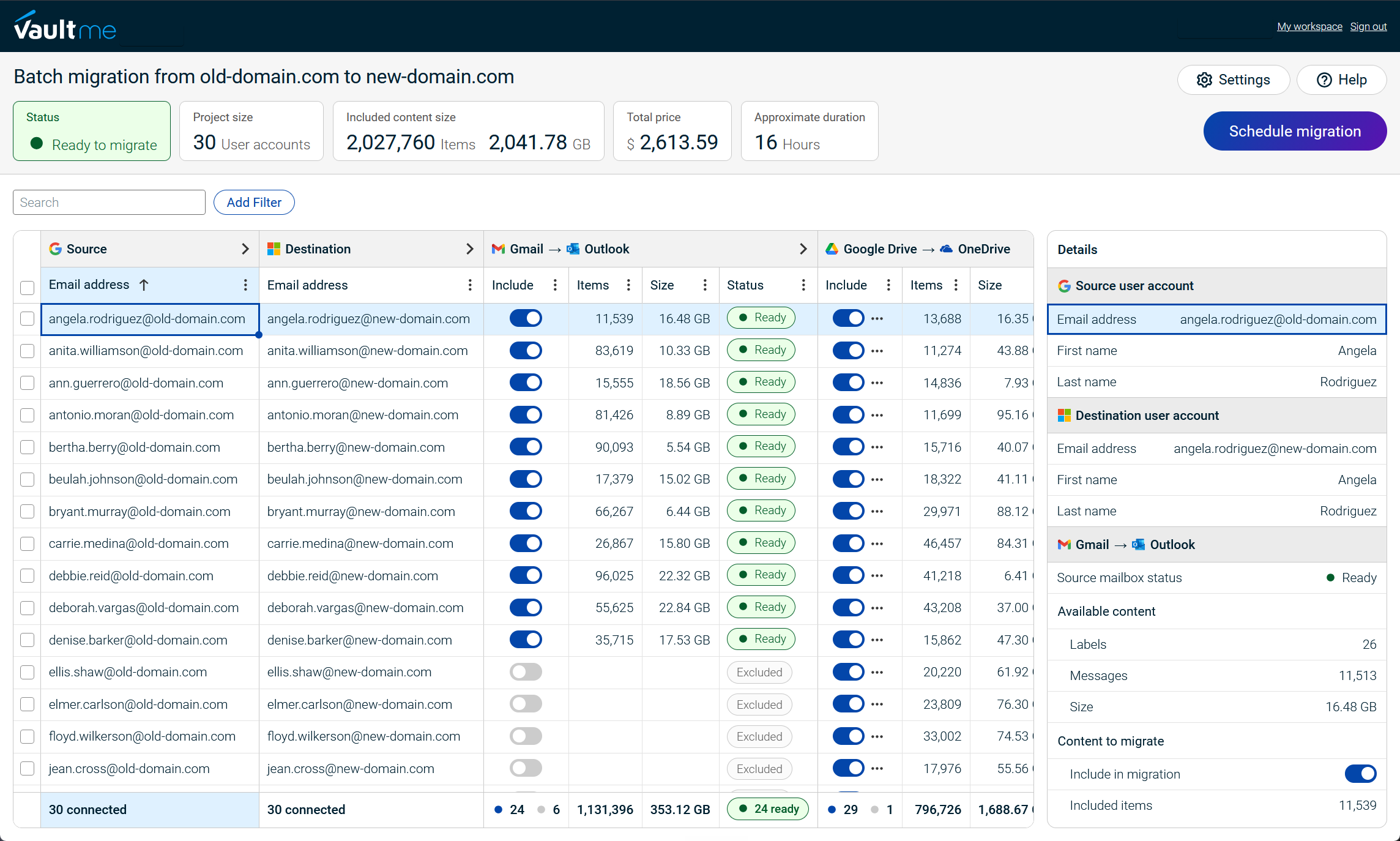
VaultMe is a strong IMAP migration option for businesses that value pre-migration assessment, upfront pricing, flexible user authorization, detailed verification, and access to migration-specific support. It is also useful when some accounts require an email-only IMAP transfer while others can use direct Google or Microsoft connections to migrate additional content.

Free and native IMAP migration tools
Businesses transferring email into Microsoft 365 or Google Workspace can use migration utilities supplied by the destination provider. Microsoft offers an IMAP migration process through the Exchange admin center and PowerShell, while Google provides an email import tool for administrators.
These utilities generally do not require a separate migration-software purchase, but they still require active destination licenses and administrator time.
Key strengths of native IMAP migration tools
- No separate third-party migration fee is usually required.
- The tools operate within the destination provider’s administrative environment.
- They are suitable for straightforward email-only migrations.
- Official setup and troubleshooting documentation is available.
Tradeoffs
- Source credentials must be collected. Administrators generally need credentials or app passwords for the participating source mailboxes. User-facing authorization links are unavailable.
- No comprehensive pre-migration assessment is provided. Native tools may validate the connection but do not necessarily scan every mailbox, calculate the complete scope, check all readiness conditions, or estimate the project duration before migration.
- Operational costs are not known upfront. Although there is no separate tool fee, the real cost of administrator time, setup, troubleshooting, and verification is not calculated in advance.
- Migration-specific support is limited. Assistance is generally limited to product documentation and community forums, which may not be sufficient for a time-sensitive or unusual migration.
- Administrative work increases with project complexity. Native tools may work well for standard projects but require significant manual administration as the number of accounts and exceptions increases.
- Manual verification may still be necessary. Migration status and error information may be available, but administrators can still need to perform manual checks to confirm the completeness of each mailbox.
- Consolidation workflows are limited. Workflows are generally designed around moving each source user into a corresponding destination mailbox. Many-to-one retention or consolidation scenarios may require additional planning.
- No capabilities beyond IMAP. The IMAP workflow transfers email and folders only. Calendars, contacts, files, and other content require separate tools or provider-specific migration processes.
- Destination restrictions. Microsoft’s native utility migrates only into Microsoft 365, while Google’s utility migrates only into Google Workspace.
Microsoft’s native IMAP migration method also limits each mailbox to 500,000 items and imposes a maximum migratable message size of 35 MB. For more information, refer to What you need to know about migrating your IMAP mailboxes to Microsoft 365 or Office 365.
Native IMAP tools are most appropriate when an experienced administrator is available, the destination platform provides a suitable utility, and the project is limited to standard email and folders.
How VaultMe compares to free and native tools for IMAP migrations
| Criteria | VaultMe | Microsoft 365 native IMAP migration | Google Workspace data import tool |
|---|---|---|---|
| Mailbox authentication | Administrators can connect mailboxes directly or send secure sign-in links that allow account owners to connect their own mailboxes. | Requires source mailbox passwords or, when supported by the source server, specially formatted administrator credentials. Credentials are commonly uploaded in a CSV file. | Requires each source IMAP address and password or app password. The IMAP workflow does not generate authorization links for mailbox owners. |
| Pre-migration assessment | Scans connected accounts, checks access and destination storage, identifies readiness issues, calculates scope, and estimates duration before payment. | Tests the migration endpoint, but administrators must assess mailbox size, destination capacity, provider limits, and project duration separately. | Tests the IMAP server connection, but does not provide a complete pre-migration assessment or duration estimate. |
| Price transparency | Calculates the project price from the connected accounts and scanned content before payment. | No separate tool fee; included with Microsoft 365. Administrator time and troubleshooting costs are not calculated. | No separate tool fee; included with Google Workspace. Administrator time and troubleshooting costs are not calculated. |
| Migration-specific support | Journey-based documentation, contextual guidance, context-aware AI assistance, and human support are available. | Primarily Microsoft documentation and community resources. Other support availability depends on the organization’s Microsoft support plan. | Documentation and community resources are available. Access to Google Customer Care depends on the Workspace subscription and support plan. |
| Project size | Designed primarily for small and medium-sized migrations of approximately 5–500 accounts, with support for individual transfers as well. | A CSV can contain up to 50,000 users, although Microsoft recommends dividing large projects into smaller batches. | Supports up to 100 IMAP users in one import. Additional users require another import. |
| Provider-limit guidance | Provides preparation guidance for specific providers and highlights relevant readiness issues before migration. | Microsoft documents general IMAP restrictions, but administrators must investigate many source-provider limitations themselves. | Provides connection details for common IMAP providers, but administrators remain responsible for provider-specific restrictions and preparation. |
| Verification detail | Produces item-level records showing what migrated, where it was placed, and why an item produced a warning or failed. Reports can be exported to Excel. | Provides migration status and error information, but administrators may need to perform additional mailbox-level verification. | Shows discovered, imported, skipped, warning, and failed counts and provides downloadable import reports. |
| Consolidation options | Supports copying multiple source mailboxes into one destination account and provides options for organizing the imported content. | Primarily structured around mapping source users to existing Microsoft 365 mailboxes. Complex consolidation scenarios require additional planning. | Explicitly supports one-to-one and many-to-one mapping, but not one source IMAP mailbox to multiple Workspace users. |
| Capabilities beyond IMAP | Can use direct Google Workspace and Microsoft 365 connections to migrate email, calendars, contacts, and files when those platforms are involved. | The IMAP method is email-only. Microsoft provides separate migration methods for Exchange and Google Workspace. | The IMAP method is email-only. Google provides separate direct import methods for Exchange Online, Google Workspace, and personal Gmail. |
| Security and data handling | Uses encrypted cloud-to-cloud connections. Complies with GDPR and CCPA requirements. | Microsoft states that uploaded CSV information is transferred over SSL and encrypted when stored on Microsoft Exchange servers. | Encrypts Workspace data at rest and in transit; administrators must securely handle CSV files containing source mailbox passwords or app passwords. |
| Primary limitation | Paid service. | Imposes a limit of 500,000 items per mailbox and 35 MB per message. | Imports only into Google Workspace; accepts no more than 100 users per import. |
Conclusion
The best IMAP migration tool depends less on basic email-transfer features, which are similar across most tools, and more on the surrounding migration experience. Businesses should compare authentication options, pre-migration assessment, price transparency, project size, provider guidance, verification detail, consolidation capabilities, support, and security.
Microsoft and Google provide native tools for moving IMAP email into their respective platforms without a separate migration fee. VaultMe is a strong alternative for businesses that want a guided assessment, user sign-in links, upfront pricing, item-level verification, many-to-one consolidation, and access to migration-specific support. It can also use direct Google Workspace and Microsoft 365 connections when the project includes content that IMAP cannot transfer.
Frequently asked questions
What tools simplify IMAP migration for multiple domains?
VaultMe simplifies multi-domain IMAP migrations by allowing businesses to map and manage accounts from different domains and email providers within one project. Microsoft and Google also offer native IMAP tools, but they migrate only into their respective platforms and may require separate configurations for different source servers.
What is the best IMAP migration tool for businesses?
There is no single best tool for every business. Native Microsoft or Google tools may suit straightforward migrations into their respective platforms. VaultMe is a strong option for small and medium-sized projects.
How can I migrate multiple IMAP mailboxes in bulk?
Use a migration tool that lets you import source and destination account mappings from a spreadsheet. Because IMAP usually requires credentials or app passwords for each mailbox, the administrator must either collect them securely or use a service such as VaultMe that can send sign-in links to mailbox owners.
How do I migrate IMAP email to Microsoft 365?
Create and license the destination mailboxes, collect the source IMAP server details and mailbox credentials, and map each source account to its Microsoft 365 destination. You can perform the transfer with Microsoft’s native IMAP migration tool or a third-party service such as VaultMe. After migration, verify the results and update the required mail-routing records.
How do I migrate IMAP email to Google Workspace?
Create the destination Google Workspace users and enable Gmail for them. In the Google Admin console, connect the source IMAP server and map each source mailbox to a destination user. Google’s data import tool accepts up to 100 IMAP users per import. VaultMe can also migrate IMAP email into Google Workspace through a guided workflow.
How do I migrate email between two IMAP providers?
Connect both mailboxes to an IMAP migration tool using their server details, usernames, and passwords or app passwords. Map each source mailbox to its destination, run the transfer, and verify the result before closing the source account. The source and destination can be different providers as long as both permit the required IMAP access.
Does IMAP migration preserve folders and subfolders?
Generally, yes. IMAP migration tools copy the mailbox’s folder and subfolder structure. However, system folders such as Sent, Drafts, Spam, Trash, and Archive may be renamed or mapped differently by the destination provider. Provider restrictions and unsupported folder names can also affect the result.
Does IMAP migration include contacts and calendars?
No. IMAP provides access to email messages and mail folders only. It cannot transfer contacts, calendars, tasks, files, mail rules, or other account settings.
How do I migrate contacts and calendars when the source only supports IMAP?
Check whether the source provider offers separate export options. Contacts can often be exported as a CSV or vCard file, while calendars may be available in ICS format. Import those files into the destination account separately. If the source is Google Workspace or Microsoft 365, use a direct provider-specific migration method instead of IMAP; VaultMe can migrate contacts and calendars directly for supported Google and Microsoft account combinations.
Why does an IMAP migration require an app password?
Some providers do not allow third-party tools to connect with the account’s regular password, particularly when multifactor authentication is enabled. In these cases, the mailbox owner may need to create a provider-specific app password for the migration.
Related articles
Need a tool for your Microsoft 365 migration? Learn about different tools and how to choose one for your specific situation: Best Microsoft 365 Migration Tools for IT Administrators.
Need to perform a Google Workspace migration? Learn what tools are available and choose the one for your project: Best Google Workspace Migration Tools for IT Administrators.
Can't choose a migration tool for your project? Learn what options are available and when to choose each: Best Email Migration Tools and Services for IT Admins.
Looking for a MigrationWiz alternative? VaultMe explains your options in this article: Best MigrationWiz Alternatives for Business Email Migration.
Need to transfer users from Google Workspace to Microsoft 365? Learn how you can do that effectively: Best Way to Migrate Users from Google Workspace to Microsoft 365.
Need to transfer email accounts to Office 365? Learn what options are available: Best Way to Migrate Email Accounts to Office 365.